Lesson 5.6: Modern .NET publish modes
The earlier lessons in Part 5 were easy. You opened dnSpy, clicked and got nearly the original source. That’s the old .NET Framework. .NET Core and .NET 5, 6, 7, 8 and later add several publish modes, and one of them removes the IL completely, so you end up reversing native code like C++. This lesson helps you recognize which kind you have, so you don’t spend a whole session looking for IL in a file that has none.
The three modes that matter are single-file, ReadyToRun and NativeAOT. They get harder in that order, and NativeAOT is where things change.
.NET Core vs .NET Framework
The old .NET Framework runs on the CLR that’s preinstalled in Windows, and the small .exe just calls into the system runtime. .NET Core (and .NET 5+) carries its own runtime, so packaging is more flexible. A modern .NET app can be published in several ways. Framework-dependent needs the runtime installed on the machine, gives a small file and is still pure IL, as easy as .NET Framework. Self-contained ships the runtime too, so it’s heavier but still IL. Single-file merges everything into one exe, ReadyToRun (R2R) puts precompiled native code next to the IL, and NativeAOT compiles straight to native and throws the IL away.
The last three are the ones to understand well.
Single-file
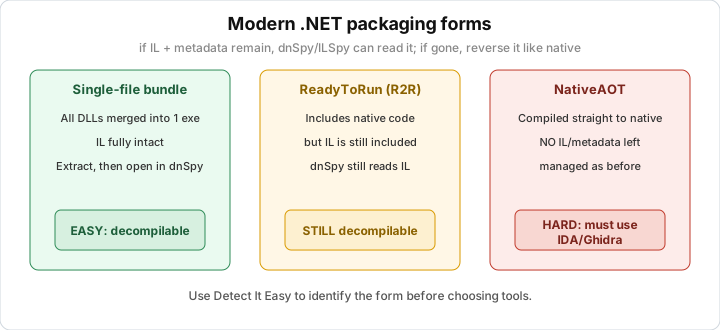
With PublishSingleFile=true, the toolchain puts all the dependent DLLs (and sometimes the runtime) into one .exe. It might look like hiding, but it’s just a bundle. The .NET DLLs are still intact inside, repacked.
Newer dnSpy and ILSpy can often open a single-file exe directly and list the assemblies inside. If not, use a bundle extraction tool like ExtractAllTheThings or a dotnet-bundle extract script, which splits the file back into DLLs, then open each DLL as usual. Signs of a bundle are that the .exe is fairly large (tens of MB if self-contained), and DIE or the hex view shows several .NET assemblies glued together.
So single-file is only a packaging layer. You can still decompile everything, you just need to open it the right way.
ReadyToRun (R2R)
R2R compiles part of the IL ahead of time into native code, so the app starts faster without JITting from scratch. For a reverser the point is that R2R keeps both. There’s precompiled native code, but the IL and metadata are still in the file.
So you can still decompile to C#. dnSpy and ILSpy read the IL part as usual. The native part is a compiled copy of the same IL and adds no new information. Unless you suspect the runtime behaves differently from the IL (rare), reading the IL is enough.
R2R looks scarier than it is. It’s still managed and still decompiles fine.
NativeAOT
NativeAOT (Native Ahead-Of-Time) compiles the whole program to native machine code, like C++. No CLR loads IL at runtime, there’s no JIT, and there’s no IL and no managed metadata left to decompile.
Opening a NativeAOT binary in dnSpy or ILSpy fails, or shows a native PE with an empty managed part, so don’t waste time on it. You reverse it like a C++ binary with IDA, Ghidra and x64dbg, read the assembly and recover the logic by hand. Everything from Part 1 to Part 4 gets used here. There’s a small help, since the .NET runtime leaves a few traces. Some metadata may remain for reflection, type names show up in runtime tables, and there are characteristic strings from the CoreCLR/NativeAOT runtime. A few community scripts try to recover method names from these tables, but don’t expect clean C# like before.
NativeAOT is still new and less common than the normal IL kind, but it’s used more and more for CLI tools and apps that need fast startup. If you meet a “.NET app” that dnSpy gives up on, NativeAOT is the first thing I’d suspect.
Quick identification with Detect It Easy
Triage (see Lesson 2.1) decides which way you go. If DIE reports “.NET” with assembly info and dnSpy shows a namespace tree, it’s pure IL (framework-dependent, self-contained or R2R) and you can decompile freely. If the file is very large and DIE still sees the .NET signs but it opens oddly, it’s probably a single-file bundle, so extract it and then open it. If DIE reports a plain native PE (for example “C++” or just “PE”) but you know the origin is a .NET app, or you see strings related to the CoreCLR/NativeAOT runtime, mutexes, or .NET type names in a file with no managed header, it’s very likely NativeAOT. Switch to IDA or Ghidra.
In a manual check, a PE with managed code has a CLI header (the COM Descriptor Data Directory is nonzero). Pure native has this entry empty. PE-bear or DIE shows it.
Lab
The goal is to tell the three modern .NET publish styles apart and know which ones can still be decompiled and which must be reversed as native code. You need Detect It Easy (with its command-line diec), dnSpy and optionally PE-bear. If you have the dotnet SDK, do part A, otherwise do part B.
For part A, create a minimal app:
1
2
dotnet new console -o aotdemo
cd aotdemo
Edit Program.cs so it has a bit of logic (read an argument, print a string), then publish it three ways into three different folders:
1
2
3
4
5
6
7
8
9
10
11
# 1. single-file (self-contained, still IL)
dotnet publish -c Release -r win-x64 --self-contained true \
  -p:PublishSingleFile=true -o out-singlefile

# 2. ReadyToRun (native + IL)
dotnet publish -c Release -r win-x64 --self-contained true \
  -p:PublishReadyToRun=true -o out-r2r

# 3. NativeAOT (native only, needs the aot workload)
dotnet publish -c Release -r win-x64 \
  -p:PublishAot=true -o out-aot
Run diec on the exe in each of the three folders and note what DIE says. Try opening each exe in dnSpy and see which ones show the namespace tree and decompile to C#, and which one dnSpy gives up on. Compare the three file sizes and explain them. For the NativeAOT build, open it in Ghidra or IDA and check whether any managed-style method names remain, and look for strings related to the runtime.
For part B, without the SDK, use .NET files you already have as samples. Run diec dnSpy.exe and diec ILSpy.exe (or the accompanying .dll files) and see whether DIE recognizes them as a .NET apphost or a real assembly, and why the main code lives in the .dll and not in the apphost .exe (see Lesson 2.1). Open a .NET DLL such as ILSpy’s ICSharpCode.Decompiler.dll in dnSpy and confirm it decompiles to C#, which means plain IL. Then use PE-bear or DIE to check a file’s Data Directory, where a non-zero COM Descriptor (CLI header) entry means managed code, and zero means pure native. Confirm this yourself on a .NET DLL and on a native DLL, for instance a Qt5Core.dll from the DIE folder. Finally write down your own identification rules, meaning which signs tell you to open dnSpy and which tell you to switch to IDA or Ghidra.
Show solution
Comparing the three publish styles:
| Style | What DIE says | Opens in dnSpy? | IL still present? | Approach |
|---|---|---|---|---|
| single-file (self-contained) | .NET, very large file, bundle marker | Yes (it lists the inner assemblies itself), or extract first | Yes | Decompile normally after extracting |
| ReadyToRun | .NET, with native code too | Yes | Yes (with native) | Read the IL, ignore the native part |
| NativeAOT | Native PE (no managed marker) | No | No | Reverse like C++ with IDA/Ghidra |
Single-file is a bundle, and the original .NET DLLs are glued onto the end of the exe in a dedicated bundle format. Recent dnSpy builds recognize it and let you browse each assembly as a separate file. If dnSpy can’t open it, use ExtractAllTheThings or a bundle extraction script to split it into .dll files and open those normally. The size is large (tens of MB) because the runtime is packed in.
ReadyToRun holds two versions of the same logic in the file, the original IL and a precompiled native version for fast startup. dnSpy reads the IL part and decompiles to C# as usual, and the native part is a compiled copy that adds nothing. In practice, when you meet R2R just read the IL and ignore the native part unless you have a special reason.
NativeAOT is the big difference. The program is compiled straight to machine code, with no IL or managed metadata left. dnSpy and ILSpy can’t help because there’s nothing for them to read. You open it in IDA or Ghidra and reverse it like a C++ binary, where you read assembly, rebuild the logic and recover structs. The .NET runtime does leave a few traces (type tables for reflection, runtime strings), and some community scripts try to restore method names from them, but the result is never as nice as decompiling IL.
Identifying by the CLI header (part B). Every PE with managed code declares a CLI header, which is the COM Descriptor entry in the Data Directory table of the Optional Header (index 14). A non-zero COM Descriptor (pointing to an RVA) means the file has managed code and opens in dnSpy or ILSpy. That’s true for every .NET DLL and for R2R and single-file builds. A COM Descriptor of zero means a pure native PE, which is true for NativeAOT and for native DLLs like Qt5Core.dll. In PE-bear, open the Optional Header tab, scroll to Data Directories and look at the .NET MetaData (COM Descriptor) row. DIE also shows whether a file is .NET, based on the same header.
A short set of rules. Triage with DIE before anything else. If DIE says .NET and dnSpy shows a namespace tree, it’s plain IL and you can decompile freely (framework-dependent, self-contained, R2R). If a .NET file is very large and opens strangely, it’s single-file, so extract the bundle and open the pieces. If you know it’s a .NET app but DIE says pure native and dnSpy gives up, it’s NativeAOT, so switch to IDA or Ghidra and reverse it like C++.
Misreading the publish style is the biggest time sink when you start with .NET RE. People sit for an hour trying to force dnSpy to open a NativeAOT binary when one DIE triage would have told them to open IDA. A minute of triage saves a lot of frustration.
Key takeaways
Modern .NET has several publish modes, increasingly hard to analyze, namely framework-dependent, self-contained, single-file, R2R, NativeAOT. Single-file is just a bundle, so extract it (dnSpy, ExtractAllTheThings) and open each DLL, since it’s still IL. R2R keeps both native and IL, so read the IL and decompile as usual.
NativeAOT discards the IL and managed metadata, so you reverse it like C++ with IDA or Ghidra. Always triage with DIE first, because whether a CLI header exists (managed) decides the whole approach.