Lesson 6.2: Anatomy of an APK file
When someone hands you an .apk and says “take a look at what this app does”, the usual reflex is to drag it straight into JADX and get lost in thousands of classes. Wait a bit. An APK has a clear layout, and looking at the right place first saves a lot of time. This lesson opens it up to see what’s inside.
An APK is a ZIP file
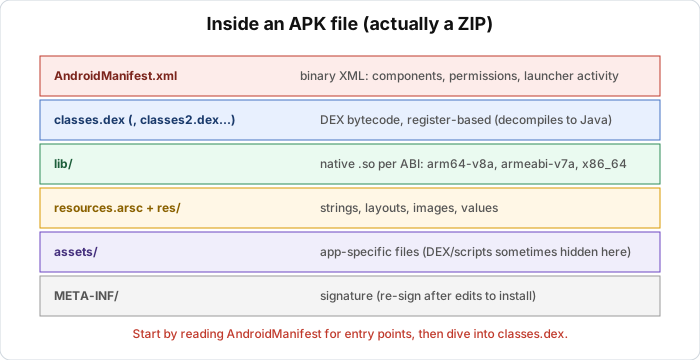
An APK has no special format. It’s a renamed ZIP file. Change the .apk extension to .zip, extract it with any tool and you see everything inside. Try it with any app on your phone.
Inside a typical APK:
1
2
3
4
5
6
7
8
9
10
11
app.apk  (ZIP)
├── AndroidManifest.xml     declares the app: components, permissions, entry points
├── classes.dex             Java/Kotlin bytecode (may also have classes2.dex...)
├── resources.arsc          compiled resource table (strings, layout ids...)
├── res/                    resources: layout, drawable, values
├── lib/                    native .so libraries, split by ABI
│   ├── arm64-v8a/
│   ├── armeabi-v7a/
│   └── x86_64/
├── assets/                 raw files the app reads itself (models, config, scripts...)
└── META-INF/               signature and manifest of the ZIP file itself
Not everything is equally worth looking at. When I triage, I look at AndroidManifest first (to know the entry point), then classes.dex (the main logic), then lib/ if there’s native code (sensitive logic often gets pushed down here), and finally assets/ if I suspect hidden data.
AndroidManifest.xml
The manifest is the app’s declaration of which components it has, which permissions it asks for, and most useful for a reverser, which screen runs first.
One catch is that the manifest in an APK isn’t plain-text XML but binary XML (AXML), and opening it in a text editor gives garbage. You need a decoding tool. Drag the APK into JADX and it shows the manifest in readable form, or run apktool d app.apk and apktool decodes the manifest and resources into text.
First look for the launcher activity, which is the activity with an intent-filter containing android.intent.action.MAIN and android.intent.category.LAUNCHER. This is the opening screen, where you start following the flow. Next is the application class (the android:name attribute in the <application> tag). If there is one, it runs even before the first activity, and many apps put initialization and even anti-analysis here. Then the permissions. <uses-permission> tells what the app touches (internet, SMS, contacts, location), so the list gives you a quick idea of what type of app it is, like reading the imports of a PE. Finally the exported components, where a component with android:exported="true" can be called from outside, which is worth noting when assessing security.
classes.dex
After compilation, Java and Kotlin code doesn’t live in loose .class files like on the desktop. It’s merged and converted into a single file, classes.dex, holding DEX bytecode (Dalvik Executable).
The main difference from ordinary JVM bytecode is that JVM .class is stack-based, where instructions push operands onto a stack and then operate, while DEX is register-based, where instructions work directly on virtual registers (v0, v1, v2…). That’s closer to real assembly, and more compact.
You rarely read raw DEX. Usually a decompiler (JADX, CFR…) rebuilds the DEX into mostly readable Java. When you need to modify something, you drop down to smali (the text form of DEX bytecode), covered in Lesson 6.4.
Multidex
A single DEX file has a historical limit of about 65536 methods (the limit of the 16-bit method reference index). Large apps get past it with multidex, using classes.dex, classes2.dex, classes3.dex… The code may be scattered across several dex files, so don’t only look at the first one. JADX merges them all so you usually don’t need to worry, but with apktool you have to pay attention.
lib/
The lib/ folder holds native libraries as .so (ELF shared objects, like Linux), split by CPU architecture (ABI), with arm64-v8a for today’s 64-bit phones, armeabi-v7a for older devices, x86_64 for emulators.
Sensitive logic (license checks, encryption, anti-cheat, the core of a game) is often written in C/C++ through JNI and put in a .so because it’s much harder to read than Java. An app with a large .so may have its interesting part in native and not in Java. Then you take the .so to IDA or Ghidra and reverse it like a normal ARM binary (see Lesson 1.9 on ARM64). The bridge from Java down into native is JNI, the topic of Lesson 6.7.
assets/ and resources
assets/ holds raw files the app reads at runtime, such as configuration, machine learning models, scripts, sometimes even a secondary dex/so that gets loaded dynamically (a sign of a packer, see Lesson 6.8). res/ and resources.arsc hold UI resources and strings, and res/values/strings.xml often contains URLs, keys and error messages that are useful for tracing.
META-INF
META-INF/ holds the APK’s signature (.RSA/.SF/.MF files with the v1 scheme, while v2 and later sign in a separate block of the ZIP file). You don’t read it to understand logic, but remember that every APK installed on a device must be signed. When you modify an app and repackage it (Lesson 6.4), the old signature breaks, and you have to re-sign with your own key before it will install.
Lab
The task is to dissect the structure of an APK, so you get comfortable with the layout and can read AndroidManifest to find entry points before reading code. You need any APK, either a free app from a legitimate source or one you build yourself in Android Studio, and it doesn’t have to be complex. For tools, JADX or apktool and a ZIP extractor such as 7-Zip will do, and optionally aapt/aapt2 from the Android SDK to read the manifest quickly from the command line.
First view the APK as a ZIP. Copy the file and change the .apk extension to .zip (or open it straight in 7-Zip), list the top-level entries, and compare them with the diagram in the lesson, and find AndroidManifest.xml, classes.dex, resources.arsc, res/, lib/, assets/ and META-INF/. Count the dex files too, and note whether the app uses multidex (is there a classes2.dex, classes3.dex and so on?).
Then read AndroidManifest. Drag the APK into JADX, open the Resources section and find AndroidManifest.xml (JADX decodes the binary XML itself), or run apktool d app.apk and open the decoded manifest. Find the launcher activity, the activity whose intent-filter has action.MAIN plus category.LAUNCHER, and write down the full class name. Check whether there is a custom application class (the android:name attribute on the <application> tag). List the permissions (uses-permission) and guess from them what kind of app it is. Next go into the lib/ folder and check which ABIs are there and whether any .so file is notably large. If so, note its name so you can load it into IDA or Ghidra later. Finally look through assets/ for anything that resembles a secondary dex or so, an encrypted file, or a suspicious config.
Some questions to think about. Why does reading the manifest first save more time than opening classes.dex directly? What does it suggest when an app has very little Java code but one very large .so file? And why can’t you open AndroidManifest.xml directly in Notepad? When you’re done, compare with the solution.
Show solution
This solution describes the typical result. The specific numbers (class names, dex count) depend on the APK you chose, but the structure and the way of reading are the same.
Task 1: an APK is a ZIP
Rename it to .zip and extract it, or open it with 7-Zip. You see the familiar entries:
1
2
3
4
5
6
7
AndroidManifest.xml    binary XML, can't be read directly
classes.dex            main code
resources.arsc         compiled resource table
res/                   layouts, drawables, values
lib/                   native .so per ABI (if the app has a native part)
assets/                raw files (may be empty)
META-INF/              signatures (MANIFEST.MF, *.SF, *.RSA, or a v2 block)
You need no special tool to see the layout, just the knowledge that an APK is a ZIP.
Task 2: multidex
A small app usually has only classes.dex. A large app (many libraries) also has classes2.dex, classes3.dex and so on. If you use apktool manually, remember the code is spread across these files. JADX merges everything automatically, so with JADX you rarely have to worry about it.
Task 3: AndroidManifest
Open it with JADX (the Resources section) or apktool d. A launcher activity looks like this:
1
2
3
4
5
6
<activity android:name="com.example.app.MainActivity">
    <intent-filter>
        <action android:name="android.intent.action.MAIN"/>
        <category android:name="android.intent.category.LAUNCHER"/>
    </intent-filter>
</activity>
com.example.app.MainActivity is where you start following the flow when reversing. If the <application> tag has android:name=".App" or some specific class, that’s the Application class, which runs even before the first activity. Many apps put library initialization, string decryption and anti-analysis checks in this class’s attachBaseContext or onCreate, so always glance at it. Example permissions:
1
2
3
android.permission.INTERNET
android.permission.ACCESS_NETWORK_STATE
android.permission.READ_EXTERNAL_STORAGE
INTERNET means the app talks to a server, so look at the networking part. SMS, CONTACTS or ACCESSIBILITY permissions in an app whose function is unclear are suspicious.
Task 4: native libs
The ABIs you commonly see in lib/ are arm64-v8a, the current 64-bit phones and the one you usually reverse, armeabi-v7a, older 32-bit devices, and x86_64, the emulator. A large .so named like libnative-lib.so, libcore.so or libil2cpp.so is where important logic may live. Take the arm64-v8a build into IDA or Ghidra.
Task 5: assets
assets/ is mostly harmless resources. But a file with an odd name, a large size, high entropy (looks encrypted), or a .dex or .so sitting in there means the app probably loads code dynamically at runtime, which is common with packers (Lesson 6.8).
Answers to the questions
Reading the manifest first saves time because it points straight at the entry points (launcher activity, application class) and gives a map of functionality through the permissions. Opening classes.dex directly leaves you with no idea which of thousands of classes to start with. Little Java but a large .so suggests the main logic is written natively (C/C++ through JNI), maybe for performance or to resist reversing, and you have to shift to native analysis. You can’t open the manifest in Notepad because it’s binary XML (AXML), not text, and it takes JADX, apktool or aapt to decode it.
Key takeaways
An APK is a ZIP file, so you can extract it and see all the components. Read AndroidManifest first to find the launcher activity, application class, and permissions. It’s binary XML, so open it with JADX/apktool and not a text editor. classes.dex holds the code as register-based DEX bytecode (unlike stack-based JVM), and large apps use multidex. lib/ holds native .so files by ABI, where sensitive logic often hides, so switch to IDA/Ghidra for those. Every APK must be signed, so after modifying it you have to re-sign before it will install.