Lesson 0.3: Building a Forensics Lab
This lesson sets up an investigation lab that runs well on a personal machine: an isolated VM, an understanding of hardware and software write blockers, installing SIFT Workstation, preparing a portable toolkit, and isolating evidence so it does not infect your own machine.
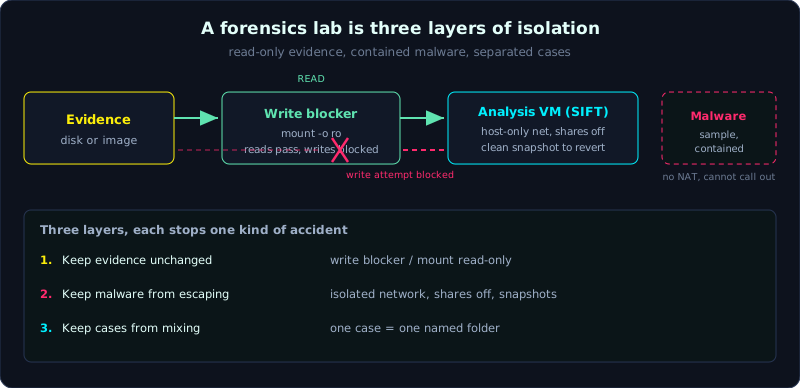 A forensics lab is three layers of isolation: read-only evidence, contained malware, separated cases.
| Part: 0 (Intro to Forensics) | Time: about 45 minutes | Difficulty: intermediate |
Prerequisites: Lesson 0.2 (law and chain of custody).
Tools: virtualization software (VirtualBox or VMware), SIFT Workstation, and on Linux blockdev and mount.
Goals
After this lesson you can build a properly isolated analysis VM and say why isolation matters. You can tell hardware and software write blockers apart and know when to use which, install and run SIFT Workstation and understand what it gives you, prepare a portable toolkit for triage in the field, and mount an image read-only so you do not damage the evidence.
1. Theory
Why you need a dedicated lab
You will work with two kinds of dangerous things: evidence data (touch it wrong and it is gone) and real malware (run it by mistake and it spreads). A proper forensics lab solves both: keep the evidence unchanged, and keep the malware from escaping. Those two requirements shape every technical choice below.
Good news: you do not need a dedicated room or expensive equipment to start. A personal machine with enough RAM, free virtualization software, and discipline is enough for the whole series. Dedicated hardware (such as a physical write blocker) is what you need when you work for real on physical disks, and we will cover those so you know they exist and how they work.
The analysis VM: the heart of the lab
A VM (virtual machine) is a simulated computer running inside your real machine. It is the default choice for a forensics lab for three reasons:
- Isolation: malware running inside a VM has a hard time reaching the real machine if you configure it correctly.
- Snapshot: you capture the state of the VM before doing anything dangerous, and if it breaks you revert in a few seconds. This feature is used constantly.
- Reproducibility: a VM is a file, you copy it, share it, and rebuild it identically on another machine.
Two popular products: VirtualBox (free, open source, enough for learning) and VMware Workstation/Fusion (the Player edition is free for personal use, stronger and smoother). Either one is fine to start.
Principles for configuring a safe analysis VM:
- Set the network to an isolated mode. The default should be host-only (can talk only to the host machine) or internal network (can talk only among the VMs), or disable the network card entirely. Never use NAT or Bridged while analyzing malware, because then the VM reaches the Internet and the malware can call home, download more payload, or spread.
- Turn off every sharing feature between host and VM when analyzing malware: shared folder, shared clipboard, drag and drop. Each sharing channel is a path for malware to crawl back to the host.
- Take a “clean” snapshot right after installing and configuring correctly, before bringing in any evidence or sample. After analyzing each dirty sample, revert to the clean snapshot before doing the next one.
- Give it enough resources: memory forensics is RAM-hungry, so give the VM 8GB or more if the machine allows, and leave enough disk for the sample images, which are large.
A warning worth stating early: an isolated VM is very good but not impregnable. Some malware knows it is inside a VM (VM-aware) and changes its behavior, or, more rarely, tries to break out of the VM (VM escape). For the level of this series a correctly configured VM is more than enough, but you should know where its ceiling is.
Write blocker: the safety catch for evidence
Remember ACPO principle 1 from the last lesson: do not change the original. The problem is that the operating system likes to meddle. Plug a disk into Windows or Linux and the OS may write to it automatically: update timestamps, create index files, write journaling information, even ask if you want to format it. Every one of those writes damages the integrity of the evidence.
A write blocker is the thing that sits between the evidence disk and the analysis machine, allowing reads but blocking all write commands. There are two kinds:
Hardware write blocker. A real physical device. You plug the evidence disk into one end and the other end connects to the machine. The circuit inside blocks write commands at the protocol layer (SATA, USB, IDE, and so on) before they reach the disk. Strengths: the most reliable, tested, trusted for use in a legal matter, and not dependent on software configuration or user error. Weaknesses: it costs money and you have to carry it. This is what professional investigators use when handling real physical disks. Common brands: Tableau, WiebeTech.
Software write blocker. A configuration or driver on the analysis machine that tells the operating system to mount the device read-only. For example, on Linux you can set a block device read-only with blockdev --setro, or mount with the ro flag. On Windows there is a registry key that blocks USB writes, or dedicated tools. Strengths: free or cheap, convenient for a lab and for learning. Weaknesses: it depends on you configuring it correctly and on the OS respecting that configuration. It is easier to get wrong than hardware, so for a serious legal matter people still prefer hardware.
When to use which, in short: a serious legal matter on a physical disk uses hardware. Learning, a lab, and working on an image (a file, not a physical disk) means software is enough. For this series you work on images most of the time, so the software write blocker and the habit of mounting read-only are the main tools. But you must understand that hardware exists and why, because it is the standard of the field.
A point often misunderstood: once you have an image and work only on a copy of that image, you do not need a write blocker for each analysis, because you are no longer touching the original disk. The write blocker matters most at exactly one moment: reading from the original physical disk to create the image. Get past that moment safely and the rest is play on a copy.
SIFT Workstation: a prebuilt lab
Installing each forensics tool one by one is slow and easy to miss something. Luckily someone has done it for you. SIFT Workstation (SANS Investigate Forensic Toolkit) is a Linux build (based on Ubuntu) with hundreds of open source forensics tools preinstalled, released free by SANS. Open it and you have almost the full kit: The Sleuth Kit, Volatility, plaso/log2timeline, bulk_extractor, Autopsy, and many more you will meet throughout the series.
Three ways to get SIFT:
- Download the ready-made OVA file (a packaged VM) from the SANS site and import it into VirtualBox/VMware. The fastest, recommended for beginners.
- Install it over an existing Ubuntu machine with the SIFT installer (the SIFT CLI installer). Use this when you want to control the environment.
- Use it as a set of scripts on another distro, which is complicated, skip it at the start.
Practical advice: run SIFT as a VM, configure an isolated network, and take a clean snapshot after installing. Use SIFT itself as your main analysis machine for the whole series. Do not turn your host machine (the real one you use every day) into the analysis machine, because you will mix tools, data, and the risk of infection.
The portable toolkit: the kit you carry
You do not always have a whole lab on hand. Often you have to go on site, to a running machine that must not be shut down, and you need to triage (a quick sift to decide what deserves deeper work). Then you need a portable toolkit that runs from a USB stick, needs no installation, and has minimal impact on the target machine.
A minimum portable kit should have:
- Standalone imaging and RAM dumping tools: FTK Imager (the Lite edition), RAM dumping tools such as WinPmem, DumpIt, Magnet RAM Capture.
- Fast artifact-collection triage tools: KAPE, CyLR (covered in Lesson 2.4).
- A hashing tool to anchor evidence on the spot.
- A target drive that is large enough and clean (wiped and verified) to hold the images and dumps you collect. Never write the results back onto the target machine itself.
- A notebook (paper or a separate device) to record chain of custody right as you work.
The core rule of field triage, repeated from ACPO 2: you are touching a live system, every action leaves a trace, so use the least-impact tools, record every step exactly, and collect in order of volatility (the things that evaporate easily first, RAM before the disk). Part 2 covers this in detail.
Isolating evidence: do not let the lab become an outbreak
Putting it together, isolation in a forensics lab has three layers, do not mix them up:
- Isolate evidence from being changed: write blocker and read-only mount. This protects integrity.
- Isolate malware from escaping: an isolated VM network, sharing turned off, snapshots. This protects your host machine and your network.
- Isolate case data from mixing: one folder per case, named clearly by the case code, with the hash stored alongside. This protects you from mixing one case’s evidence into another, a mistake that sounds silly but happens often when you run several cases in parallel.
These three layers are not for show. Each one stops a specific kind of accident that people before you have hit. Building a lab is building those three layers of isolation until they become second nature.
2. Hands-on (demo)
The most important part of a lab is the habit of mounting evidence read-only. This demo drills exactly that motion on Linux (it runs directly in SIFT). We create a fake image, mount it read-only, and prove that every attempt to write to it is blocked.
1
2
3
4
5
6
7
8
9
10
11
12
13
14
15
16
17
18
19
20
21
22
23
24
25
26
27
28
29
30
31
32
# 1. Create a fake image with an ext4 file system inside (playing the role of "evidence")
$ dd if=/dev/zero of=bangchung.img bs=1M count=50 status=none
$ mkfs.ext4 -q bangchung.img
$ sha256sum bangchung.img | tee bangchung.img.sha256   # anchor integrity before mounting

# 2. Create a loop device, force it read-only from the start (software write blocker)
$ sudo losetup --find --read-only --show bangchung.img
/dev/loop0
$ sudo blockdev --getro /dev/loop0
1                           # 1 = read-only, as expected

# 3. Mount it read-only onto a directory
$ sudo mkdir -p /mnt/evidence
$ sudo mount -o ro /dev/loop0 /mnt/evidence
$ mount | grep evidence
/dev/loop0 on /mnt/evidence type ext4 (ro,relatime)   # ro = read-only

# 4. Try to write to it. It must be blocked.
$ sudo touch /mnt/evidence/test.txt
touch: cannot touch '/mnt/evidence/test.txt': Read-only file system

# 5. Reading still works normally
$ ls -la /mnt/evidence
total 20
drwxr-xr-x 3 root root  4096 Oct  8 10:00 .
drwx------ 2 root root 16384 Oct  8 10:00 lost+found

# 6. Unmount and re-check the hash: it must match step 1, proving nothing changed
$ sudo umount /mnt/evidence
$ sudo losetup --detach /dev/loop0
$ sha256sum -c bangchung.img.sha256
bangchung.img: OK
This sequence captures the spirit of the lesson. Steps 2 and 3 use two layers of read-only (a read-only loop device, then a read-only mount), a belt-and-braces approach, better too much than too little. Step 4 shows the software write blocker actually blocking. Step 6 proves by hash that from start to finish the evidence did not shift by a byte. This is exactly the motion you will repeat every time you open an image in later parts.
If you want to confirm that SIFT is ready, try calling a few core tools:
1
2
3
$ fls -V        # The Sleuth Kit, used in Part 3
$ vol --help    # Volatility 3, used in Part 6
$ log2timeline.py --version   # plaso, used in Part 9
Being able to call those three means the main kit is in your hands.
3. Lab
- Data: create a fake image as in the demo.
- Task 1: install SIFT Workstation as a VM (import the OVA or install onto Ubuntu). Configure the network card in host-only mode. Take a snapshot and name it “clean-base”. Record the steps you took.
- Task 2: repeat the read-only mount sequence from the demo. Then try a variant: mount the image WITHOUT the
roflag (a normal read-write mount), create a file inside, unmount, then recompute the hash. Observe that the hash has changed. Write two sentences on why this is a disaster for evidence. - Task 3: list your own portable toolkit for a Windows triage session. For each tool, write one sentence on what it is used for and how much it impacts the target machine.
- Hint: Task 2 is the hard-earned lesson. When you see with your own hands the hash change just because you forgot a
roflag, you will never forget it. - Answer: self-check criteria. Task 1 is correct when you have a working SIFT VM, an isolated network, and a clean snapshot. Task 2 is correct when you clearly see the two results, one where the hash stays the same (with
ro) and one where the hash changes (withoutro).
4. Key takeaways
- The analysis VM must be isolated: host-only network or off, all host-VM sharing off, a clean snapshot to revert to.
- Hardware write blocker: a physical device, the most reliable, for legal matters on physical disks. Software: a read-only configuration or driver, enough for a lab and for learning.
- The write blocker matters most at the moment of reading from the original disk to create the image. After you have the image, you play on a copy.
- SIFT Workstation is a prebuilt lab, run as a VM, used as the main analysis machine. Do not turn your everyday host into the analysis machine.
- A portable kit for triage on site: standalone image/RAM dump tools, a triage tool, a hashing tool, a clean target drive, a notebook. Never write the results onto the target machine.
- Three layers of isolation: keep evidence unchanged (read-only), keep malware from escaping (isolated network), keep cases from mixing (one folder per case).