Lesson 3.3: Recovering deleted files on NTFS and FAT
After this lesson you understand exactly what happens when you “delete” a file, why the data usually survives, how to recover through the leftover $MFT entry on NTFS and the directory entry on FAT, and how to read the Recycle Bin with its $I and $R pair.
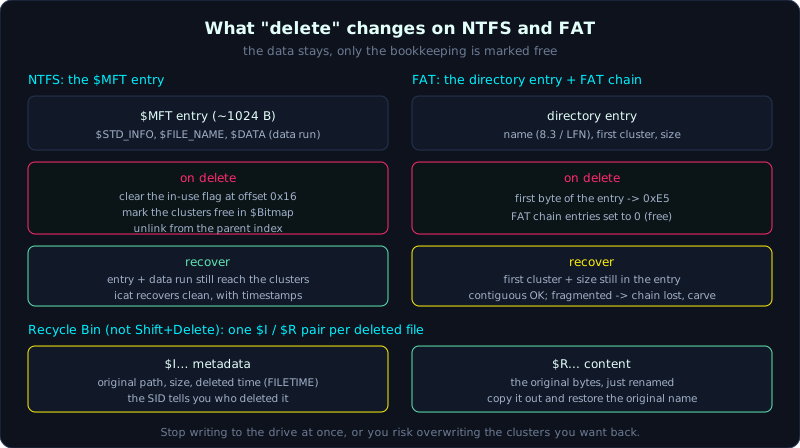 Deleting marks space free and changes a few bookkeeping bytes; the data stays until the clusters are overwritten.
Theory
“Delete” is not deleting the data
When you delete a file (even Shift+Delete), the operating system barely touches the file’s content. It does the cheapest thing possible: it marks that space as “free, reusable”. The real content stays put in the clusters until another file is written over it. That is the basic reason recovery is feasible, and also the reason time is the enemy: the more the drive is used after the delete, the higher the chance the clusters get reused.
The details differ by file system.
Deleting on NTFS: the $MFT and the in-use flag
On NTFS, each file has an entry in the $MFT (Master File Table), usually 1024 bytes. The entry holds attributes: $STANDARD_INFORMATION (timestamps), $FILE_NAME (name, a copy of timestamps), and $DATA (the data itself, or pointers to the clusters holding the data, called a data run).
When you delete a file, NTFS:
- Clears the “in-use” flag in the $MFT entry header (a flag at offset 0x16), turning it into an “empty” entry.
- Updates the bitmap to mark the clusters as free.
- Unlinks it from the parent directory (the index).
But the old $MFT entry is still there, including the data run that points to the data clusters, until that entry gets reused by a new file. That means right after the delete you still have both the metadata and the data pointers, so recovery is very clean (you even get the name and timestamps). TSK reads this entry: fls shows it with a *, icat follows the data run and pulls the data out.
Small files have a special case: if the data is small enough (under about 700 bytes after the other attributes), NTFS stores the data right inside the $MFT entry (called resident data, data that lives in the MFT itself). Such a file is very easy to recover because the data sits in the entry and does not depend on whether the external clusters got overwritten.
Deleting on FAT: the byte 0xE5 and the cut cluster chain
FAT (FAT16/FAT32/exFAT) is simpler and also more fragile. Each file has a directory entry holding the name (8.3 or long file name), the first cluster, and the size. The file’s cluster chain is linked through the FAT table (each FAT cell points to the next cluster).
When you delete on FAT:
- The first byte of the directory entry changes to
0xE5(the “this entry is empty” marker). The rest of the entry (including the first cluster and the size) is still there. - The FAT table cells belonging to the file’s chain are set to 0 (free). This is the painful part: the FAT table no longer knows which cluster follows which.
An important consequence: on FAT, if the file occupies a single cluster, or occupies several clusters that are contiguous from the first one, you can recover it by reading from the first cluster (still in the directory entry) for the full file size (also still recorded). But if the file is fragmented, the chain link is gone from the FAT table, you do not know where the next cluster is, and you have to guess or switch to carving. FAT recovery is less reliable than NTFS for this reason.
Recycle Bin: $I and $R
When you delete a file through the Recycle Bin (not Shift+Delete), Windows does not really delete it but moves the file into C:\$Recycle.Bin\<SID>\ (the SID is the user’s identifier, so you know who deleted it). From Windows Vista onward, each deleted file produces a pair:
$R...: the original file content, just renamed. For example$RXYZ123.docx.$I...: the accompanying metadata file, with the same suffix. For example$IXYZ123.docx. It holds the file’s full original path (where it was before deletion), the size, and the deletion time.
Pairing $I and $R gives you the complete story: what the file was named, where it lived, how big it was, who (which SID) deleted it, when, and what the content was. The RBCmd tool (Eric Zimmerman) parses $I into a compact table. The $I structure (Windows 10):
1
2
3
4
5
6
Offset  Size     Meaning
0x00    8 bytes  Header version (0x02 for Win10)
0x08    8 bytes  Original file size (little-endian)
0x10    8 bytes  Deletion time (Windows FILETIME, 64-bit)
0x18    4 bytes  Path length (number of characters)
0x1C    ...      Original path (UTF-16LE)
On older Windows XP it is different: a single file named INFO2 holds the metadata for every file in the bin, and files are renamed to Dc1, Dc2, and so on. Rare today but still worth knowing.
Demo
Recover on NTFS with TSK
1
2
3
4
5
6
7
8
9
# List deleted files (*), get the inode (the $MFT entry number)
fls -o 2048 -rd image.dd
# r/r * 73-128-3:  baocao_mat.docx       <- inode 73

# View the deleted entry's metadata: are the timestamps and data run still there?
istat -o 2048 image.dd 73
# If the data run is intact and the clusters are not marked reused, icat gives it all:
icat -o 2048 image.dd 73 > baocao_mat_recovered.docx
file baocao_mat_recovered.docx    # check whether it is a real docx
Parse the $MFT directly with MFTECmd
When you can only extract the $MFT file (for example via KAPE in Lesson 2.4), MFTECmd rebuilds the full file list, including deleted entries:
1
2
3
4
MFTECmd.exe -f "E:\triage\$MFT" --csv E:\out --csvf mft.csv
# In mft.csv, the column InUse = False is exactly a deleted entry.
# It also has ParentPath (where the file used to be) and all 8 timestamps (0x10 and 0x30).
# Open it in Timeline Explorer and filter InUse = False to see every deleted file.
Recover on FAT
1
2
3
4
5
6
# On FAT, fls also sees the 0xE5 entry and gives a virtual inode
fls -o 0 fat.img -rd
icat -o 0 fat.img <inode> > recovered.bin
# If the file is contiguous, you get it all. If it is fragmented, the part after
# the first cluster may be another file's junk (the FAT chain is gone), and then
# you switch to carving (Lesson 3.2).
View a deleted directory entry by hand with a hex editor to see the 0xE5 byte:
1
2
3
xxd fat.img | grep -i "e5"      # illustrative; in practice inspect the directory area
# The first byte of the entry = E5 means deleted; the following bytes still hold
# the first cluster + size.
Read the Recycle Bin
1
2
3
4
# Extract the $Recycle.Bin directory from the image (or live via triage), then:
RBCmd.exe -d "E:\triage\$Recycle.Bin" --csv E:\out --csvf recyclebin.csv
# Each row: SID (who deleted), FileName (original path), FileSize, DeletedOn.
# The content sits in the matching $R...; copy it out, restore the original name, and it opens.
Pair one by hand to understand it: read $IXYZ.docx with a hex editor, take the original path and the deletion time at the offsets above; the file $RXYZ.docx is the content, just copy it out and restore its name in the original path.
Lab
A real, runnable lab (Linux, no root needed): labs/3.3/. Recover deleted files on ext4 (debugfs rm) and FAT (0xE5-style deletion). Run bash make.sh then bash solve.sh.
Tasks with a runnable lab:
- On both images, use
fls -rdto find the deleted file,istatto view the metadata,icatto recover; compare the MD5 before and after to prove a byte-for-byte match. - Compare ext4 and FAT metadata (FAT is poorer, it loses the cluster chain).
- Overwrite scenario: after deleting on FAT, copy another file over the same cluster and run
icatagain, and watch the old content get replaced. The lesson is why you must stop using the drive immediately when you need to recover.
Task as an exercise (needs Windows / a writable NTFS): a small resident file in $MFT; the $I/$R pair in the Recycle Bin.
Answers are in labs/3.3/solution.md, real output in labs/3.3/transcript.txt.
Common pitfalls
- Continuing to use the drive (installing recovery tools onto that same drive) before recovering: you overwrite your own evidence.
- Assuming NTFS and FAT recover the same way: FAT loses the cluster chain, and fragmentation breaks it.
- Recovering
$Rbut forgetting to read$I: you lose the original path and deletion time, half the story. - Thinking Shift+Delete leaves “no trace because it skips the Recycle Bin”: there is still a trace in the $MFT/$UsnJrnl, just no $I/$R pair.
- The $MFT entry has already been reused for a new file and you still try to
icatthe old inode: you get another file’s data. - Forgetting that $UsnJrnl and $LogFile (covered in the Windows part) still record the delete even when the $MFT entry is gone.
Further reading
- Brian Carrier, “File System Forensic Analysis”, the NTFS and FAT chapters.
- MFTECmd and RBCmd documentation (Eric Zimmerman).
- Microsoft docs on the $Recycle.Bin structure ($I/$R) and FILETIME.
- Articles on resident vs non-resident data in the NTFS $MFT.
Key takeaways
- “Delete” only marks space free; the data survives until it is overwritten.
- NTFS: the $MFT entry keeps its data run after a delete, so recovery is clean and keeps timestamps; small files are resident.
- FAT: the entry changes its first byte to 0xE5 and the FAT chain is cut, so fragmented files are hard to recover.
- Recycle Bin: $I = metadata (original path, size, deletion time), $R = content, SID = who deleted it.
- Stop using the drive the moment you need recovery, to avoid overwriting clusters.