Lesson 1.1: Hex, endianness and magic bytes
There is one fact everyone new to forensics has to accept: a computer knows nothing about an “image file”, a “Word file” or a “music file”. It only sees bytes. What you call wedding.jpg is, to the machine, just a row of numbers from 0 to 255. All of the meaning, “this is an image”, “this is a document”, comes from software interpreting that row of bytes. An investigator has to learn to interpret bytes the same way the machine does, because an attacker will lie to you at the file name layer, and bytes cannot lie. After this lesson you can look at a pile of raw bytes and tell what kind of file it is, read a multi-byte number in the right order, and never trust a .jpg extension again.
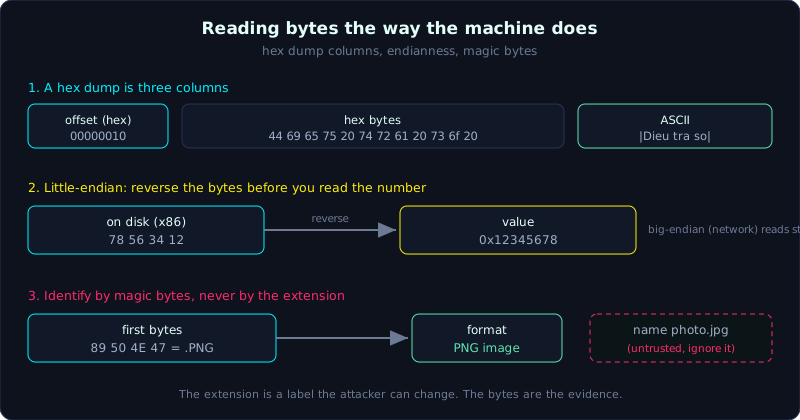 A hex dump is three columns, little-endian values read reversed, and the first bytes identify the format.
Level: basic, about 45 minutes. Prerequisite: being able to open a terminal and run basic commands (cd, ls, cat). Tools: xxd, hexdump, file, DIE (Detect It Easy), Python 3.
Goals
After this lesson you can read a hex dump fluently (the offset column, the hex column, the ASCII column), convert between hex and decimal in your head and understand why forensics lives in base 16, read a 2-byte or 4-byte value off disk in the correct endianness, identify a file format by its magic bytes rather than its extension, and detect a file whose extension was spoofed using file and by eye.
Theory
Bit, byte, nibble, and why hex
The smallest unit is a bit, which holds only 0 or 1. Eight bits together make one byte. A byte can represent 2^8 = 256 values, that is 0 to 255. Half a byte (4 bits) is called a nibble.
The problem is that writing a byte in binary is long (11010110), and writing it in decimal hides the bit structure. Hexadecimal (base 16, hex for short) is the point in between. One hex digit represents exactly one nibble (4 bits), so:
- 1 nibble (4 bits) = 1 hex digit (0 to F)
- 1 byte (8 bits) = exactly 2 hex digits (00 to FF)
This is why every forensics tool speaks hex: a byte always fits neatly in two characters, readable at a glance. The quick conversion table to memorize:
| Hex | Dec | Hex | Dec |
|---|---|---|---|
| 0 | 0 | 8 | 8 |
| 1 | 1 | 9 | 9 |
| 2 | 2 | A | 10 |
| 3 | 3 | B | 11 |
| 4 | 4 | C | 12 |
| 5 | 5 | D | 13 |
| 6 | 6 | E | 14 |
| 7 | 7 | F | 15 |
To convert a hex byte to decimal, multiply the first digit by 16 and add the second. For example 0xFF = 15 * 16 + 15 = 255. 0x2E = 2 * 16 + 14 = 46 (this is the dot . in ASCII, worth remembering because it shows up constantly). The other direction works the same: 255 divided by 16 is 15 remainder 15, so FF.
Notation convention: the prefix 0x marks a hex number (0x4D), while in a dump people usually write it bare without 0x to keep it short.
Reading a hex dump
Every hex viewer splits the screen into three columns. This is real output from hexdump -C on a text file:
1
2
3
00000000  44 69 65 75 20 74 72 61  20 73 6f 20 6c 61 20 6d  |Dieu tra so la m|
00000010  6f 74 20 6e 67 68 65 20  74 69 20 6d 69 2e 0a     |ot nghe ti mi..|
0000001f
- The left column (
00000000,00000010) is the offset, the byte position from the start of the file, written in hex. The first line starts at offset 0, the next at offset0x10= 16. Each line holds 16 bytes, so the offset advances by 16 (0x10) per line. This is the first trap: the offset is always hex, do not read10as ten. - The middle column is the byte content in hex.
hexdump -Clists each byte separated by a space and inserts extra spacing in the middle (after the 8th byte) for easier counting.44is the first byte. - The right column (between the two
|marks) is the ASCII interpretation: any byte in the printable range shows its character, any non-printable byte (such as0a, a newline) shows a dot. The letterDcorresponds to byte44,ito69, matching the ASCII table.
The last line 0000001f is the total file size (31 bytes).
xxd shows the same data but groups bytes in pairs of 2 and does not insert the middle spacing:
1
2
00000000: 4469 6575 2074 7261 2073 6f20 6c61 206d  Dieu tra so la m
00000010: 6f74 206e 6768 6520 7469 206d 692e 0a    ot nghe ti mi..
Same file, only a different grouping. Get used to both, because you will meet both. One tip: xxd defaults to joined pairs of 2 bytes, while hexdump -C separates every byte, so counting positions is a bit easier. When I need to count bytes exactly I lean toward hexdump -C or xxd -g1 (forcing 1-byte groups).
Endianness, the byte order, the place people get wrong most
A single byte has no ordering problem. But a 4-byte integer like 0x12345678 does: which way do those four bytes sit on disk?
- Big-endian (big end first): the most significant byte is at the smallest offset.
0x12345678is stored as12 34 56 78. You read left to right directly, the way humans write numbers. - Little-endian (small end first): the least significant byte comes first.
0x12345678is stored as78 56 34 12. It looks reversed.
This is not an academic point. The x86 and x64 CPU families (that is nearly every PC and laptop you will investigate) are little-endian. That means every multi-byte number inside a disk structure (the LBA address in Lesson 1.2, the cluster number in FAT in Lesson 1.4, the fields in the MFT in Lesson 1.5) appears byte-reversed when you look at it with hexdump. Network byte order (the byte order on the wire, used in TCP/IP) is the opposite, big-endian, so when you dissect a pcap later you read straight.
Here is a file containing the value 0x12345678 written twice, first little-endian then big-endian:
1
00000000: 7856 3412 1234 5678                      xV4..4Vx
The first four bytes 78 56 34 12 are little-endian: to read the value, reverse them back to 12 34 56 78 and then join, giving 0x12345678. The next four bytes 12 34 56 78 are big-endian, read straight. Same number, two layouts.
The rule to keep in your pocket when reading a little-endian field from a dump: collect all the field’s bytes, write them out in reverse order, then join into a number. For example two bytes 01 02 little-endian is 0x0201 = 513, not 0x0102 = 258. Getting this one step wrong means getting the whole result wrong.
Magic bytes, the file’s identity document
Because file names can lie, formats embed an identifying signature inside the content itself, usually in the first few bytes. These are called magic bytes, a magic number, or a file signature. Many formats also have a footer (end bytes, also called a trailer) marking the end point, which is very useful for file carving in Lesson 3.2.
The signature table to know by heart:
| Format | Magic bytes (hex) | ASCII | Footer/trailer |
|---|---|---|---|
| PNG | 89 50 4E 47 0D 0A 1A 0A | .PNG.... | 49 45 4E 44 AE 42 60 82 (IEND) |
| JPEG | FF D8 FF | FF D9 | |
| GIF | 47 49 46 38 | GIF8 | 00 3B |
25 50 44 46 | %PDF | %%EOF | |
| PE (Windows exe/dll) | 4D 5A | MZ | |
| ELF (Linux binary) | 7F 45 4C 46 | .ELF | |
| ZIP (and docx, jar, apk, xlsx…) | 50 4B 03 04 | PK.. | |
| RAR | 52 61 72 21 1A 07 | Rar!.. |
Looking back at the real PNG dump in the demo makes it obvious: the first eight bytes are exactly 89 50 4e 47 0d 0a 1a 0a, and the ASCII column shows .PNG. The byte 0x89 is non-printable so it shows as a dot, while 50 4E 47 is PNG.
A few signatures have their own history. The MZ of a PE file is the initials of Mark Zbikowski, the Microsoft engineer who designed the format. The 7F 45 4C 46 of ELF: the byte 0x7F is the control character DEL (non-printable, chosen on purpose so the file is not mistaken for text), and the next three bytes are ELF.
Why forensics does not trust the extension
The extension (the .jpg, .exe tail) is just a few characters in the file name. It is a hint for the operating system to pick which program opens the file, not a part of the file content. Renaming photo.jpg to photo.txt does not change a single byte inside, the content is still an image. The reverse holds too: naming a PE file invoice.pdf still leaves it an executable, and clicking it runs code.
Attackers exploit exactly this: they send malware named report.pdf.exe (Windows often hides the .exe tail), or invoice.docx that is really a script inside. The trick of changing the extension to hide the file type is called extension spoofing. The investigator’s job is to ignore the tail and open the content to read the magic bytes. The file command on Linux does exactly that: it reads the real bytes and looks them up in a magic database (called libmagic), so no matter how the extension is changed it reports the true type.
One level harder is the polyglot: a file that is valid as several formats at once (for example a viewable PDF that is also an extractable ZIP), exploiting the fact that each reader only cares about its own signature. This lesson does not go deep into polyglots, you only need to know they exist so you are not surprised later.
There is a real trap right in the table above: docx, xlsx, jar and apk all start with 50 4B 03 04 exactly like ZIP, because they are in fact ZIP files with a specific internal structure. So the magic bytes tell you “this is the ZIP family”, and to know exactly whether it is docx or apk you have to look deeper at the names of the entries inside. The magic bytes are the first step, not the final answer.
Demo
Work in a temporary directory, do not touch the original data. Open a Linux terminal (or WSL, or macOS).
Step 1, create a text file and inspect it with both viewers:
1
2
3
4
5
6
7
8
9
10
$ printf 'Dieu tra so la mot nghe ti mi.\n' > note.txt

$ xxd note.txt
00000000: 4469 6575 2074 7261 2073 6f20 6c61 206d  Dieu tra so la m
00000010: 6f74 206e 6768 6520 7469 206d 692e 0a    ot nghe ti mi..

$ hexdump -C note.txt
00000000  44 69 65 75 20 74 72 61  20 73 6f 20 6c 61 20 6d  |Dieu tra so la m|
00000010  6f 74 20 6e 67 68 65 20  74 69 20 6d 69 2e 0a     |ot nghe ti mi..|
0000001f
Notice the byte 20 repeats a lot: that is the space character. The last byte 0a is the newline character, and the ASCII column shows a dot because it is non-printable.
Step 2, prove that the extension lies. Copy the file out with a .jpg tail and ask file:
1
2
3
4
5
6
$ file note.txt
note.txt: ASCII text

$ cp note.txt note.jpg
$ file note.jpg
note.jpg: ASCII text
The extension is now .jpg but file still says this is text, because it reads bytes, not the name. The other direction holds too: create a real PNG and view it, file recognizes it even if we give it a nonsense name:
1
2
3
4
5
6
7
8
9
10
11
$ xxd pixel.png | head -3
00000000: 8950 4e47 0d0a 1a0a 0000 000d 4948 4452  .PNG........IHDR
00000010: 0000 0001 0000 0001 0802 0000 0090 7753  ..............wS
00000020: de00 0000 0c49 4441 5478 9c63 f8cf c000  .....IDATx.c....

$ xxd pixel.png | tail -2
00000030: 0003 0101 00c9 fe92 ef00 0000 0049 454e  .............IEN
00000040: 44ae 4260 82                             D.B`.

$ file pixel.png
pixel.png: PNG image data, 1 x 1, 8-bit/color RGB, non-interlaced
The first eight bytes are the PNG signature. The last five bytes 44 ae 42 60 82, joined with 49 45 4e from the line above into 49 45 4e 44 ae 42 60 82, are the IEND footer. file even reads the 1x1 size because it goes on to parse the IHDR chunk.
Step 3, read a multi-byte value in the correct endianness with Python. Suppose we have 4 bytes 78 56 34 12 on disk and want to know what number it is:
1
2
3
4
5
6
7
$ python3
>>> import struct
>>> data = bytes.fromhex('78563412')
>>> hex(struct.unpack('<I', data)[0])   # '<' = little-endian, 'I' = unsigned 4 byte
'0x12345678'
>>> hex(struct.unpack('>I', data)[0])   # '>' = big-endian, read straight
'0x78563412'
Same 4 bytes, interpreted little-endian they give 0x12345678, interpreted big-endian they give 0x78563412. Because an x86 disk is little-endian, the correct answer when reading file system structures is the first line. Memorize the struct format string: < little-endian, > big-endian, H is 2 bytes, I is 4 bytes, Q is 8 bytes. This is the knife you will draw again and again in Lesson 1.4 and Lesson 1.5.
Step 4, read the magic bytes with Python to get used to how the machine does it:
1
2
3
4
5
6
>>> with open('pixel.png','rb') as f:
...     head = f.read(8)
>>> head[:4].hex(' ')
'89 50 4e 47'
>>> head.startswith(b'\x89PNG')
True
Lab
A runnable lab (Linux, no root needed). Run bash make.sh to create a set of files with wrong extensions, then bash solve.sh to identify the true type and demonstrate breaking and repairing magic bytes.
Tasks:
- Read the first 8 bytes of each file with
xxd, compare against the magic table indetect.py, say what each file really is and which bytes prove it, then confirm withfile. - Break the signature of a PNG (smash the first 4 bytes) so
fileno longer recognizes it, then repair it so it opens again. - Pen-and-paper exercise: read 5 given byte sequences and say which format each one is.
Common pitfalls
- Reading the offset
0x10as “ten” instead of 16. The offset in every dump is base 16, always remind yourself of that. - Forgetting to reverse the bytes when reading a little-endian field.
01 02on disk is0x0201= 513, not 258. Getting this step wrong carries through to every cluster number, offset and size in later lessons. - Trusting the extension. A file named
.jpgcould be a PE, a script, or anything. Always check the content. - Seeing the magic
50 4B 03 04and concluding “ZIP file” while ignoring that docx, apk and jar look identical. The magic bytes tell you the format family, and to be sure of the exact type you must look deeper inside. - Confusing
xxdandhexdump -Cwhen counting byte positions, because their grouping differs. When you need exact per-byte accuracy, usehexdump -Corxxd -g1. - Editing magic bytes directly on the original file. Always work on a copy, and record the hash before and after (hashing is Lesson 1.7).
Further reading
- Gary Kessler, “File Signatures Table” at filesignatures.net, the most complete magic byte reference for lookups.
man xxd,man hexdump,man file, read the-g,-C,-s(skip offset) flags carefully.- Wikipedia: “List of file signatures” and “Endianness”, two compact foundational articles.
- Ange Albertini, the articles on file formats and polyglots (corkami on GitHub), for anyone who wants to go deep into file structure.
Key takeaways
- 1 byte = 2 hex digits = 8 bits; remember
0xFF= 255,0x2E= 46 is the dot. - A hex dump has 3 columns: offset (always hex), hex content, ASCII interpretation.
- An x86/x64 disk is little-endian: multi-byte numbers sit reversed, you must flip them back when reading.
- Network byte order is big-endian, read straight.
- Identify a file by its magic bytes at the start (and footer at the end), not by its extension.
filereads the real bytes through libmagic so it is not fooled by the extension.- docx/xlsx/jar/apk all share the magic
50 4B 03 04with ZIP.