Lesson 1.5: NTFS and the MFT
The first time I had to answer “when was this file created”, I opened Explorer, clicked Properties, and copied the date there into my report. Wrong. The date in Properties is only one of eight timestamps NTFS keeps for each file, and it is the one most easily forged. This lesson is so you never make that mistake again, and so you understand why NTFS is a rich source for Windows forensics. After it you can read an MFT record at the byte level, tell resident from non-resident, pull out the 8 timestamps of a file, detect timestomp, find data hidden in an ADS, and reconstruct recent file operations from $UsnJrnl.
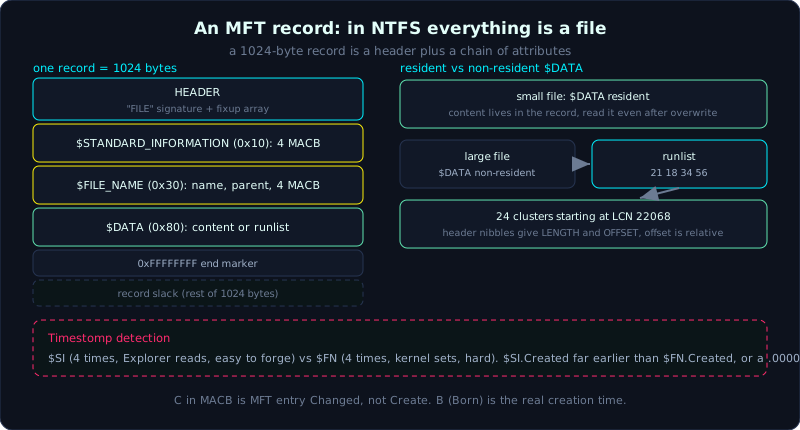 Each file is a 1024-byte record of attributes; small file content stays resident, large files point to clusters via a runlist.
Level: advanced, about 75 minutes. Prerequisite: Lesson 1.4. Tools: istat, fls, MFTECmd, analyzeMFT, fsutil, PowerShell.
Goals
After this lesson you understand the “everything is a file” philosophy of NTFS and the central role of $MFT, you can read an MFT record header (the FILE signature, the fixup array) and the chain of attributes behind it, you can tell $DATA resident from non-resident and read a simple data run, you grasp the 8 MACB timestamps (4 in $SI, 4 in $FN) and understand that C is MFT change not create, you can detect timestomp by comparing $SI with $FN, you can find an Alternate Data Stream and read a Zone.Identifier, and you can use $UsnJrnl to list recent file operations.
Theory
Everything is a file
FAT (the previous lesson) keeps things separate: the FAT table in one place, the directory entry in another, the data in another, and the management structures in a fixed region at the start of the partition. NTFS (New Technology File System, the default file system of Windows since the Windows NT era) follows the opposite philosophy: everything, including the file system’s own management structures, is stored as an ordinary file. The bitmap marking free clusters is a file. The transaction log is a file. The boot sector is a file. And the table listing all those files is also a file.
That table is called $MFT (Master File Table). It is the center of NTFS. Every file and every directory on the volume has exactly one entry (record) in $MFT. To know anything about a file, you read its entry in $MFT.
The MFT record: 1024 bytes per file
Each entry in $MFT, usually called an MFT record, is by default 1024 bytes (1 KB). That number is in the boot sector ($Boot), read it from there to be sure, but 1024 is what you meet 99% of the time.
Records are numbered from 0. This number acts like the inode number on Unix: it is the internal identifier, files point to each other by record number rather than by name. Record 0 is $MFT describing itself (it has to be, otherwise there would be no way to find where $MFT is).
The rough structure of a record:
1
2
3
4
5
6
7
8
9
10
11
12
13
14
15
16
17
18
+--------------------------------------------------+ offset 0
| HEADER (fixed ~48 bytes)                          |
|  "FILE" | fixup offset | fixup count | $LogFile LSN|
|  seq# | link count | first attr offset | flags    |
|  used size | alloc size | base record | ...        |
+--------------------------------------------------+
| Update Sequence Array (fixup)                     |
+--------------------------------------------------+ <- first attr offset
| ATTRIBUTE 0x10  $STANDARD_INFORMATION             |
+--------------------------------------------------+
| ATTRIBUTE 0x30  $FILE_NAME                        |
+--------------------------------------------------+
| ATTRIBUTE 0x80  $DATA  (content, if it fits)      |
+--------------------------------------------------+
| 0xFFFFFFFF  (end of attributes marker)            |
+--------------------------------------------------+
| ... rest of the 1024 bytes (slack) ...            |
+--------------------------------------------------+
Two things in the header to notice right away:
The signature “FILE” (4 bytes 46 49 4C 45) is at the start of each record. When carving $MFT from raw data, you search for this string. A damaged record sometimes carries the signature BAAD instead of FILE.
The fixup array (or update sequence array) is NTFS’s protection against a torn write. The disk writes per 512-byte sector, and a 1024-byte record spans 2 sectors. If the power is lost mid-write, one sector is written and the other is not, and the record is silently damaged with nobody knowing. NTFS handles this by taking the last 2 bytes of each sector and storing them in the fixup array in the header, then replacing those 2 bytes with a shared update sequence number. When reading, if the last 2 bytes of each sector do not match the update sequence number, the record was torn. When reading, you have to replace the last 2 bytes of each sector with the real values from the fixup array to reconstruct the correct content. Forgetting this step is the classic reason people who parse MFT themselves see corrupt data exactly at the 510 and 1022 byte marks.
Special metadata files (records 0 to 11)
The first dozen records of $MFT are reserved for NTFS’s own structures. Their names start with $ and are uppercase. A few worth remembering:
| Record | Name | Forensic role |
|---|---|---|
| 0 | $MFT | The MFT table itself. One record here per file. |
| 1 | $MFTMirr | A copy of the first few MFT records, to rescue a damaged $MFT. |
| 2 | $LogFile | The transaction log. Traces of recent file operations. |
| 3 | $Volume | Volume name, NTFS version, dirty flag. |
| 5 | . (root) | The volume’s root directory. |
| 6 | $Bitmap | Map of allocated vs free clusters (see Lesson 1.2). |
| 7 | $Boot | Boot sector, describes cluster size and the location of $MFT. |
| 9 | $Secure | Shared store of security descriptors (permissions, owner). |
| 11 | $Extend | Directory holding $UsnJrnl, $Quota, $ObjId, $Reparse. |
$Extend$UsnJrnl is the one I return to at the end of the lesson, it is one of the most valuable artifacts in NTFS.
Attribute: a file is a bag of attributes
The body of the record after the header is a chain of attributes one after another. The NTFS idea: a file is not “name plus content”, it is a set of attributes, each describing one aspect of the file. Each attribute has its own type code. The ones you must know:
$STANDARD_INFORMATION (type 0x10), short $SI. Holds 4 MACB timestamps, the attribute flags (Archive, Hidden, System, ReadOnly), owner ID, security ID. Always resident, always present.
$FILE_NAME (type 0x30), short $FN. Holds the file name (Unicode), the parent MFT reference (the record number of the parent directory, this is how NTFS knows which directory the file is in), and a second set of 4 MACB timestamps. A file can have several $FN (the long name and the short 8.3 name are two $FN).
$DATA (type 0x80). The real content of the file. A file can have several $DATA, this is the basis of ADS discussed later.
$INDEX_ROOT (0x90) and $INDEX_ALLOCATION (0xA0). Used by directories: a directory in NTFS is a B-tree holding the $FN of its child files, arranged in these two attributes.
$ATTRIBUTE_LIST (0x20). When a file has too many attributes (or a data run too long) to fit in one 1024-byte record, NTFS allocates extra records and uses $ATTRIBUTE_LIST in the base record to point to them. Meeting it means the file is complex, do not stop at the first record.
Resident and non-resident: the part that matters most for NTFS forensics
This is the concept that makes NTFS different from FAT, and the thing forensics people exploit the most.
An attribute can be resident (the content is right inside the MFT record) or non-resident (the content is outside, in the data region, the record only keeps a pointer).
For $DATA, the rule is: if the file content is small enough to fit the leftover space of the 1024-byte record (usually under about 700 to 900 bytes after subtracting the header and other attributes), NTFS keeps the content resident, right inside $MFT. A larger file has non-resident $DATA, the content goes to the data region and the record only stores the list of clusters.
The forensic consequence is strong: a small text file, a note, a short script, a config fragment, its content sits entirely in $MFT. Even when the file is deleted and the data region has been overwritten many times over, as long as the $MFT record is not reused, you can still read the content verbatim from $MFT. Many times in CTFs and real investigations, the answer sits neatly in $MFT rather than somewhere far away.
For a non-resident file, NTFS stores the data location with a data run (or runlist), a very compact way to encode a list of clusters. Each run describes a stretch of contiguous clusters with a header byte then two variable-length fields:
1
2
3
4
5
6
7
8
9
10
Header byte: split into 2 nibbles.
  low nibble   = bytes used for the LENGTH field (cluster count)
  high nibble  = bytes used for the OFFSET field (cluster position)

Example run:  21 18 34 56   00
  header 0x21 -> length 1 byte, offset 2 bytes
  length = 0x18        = 24 clusters
  offset = 0x5634      = LCN 22068 (little endian 34 56)
  -> 24 clusters starting at logical cluster 22068
  byte 0x00 ends the runlist
The trap: the offset of the second run onward is relative to the previous run (it can be negative, signed), not absolute. A fragmented file has several runs chained. Reading a data run means knowing which clusters on disk a large file sits in, so you can extract it by hand when the tool will not cooperate.
Alternate Data Streams (ADS)
Because a file can have several $DATA, NTFS lets the extra $DATA carry their own name. The main stream (the normal content) has no name. A secondary stream has a name, accessed with the syntax filename:streamname. Explorer and the dir command usually show only the main stream, so ADS is a classic place to hide data.
A benign use: Windows automatically attaches an ADS named Zone.Identifier (also called Mark of the Web) to every file downloaded from the Internet, recording the zone the file came from. ZoneId=3 means from the Internet, a valuable trace to know whether a file was just downloaded.
A malicious use: malware hides a payload in the ADS of a harmless file, or hides a whole executable in the ADS of a directory. The main file’s size does not change, Explorer does not show it, so it slips by easily.
MACB and the 8 timestamps
NTFS stores time as FILETIME: a 64-bit integer counting 100-nanosecond intervals since 1601-01-01 00:00:00 UTC. The 100ns resolution is an important detail: a real timestamp from the OS almost always has a nonzero sub-second part.
Four kinds of time, abbreviated MACB:
- M = Modified: the last time the file content changed.
- A = Accessed: the last time the file was accessed (modern Windows often disables updating A to save disk writes, so A is not reliable).
- C = MFT entry Changed: the last time the MFT record itself changed (rename, permission change, attribute change). THIS IS NOT the file creation time. Many newcomers mistake C for Create, a serious error.
- B = Born: the time the file was created. The letter B avoids clashing with C above.
The key point for forensics: each file has two MACB sets. One in $SI (4 marks), one in $FN (4 marks). Eight timestamps in total. Explorer and most applications read only the $SI set.
$SI can be edited from user space with the SetFileTime API, so timestomp tools poke at it. $FN is harder: it is usually set only by the kernel when a file is created, moved or renamed, and user space rarely touches it. So when $SI and $FN disagree in an impossible way, that is a sign of timestomp.
Two heuristics for detecting timestomp, commonly used:
- Compare $SI with $FN. Normally the create time in $SI should equal or be later than $FN (the file is created first, then can be modified). If $SI.Created is earlier than $FN.Created in an impossible way (for example a file “created in 2009” but $FN records 2024), it is almost certainly timestomped.
- Look at the fractional seconds. Old timestomp tools often set a round time like
2009-07-14 01:14:24.0000000, with the 100ns part exactly 0. A real system time is almost never that clean.
Demo
Prepare: an NTFS image (create one as in Lesson 1.2, or use a USB stick formatted NTFS in a VM). Assume the NTFS partition starts at sector 2048.
View an MFT record with istat
istat from The Sleuth Kit prints a whole MFT record readably. Record 5 is the root directory, let us look at an ordinary file, for example record 64:
1
2
3
4
5
6
7
8
9
10
11
12
13
14
15
16
17
18
19
20
21
22
23
24
25
26
27
28
29
$ istat -o 2048 ntfs.img 64

MFT Entry Header Values:
Entry: 64        Sequence: 3
$LogFile Sequence Number: 20290134
Allocated File
Links: 1

$STANDARD_INFORMATION Attribute Values:
Flags: Archive
Owner ID: 0
Created:        2024-03-11 09:12:04.5531250 (UTC)
File Modified:  2024-03-11 09:40:51.8218750 (UTC)
MFT Modified:   2024-03-11 09:40:51.8218750 (UTC)
Accessed:       2024-03-11 09:12:04.5531250 (UTC)

$FILE_NAME Attribute Values:
Flags: Archive
Name: notes.txt
Parent MFT Entry: 5     Sequence: 5
Created:        2024-03-11 09:12:04.5531250 (UTC)
File Modified:  2024-03-11 09:12:04.5531250 (UTC)
MFT Modified:   2024-03-11 09:12:04.5531250 (UTC)
Accessed:       2024-03-11 09:12:04.5531250 (UTC)

Attributes:
Type: $STANDARD_INFORMATION (16-0)   Name: N/A   Resident   size: 72
Type: $FILE_NAME (48-2)   Name: N/A   Resident   size: 90
Type: $DATA (128-3)   Name: N/A   Resident   size: 318
Read this output:
(16-0),(48-2),(128-3)are decimal type codes: 16 = 0x10 ($SI), 48 = 0x30 ($FN), 128 = 0x80 ($DATA). The number after the dash is the attribute ID.- All three attributes are Resident. $DATA resident size 318 means the 318 bytes of content of notes.txt sit right in this MFT record. You can read the content from $MFT even if the file is deleted.
- The first timestamp set is $SI (what Explorer shows), the second is $FN. In this clean file, $FN keeps the creation moment while $SI.Modified has moved forward because the file was edited later. This is normal.
A large file, for example record 70, shows non-resident $DATA with a cluster list:
1
2
3
4
5
Attributes:
Type: $STANDARD_INFORMATION (16-0)   Name: N/A   Resident   size: 72
Type: $FILE_NAME (48-2)   Name: N/A   Resident   size: 88
Type: $DATA (128-4)   Name: N/A   Non-Resident   size: 1572864  init_size: 1572864
2563 2564 2565 2566 2567 2568 ... 2946
The last line of numbers is the list of LCN (logical cluster number) that istat decoded from the data run for you. Those are the clusters holding the file content.
Inspect a record at the byte level
To see exactly what you learned, dump the 1024 bytes of the record to hex. Use icat to get $MFT then cut it, or compute the offset by hand. A typical header:
1
2
3
4
5
$ xxd -s $((MFT_OFF + 64*1024)) -l 64 ntfs.img
00000000  46 49 4c 45 30 00 03 00  d6 58 35 01 00 00 00 00  FILE0....X5.....
00000010  03 00 01 00 38 00 01 00  d0 01 00 00 00 04 00 00  ....8...........
00000020  00 00 00 00 00 00 00 00  06 00 00 00 40 00 00 00  ............@...
00000030  03 00 00 00 00 00 00 00  10 00 00 00 60 00 00 00  ............`...
Decode the bytes:
46 49 4C 45= “FILE”, signature.- offset 0x04:
30 00= 0x30, offset to the fixup array. - offset 0x06:
03 00= 3 fixup elements (1 update sequence number plus 2 values for the 2 sectors). - offset 0x08:
d6 58 35 01 ...= $LogFile sequence number (LSN), linking this record to $LogFile. - offset 0x10:
03 00= the record’s sequence number (increments each time the record is reused, used to catch stale pointers pointing wrong). - offset 0x12:
01 00= hard link count = 1. - offset 0x14:
38 00= 0x38, offset to the first attribute. - offset 0x16:
01 00= flags. 0x01 = in use, 0x02 = is a directory. Here 0x01 so it is a file in use. A deleted record has flags without the 0x01 bit set. - offset 0x18:
d0 01 00 00= 0x1d0 = the used size of the record (464 bytes actually used of 1024). - offset 0x1c:
00 04 00 00= 0x400 = 1024, the allocated size.
At offset 0x38 is the first attribute: 10 00 00 00 60 00 00 00. 10 00 00 00 = type 0x10 ($SI). 60 00 00 00 = the attribute length 0x60 = 96 bytes. The byte right after (at 0x40) is the non-resident flag, equal to 0 meaning resident. From here you walk on to $FN then $DATA. This is exactly the chain istat decoded for you above.
Use MFTECmd for a whole volume
On real data, nobody reads records one by one by hand. MFTECmd (Eric Zimmerman) parses the whole $MFT file into CSV, one line per file, with all 8 timestamps:
1
2
3
4
5
6
7
PS> .\MFTECmd.exe -f "E:\$MFT" --csv . --csvf mft.csv

# A few valuable columns in mft.csv:
#   EntryNumber, ParentPath, FileName, InUse, IsDirectory
#   Created0x10, LastModified0x10, LastRecordChange0x10, LastAccess0x10
#   Created0x30, LastModified0x30, LastRecordChange0x30, LastAccess0x30
#   SI<FN  (TRUE flag when $SI is earlier than $FN, suspect timestomp)
The SI<FN column is the timestomp heuristic packaged ready-made. Filter the TRUE rows and you have a list of suspicious files right away. analyzeMFT (Python) gives a similar CSV if you are on Linux.
Create and find an ADS
Try it on an NTFS volume (Command Prompt):
1
2
3
4
5
6
7
8
9
10
11
12
C:\lab> echo noi dung binh thuong > a.txt
C:\lab> echo DU LIEU GIAU > a.txt:secret
C:\lab> dir a.txt
   11/03/2024  09:55       22 a.txt
                1 File(s)         22 bytes

C:\lab> dir /r
   11/03/2024  09:55       22 a.txt
                            14 a.txt:secret:$DATA

C:\lab> more < a.txt:secret
DU LIEU GIAU
dir normally only sees the 22-byte main stream. You need dir /r to reveal a.txt:secret:$DATA. PowerShell is clearer:
1
2
3
4
5
6
7
8
9
10
PS> Get-Item a.txt -Stream *

   FileName: C:\lab\a.txt
Stream        Length
------        ------
:$DATA            22
secret            14

PS> Get-Content a.txt -Stream secret
DU LIEU GIAU
View the Mark of the Web on a just-downloaded file:
1
2
3
4
5
PS> Get-Content installer.exe -Stream Zone.Identifier
[ZoneTransfer]
ZoneId=3
ReferrerUrl=https://example.com/download
HostUrl=https://cdn.example.com/installer.exe
ZoneId=3 is from the Internet. It even has the source URL, very valuable for knowing where the file came from and when.
Recent file operations from $UsnJrnl
$Extend$UsnJrnl, specifically the $J stream, records every file change on the volume: create, delete, rename, overwrite, with a USN (an increasing sequence number) and a reason flag describing the kind of change:
1
2
3
4
5
6
7
8
9
10
11
12
13
14
15
16
17
18
19
20
21
C:\> fsutil usn queryjournal C:
Usn Journal ID   : 0x01da6f1c4b2e9a30
First Usn        : 0x0000000000000000
Next Usn         : 0x0000000004f3a118
...

C:\> fsutil usn readjournal C: | more
...
Usn               : 72384112
File name         : evil.exe
File name length  : 16
Reason            : 0x00000102: Data extend | File create
Time stamp        : 3/11/2024 9:58:03 AM
File attributes   : 0x00000020
File ID           : 00000000000000000000000000004a1f
Parent file ID    : 00000000000000000000000000000005
...
Usn               : 72384230
File name         : evil.exe
Reason            : 0x80000200: Data overwrite | Close
...
Reading this chain lets you reconstruct: at 9:58:03 the file evil.exe was created in the parent directory with File ID 5 (root), data was written, then it was closed. Even after the file is deleted from $MFT, the name and timing traces remain in $UsnJrnl. On an image, MFTECmd can also parse $J (MFTECmd -f "$J" --csv .).
Compare $SI and $FN to catch timestomp
Take a file suspected of timestomp, compare the two timestamp sets from istat or the MFTECmd columns:
1
2
3
# A timestomped file (a tool edited $SI):
$SI Created:   2009-07-14 01:14:24.0000000   <- old year, .0000000 round seconds
$FN Created:   2024-03-11 09:58:03.4218750   <- real year, odd seconds fraction
Two signs at once: $SI.Created (2009) is earlier than $FN.Created (2024) in an impossible way, and the 100ns part of $SI is exactly 0. Conclusion: the $SI timestamp was forged, the file’s real time is per $FN, about 2024-03-11 09:58.
Lab
A runnable lab (Linux, no root needed). mkntfs creates an NTFS image on a regular file, the Sleuth Kit reads MFT records with istat. Run bash make.sh then bash solve.sh.
Tasks with a runnable lab:
- Parse a raw MFT record by hand (
mft_rec0.bin): find theFILEsignature, the offset to the first attribute (0x14), the flags (0x16: file or directory, in-use or deleted), list$STANDARD_INFORMATION(0x10) and$FILE_NAME(0x30); check withmftparse.py. istatreads record 0 ($MFT) and record 5 (root dir). Compare $SI with $FN, this is where to detect timestomp.- Convert FILETIME to a human-readable time with Python (remember to reverse the little-endian bytes).
Exercise tasks (need Windows or a writable NTFS, not reproducible in the no-root lab): timestomp then compare $SI with $FN; hide a string in an ADS then find it with dir /r; read a Zone.Identifier.
Common pitfalls
- Reading C in MACB as create. Wrong. C is MFT entry Changed (metadata change). The creation time is B (Born).
- Trusting only the $SI set (like Explorer) and forgetting $FN. When timestomp is suspected, always compare both sets.
- Forgetting that a small file sits resident in $MFT, then searching for content out in the data region in vain while it is right there in the record.
- Forgetting to apply the fixup array, seeing corrupt data exactly at the 510 and 1022 byte marks and thinking the record is damaged.
- Missing ADS because Explorer and
dirusually do not show it. Hidden data and malware often sit here. - Converting FILETIME wrong: forgetting the epoch is 1601-01-01 UTC (not 1970), forgetting the unit is 100ns, or forgetting to reverse little endian.
- Confusing the record number (EntryNumber) with the cluster number. A record is an index into $MFT, not a physical position on disk.
Further reading
- Brian Carrier, “File System Forensic Analysis”, the NTFS chapter (the foundational book, explaining data runs and attributes thoroughly).
- The NTFS documentation of the Linux-NTFS project (ntfs.com) and the attribute specification.
- Eric Zimmerman tools: MFTECmd, the guide pages and videos (pair with the 4.x lessons when building a timeline).
- The SANS “Windows Forensic Analysis” poster, the Timeline and MACB sections.
- Harlan Carvey, blog and series on $UsnJrnl and $LogFile in real investigations.
Key takeaways
- $MFT is the center of NTFS, each file is a record of default 1024 bytes, starting with the signature “FILE”.
- The fixup array protects against torn writes, you must apply it to read the correct data across the sector boundary.
- Small file: $DATA resident sits in $MFT, recoverable even when the data area is overwritten.
- Large file: $DATA non-resident, read the data run (header nibbles for length and offset, offset relative) to know the clusters.
- 8 timestamps: 4 in $SI (Explorer reads, easy to forge) and 4 in $FN (kernel sets, hard to forge).
- C in MACB is MFT entry Changed, not Create.
- Timestomp: $SI earlier than $FN in an impossible way, or a round .0000000 100ns part.
- ADS hides data, Explorer does not show it, use
dir /rorGet-Item -Stream *. - $UsnJrnl ($J) and $LogFile hold traces of recent file operations, building a timeline even after a file is deleted.