Lesson 1.6: ext4, APFS and HFS+ for forensics
Leaving the Windows world: how Linux and macOS store files differently from NTFS, which timestamps you can trust, why deleting a file on ext4 is harder to recover than you think, and why an APFS snapshot is a valuable source. After this lesson you can describe the ext4 layout, explain the four Linux timestamps without mistaking ctime for creation, understand why ext4 recovery is hard, and know why APFS snapshots keep old data.
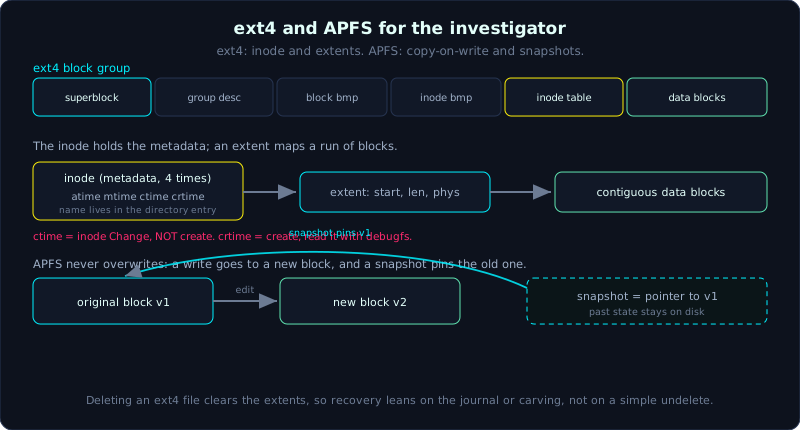 ext4 maps an inode to blocks through extents; APFS writes a new block on every change and a snapshot pins the old one.
Level: advanced, about 70 minutes. Prerequisite: Lesson 1.5. Tools: dumpe2fs, debugfs, stat, fls, istat, icat (Sleuth Kit), apfs-fuse, mac_apt.
Goals
After this lesson you can describe the ext4 layout (block group, superblock, inode table, data block, and how an inode points to data with an extent), explain the four Linux timestamps (atime, mtime, ctime, crtime) correctly and not mistake ctime for the file creation time, understand why deleting an ext4 file loses the data mapping and where the journal and carving make up for it, grasp the copy-on-write principle of APFS and why snapshots keep old data, and recognize HFS+ when you meet an older Mac and know how it differs from APFS.
Theory
NTFS in the previous lesson gathers almost everything into one structure, $MFT. In Linux and macOS the philosophy changes: metadata is separated from the file name, data is described by its own structures, and both modern systems (ext4, APFS) have a mechanism to protect against data loss on power failure (a journal or copy-on-write). Those anti-loss mechanisms are exactly what makes the investigator both glad and worried: glad because they leave traces of operations, worried because they often overwrite and zero metadata, so NTFS/FAT style recovery is no longer easy.
ext4: the center is the inode, not the file name
The first thing to remove from your head if you come from Windows: on ext4, the file name is not in the same place as the file’s metadata. The metadata (permissions, owner, size, times, data pointers) is in a structure called an inode (index node), and each inode has an identifier called the inode number. The file name is in the directory entry, and the directory entry holds only the pair (name, inode number). In other words, a directory is just a lookup table of “this name corresponds to which inode”.
An immediate consequence: two different file names can point to the same inode. That is a hard link. And when you delete a name (unlink), the file only truly disappears when the link count in the inode reaches 0.
An ext4 volume is divided into several block groups, each with a repeating structure:
1
2
3
4
5
6
7
8
9
10
ext4 disk (from far away):
+-------------+----------------+----------------+-----
| boot block  | Block Group 0  | Block Group 1  | ...
+-------------+----------------+----------------+-----

One Block Group:
+------------+-------------------+--------------+--------------+-------------+---------------+
| superblock | group descriptors | block bitmap | inode bitmap | inode table | data blocks   |
| (backup)   | (backup)          |              |              |             |               |
+------------+-------------------+--------------+--------------+-------------+---------------+
- superblock: holds whole-volume information (total inodes, number of blocks, block size usually 4096 bytes, label, UUID, feature flags). It is so important that ext4 keeps several copies scattered across block groups, in case the main superblock is damaged. When investigating a scratched volume, a backup superblock saves you.
- group descriptors: point to where the group’s block bitmap, inode bitmap and inode table are.
- block bitmap / inode bitmap: each bit marks whether a block (or inode) is allocated or free.
- inode table: the array of this group’s inodes.
- data blocks: where the real file content lives.
extent: ext4 drops indirect pointers
ext2 and ext3 map a file to data blocks with a list of direct pointers plus several levels of indirect pointers (indirect, double indirect). That is clumsy for large files. ext4 replaces it with the extent: each extent describes a run of contiguous blocks with three numbers (starting logical block, number of blocks, starting physical block). A large contiguous file needs only one extent instead of thousands of pointers.
In the inode, 60 bytes of pointer space are used as a small extent tree: an extent header (magic 0xF30A) then up to 4 entries. A larger file has the entries point down to extent nodes in other blocks (a multi-level tree). You do not need to parse the extent tree by hand in real life (the tool handles it), but you must understand this: when a file is deleted, these extent entries are cleared, and that is why recovery is hard (section below).
Four timestamps, and the trap called ctime
ext4 keeps four time marks in the inode:
| Mark | Name | Changes when |
|---|---|---|
| atime | access time | file content is read (many systems mount relatime/noatime so atime updates rarely) |
| mtime | modify time | file content is changed |
| ctime | change time | the inode metadata changes (permissions, owner, name, link count), and also when content changes |
| crtime | creation time | the inode is created (ext4 only, ext2/3 do not have it) |
The classic trap: ctime is NOT create time. The c is change (an inode change), not create. People used to Windows very often read ctime and think it is when the file was born, getting the whole timeline wrong. The real create time on ext4 is crtime, and awkwardly the ordinary stat command does not print crtime, you have to pull it with debugfs (see the demo). On ext2/ext3 there is simply no create time, full stop.
Deleting a file on ext4: why it is hard to recover
On FAT, deleting a file only changes the first name byte and frees the FAT chain, the data stays whole so recovery is easy (Lesson 1.4). ext4 is harsher. When you delete:
- the directory entry is removed (marked unused).
- the inode is marked free in the inode bitmap, the link count goes to 0.
- most importantly: the extent entries in the inode are usually cleared/zeroed, meaning the mapping “which blocks this file is in” is lost. The data blocks may still be on disk but you no longer know where they are or in what order.
So recovering a deleted ext4 file usually has to lean on two other paths:
- the journal (below): if the delete is recent, the old copy of the inode (still holding the extents) may still be in the journal, readable back.
- file carving (Lesson 3.2): scan the data blocks directly looking for files by magic byte (Lesson 1.1), ignoring metadata. Only effective for unfragmented files.
An orphan inode (a file that was open when deleted or crashed mid-operation) and the lost+found directory are where fsck gathers fragments it could not attribute to an owner, also worth a look when investigating.
The journal (jbd2): a log so data is not lost, and so traces remain
ext3/ext4 have a journal, by default inode number 8 ($journal). The idea: before changing a structure on disk, write the intent into the journal; once done, commit; if power is lost mid-way, on remount the system replays the journal to return to a consistent state. Three modes:
journal: writes both metadata and data into the journal (safest, slowest).ordered(default): journals only metadata, but writes data to disk before committing metadata.writeback: journals only metadata, with no data ordering guarantee.
For the investigator, the journal is a short-term log of recent metadata changes: old copies of the inode, of the bitmap, of directory blocks. Tools like jls/jcat from the Sleuth Kit read the journal, and sometimes can rebuild a just-deleted file whose main inode was already cleared.
APFS: copy-on-write changes the rules
APFS (Apple File System) replaced HFS+ on macOS from 2017 and is the file system of iOS. It does not use an ext4-style journal but relies on copy-on-write (COW): it does not overwrite data in place, it writes a new copy elsewhere then switches the pointer to the new copy in one atomic operation (a checkpoint). Concepts to grasp:
- Container and volume: one APFS container manages the whole physical space, and inside it holds several volumes. The volumes share free space (space sharing), so you do not have to partition the hardware rigidly as before. macOS now splits System (read-only) and Data into two volumes in the same container.
- Snapshot: an image of the whole volume at a point in time. Thanks to COW, a snapshot costs almost nothing to create (it only keeps pointers to the old data), and every data block the snapshot references will not be reused while the snapshot exists. For the investigator, this is a valuable source: Time Machine local snapshots and system snapshots keep the file state at past moments, including files the user thought were deleted. Always list snapshots first.
- Clone: an instant file copy with no extra space, the two copies share blocks until one is modified (COW happens then).
- Encryption: APFS encrypts at the file system layer (FileVault builds on it). Without the key the image is just noise, this is the subject of Lesson 10.2.
- object map and checkpoint in place of the classic journal: a consistent state is guaranteed by only “committing” once the new copy is fully written.
- Nanosecond resolution timestamps (versus seconds/100ns in older systems), storing create, modify, change and access. Extra metadata is in extended attributes.
Because COW does not overwrite in place, old copies of data can linger on disk for a while, but retrieving them has no clear structure like the journal. In exchange, the snapshot is the proper path to the past state.
HFS+: recognize an older Mac immediately
Before APFS, macOS (and Mac OS X) used HFS+ (also called Mac OS Extended). You still meet it on older machines, earlier Time Machine drives, or historical images. A few core structures:
- Catalog File: a B-tree storing the entire directory hierarchy with file metadata. The equivalent of a central directory.
- Extents Overflow File: holds the extents when a file fragments beyond what the catalog record can hold.
- Allocation File: a bitmap of allocated blocks.
- Journal: HFS+ has a (metadata) journal from Mac OS X 10.3.
- Resource fork: an HFS+ file can have a data fork and a resource fork, two parallel data streams. This is the forerunner of the ADS idea on NTFS (Lesson 1.5), and a place old Apple applications often hid metadata.
- FileVault 1 encrypts per home directory (unlike FileVault 2 which encrypts the whole drive on CoreStorage/APFS).
No need to go deep into HFS+ like ext4/APFS, just enough not to be caught off guard when fsstat reports HFS+ and to know the catalog B-tree is where to look.
A common view and the tools
The Sleuth Kit (fls, istat, icat, fsstat, blkls, jls) supports ext2/3/4 well and HFS+ in part. APFS needs its own tools: apfs-fuse to mount read-only on Linux, mac_apt (Python) to extract macOS/APFS artifacts, or a commercial tool. One point worth remembering: recovery on ext4 and APFS is generally harder than FAT/NTFS because journaling and COW tend to clear or overwrite metadata fast; but the journal (ext4) and snapshots (APFS) are themselves a source for reconstructing the past that Windows has no ready equivalent for.
Demo
Work on a self-made ext4 image. Everything on a copy, do not touch the real drive. On Linux:
1
2
3
4
5
6
7
8
9
10
11
12
# 1) Create a 50MB ext4 image and format it
dd if=/dev/zero of=test.ext4 bs=1M count=50 status=none
mkfs.ext4 -q -L FORENSICS test.ext4

# 2) Mount a copy, create and delete a file (loopback, read-write only to build the lab)
mkdir -p mnt
sudo mount -o loop test.ext4 mnt
echo "bang chung quan trong" | sudo tee mnt/evidence.txt >/dev/null
sudo cp /etc/hostname mnt/keep.txt
sync
sudo rm mnt/evidence.txt      # delete it to try recovery later
sudo umount mnt
View whole-volume information, note the Block size, Inode size, and the list of backup superblocks:
1
2
3
4
5
6
7
8
9
10
11
dumpe2fs test.ext4 | head -40
# ... extract:
# Filesystem volume name:   FORENSICS
# Inode count:              12800
# Block count:              51200
# Block size:               4096
# Inode size:               256
# Journal inode:            8
# ...
# Backup superblock at 8193, Group descriptors at 8194-8194
# Backup superblock at 24577, Group descriptors at 24578-24578
Get the four timestamps with stat (note: no separate crtime line), then pull the real crtime with debugfs:
1
2
3
4
5
6
7
8
9
10
11
12
13
14
15
16
17
18
19
# stat on a live file (mount read-only, noatime to not dirty atime)
sudo mount -o loop,ro,noatime test.ext4 mnt
stat mnt/keep.txt
#   Access: 2026-10-08 09:12:01.000000000 +0000
#   Modify: 2026-10-08 09:11:58.000000000 +0000
#   Change: 2026-10-08 09:11:58.000000000 +0000
#   Birth : -                 <-- stat does not print crtime
sudo umount mnt

# debugfs reads the inode directly, with crtime (the 'crtime:' line)
debugfs -R "stat <12>" test.ext4   # <12> is keep.txt's inode number, from 'ls -i' or fls
#   Inode: 12   Type: regular    Mode:  0644   Flags: 0x80000 (extent)
#   ctime: 0x6805... -- Wed Oct  8 09:11:58 2026
#   atime: 0x6805... -- Wed Oct  8 09:12:01 2026
#   mtime: 0x6805... -- Wed Oct  8 09:11:58 2026
#   crtime: 0x6805... -- Wed Oct  8 09:11:58 2026   <-- the real create time is here
#   Size: 18
#   EXTENTS:
#   (0):1089
Use the Sleuth Kit to browse, including deleted files (the * mark means deleted), then try to extract content by inode:
1
2
3
4
5
6
fls -r test.ext4
# d/d 11: lost+found
# r/r 12: keep.txt
# r/r * 13: evidence.txt       <-- the * means deleted
istat test.ext4 13             # see whether inode 13 still points to data blocks
icat test.ext4 13              # try to read back the deleted file content via the inode
On ext4, often istat of a deleted inode shows the extents are cleared (no blocks left), at which point icat returns empty and you have to turn to the journal or carving:
1
2
jls test.ext4 | head          # list journal blocks
# dedicated tools (for example extundelete, ext4magic) use the journal to rebuild the old inode
For APFS (described only, needs a macOS machine or apfs-fuse on Linux):
1
2
3
4
5
6
7
# List snapshots: the source of past state, always check first
tmutil listlocalsnapshots /            # on macOS
diskutil apfs listSnapshots /          # on macOS

# Mount an APFS image read-only on Linux to investigate
apfs-fuse -o ro,allow_other image.dmg mnt_apfs
ls mnt_apfs
Lab
A runnable lab (Linux, no root needed). mkfs.ext4 on a regular file, debugfs writes files/directories without mounting, the Sleuth Kit reads them back. Run bash make.sh then bash solve.sh.
Tasks:
- Use
dumpe2fsto find the block size, inode size, and the backup superblock locations. - Create a file, use
istat(ordebugfs -R "stat <inode>") to read all four timestamps; point out the real create time (crtime) and why userlandstatusually does not print it. - Delete a file,
fls -rto confirm the*mark, thenicatby inode. In this labicatstill returns content (md5 matches); explain why on a truly mounted ext4 driveicatusually returns empty, and the two alternative recovery paths.
Common pitfalls
- Reading ctime on Linux and thinking it is the file creation time, building a wrong timeline. ctime is when the inode was changed.
- Forgetting that
statdoes not print crtime on ext4; you have to usedebugfsto get the real create time. - Mounting an ext4/APFS image read-write (or letting atime update) which changes the journal/atime of the evidence. Always
mount -o ro,noatime, preferably over loopback on a copy, or use a tool that reads the image without mounting. - Skipping APFS snapshots, when that is where the old state and files the user thought were deleted remain.
- Expecting ext4 recovery to be as easy as FAT; in practice the extents are cleared, so you usually have to carve or pull from the journal.
- Meeting APFS and trying to use a tool that only understands HFS+ (or the reverse), reading the structure completely wrong. Check
fsstatto know the exact file system type first.
Further reading
- Brian Carrier, File System Forensic Analysis (the ext and HFS+ chapters are still the classic foundation).
- The ext4 kernel documentation: Documentation/filesystems/ext4 in the Linux source (describes superblock, inode, extent).
- The Apple File System Reference (Apple’s official document on the APFS structure).
- man
dumpe2fs,debugfs,stat; the Sleuth Kit Wiki pages onfls/istat/jls. - mac_apt (github.com/ydkhatri/mac_apt) for practice extracting APFS/macOS artifacts.
Key takeaways
- On ext4 the file name is in the directory entry, the metadata is in the inode; a directory only maps (name, inode number).
- ext4 uses extents (runs of contiguous blocks) in place of the indirect pointers of ext2/3.
- The four Linux marks: atime, mtime, ctime (inode change, NOT create), crtime (create, you need debugfs to see it).
- Deleting on ext4 clears the extents so the data mapping is lost; recover via the journal or carving, not as easily as FAT.
- APFS uses copy-on-write, snapshots keep the past state and are the top investigation source on macOS/iOS.
- HFS+ uses a Catalog B-tree and has a resource fork (forerunner of ADS), seen on older Macs.