Lesson 2.2: Creating a forensic disk image
By the end of this lesson you can create a bit-by-bit copy of a disk that a court will accept. You choose the right format, use a write blocker, and prove the image is identical to the original with a hash.
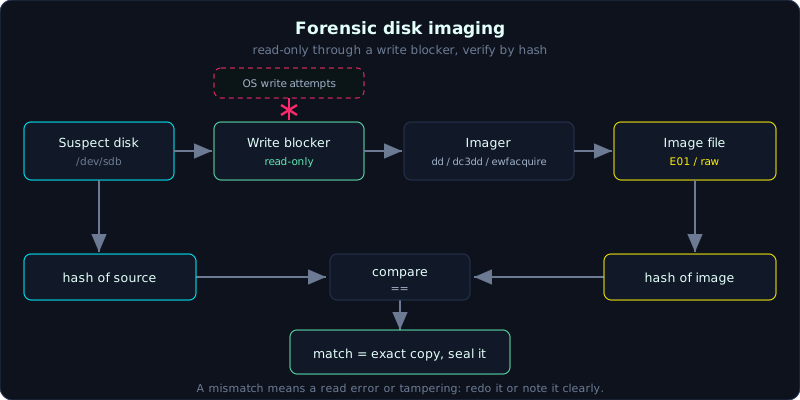 The suspect disk is read through a write blocker, imaged, and verified by matching the source hash to the image hash.
| Part: 2 (Evidence Acquisition) | Time: about 45 minutes | Difficulty: medium |
Prerequisites: Lesson 2.1 (order of volatility).
Tools: dd, dc3dd, dcfldd, FTK Imager, ewfacquire (libewf), Guymager, a write blocker.
Goals
After this lesson you can create a raw image and an E01 image from a disk (or a file that simulates a disk). You understand what a write blocker does and why an image made without one can be rejected. You can compute and verify a hash to prove the image matches the original.
1. Theory
What a disk image is, and why it is not a file copy
When IT people say “copy the hard disk”, they usually mean copying files from one disk to another. A forensic image is different. It is a bit-by-bit copy of the whole device, including empty space, slack space (the leftover at the end of a cluster), unallocated space (not yet allocated, where deleted files still sit), and areas that belong to no partition. A file copy normally takes only the live data and skips metadata. An image takes everything, even the junk, because the junk is where evidence tends to hide.
A consequence: imaging a 500GB disk produces a 500GB file (or a bit smaller if compressed). You need a target drive big enough.
Write blocker: blocking writes so the original does not change one bit
Just plugging a Windows disk into another Windows machine makes the operating system quietly write to it: updating timestamps, creating a System Volume Information folder, indexing. Even a few bytes are enough to change the hash, and then you can no longer prove the image matches the original.
A write blocker is a device (or software) that sits between the suspect disk and the analysis machine, allowing reads but blocking every write command. There are two kinds:
- Hardware write blocker: a physical box, the disk plugs into one side and the machine into the other. The most trusted, the standard in the lab (for example the Tableau line).
- Software write blocker: blocks writes through operating system configuration. On Linux you can mount read-only (
mount -o ro) or useblockdev --setro. On Windows there is a registry key that blocks USB writes. Cheap but easy to get wrong, so use it when you have no hardware and verify carefully.
The principle: imaging a physical disk must go through a write blocker. Without one, the chain of custody has a hole.
Three image formats: raw, E01, AFF
raw (dd image, extensions .dd, .img, .001): a truly raw copy, no header, no metadata, no compression. Byte n in the file is byte n on the disk. Advantages: every tool can read it, it is simple, it does not depend on any software. Drawbacks: it holds no metadata (who made it, when, the hash), it is not compressed so it is large, and it has no internal integrity check. The hash must be stored separately in an external file.
E01 (EnCase Evidence File, Expert Witness Format): EnCase’s format, now the de facto standard. The file contains case metadata (examiner, case number, notes), compression (which cuts the size significantly), an embedded hash (MD5 and/or SHA), and a CRC per block so it detects read errors on its own, plus support for splitting into .E01, .E02 and so on for easier storage. Read it with libewf (ewfacquire, ewfmount), FTK Imager or Autopsy. This is the default choice for most cases.
AFF / AFF4 (Advanced Forensic Format): an open format, free of licensing constraints, supporting compression and metadata similar to E01. The newer AFF4 can also hold multiple sources (disk, RAM) in one container and store sparsely. Less common than E01 but a good choice when you want an open standard.
What to choose? For maximum compatibility and simplicity: raw. For compression, metadata and self-checking (most cases): E01. AFF4 when you want an open container and to combine multiple sources.
Hash verification: the backbone of integrity
A hash turns the whole content of the image into a fixed string (for example 32 hex characters for MD5, 64 for SHA-256). Change one bit in the image and the hash changes completely. The standard procedure:
- Before imaging: compute the hash of the source disk (many tools do this while reading).
- After imaging: compute the hash of the image you just created.
- Compare the two hashes. A match means the image is an exact copy. A mismatch means there was a read error or a bad disk, and you must redo it or note it clearly.
- Later, before each analysis, hash the image again to be sure it has not changed.
MD5 is broken for collision resistance, so it is no longer used for digital signatures, but for verifying image integrity it is still acceptable and still very common, because the chance of a random read error producing exactly the same MD5 is almost zero. Even so, good practice is to also compute SHA-256 to be safe.
2. Hands-on (demo)
To do this at home without a real disk, we create a file that simulates a disk and image it. Every command runs on Linux (or WSL).
Build a fake disk to practice on
1
2
3
4
5
6
7
8
# Create a 100MB file, format it FAT, drop in a few files so it looks real
cd /tmp/image-work   # your temporary working directory
dd if=/dev/zero of=evidence.img bs=1M count=100
mkfs.vfat evidence.img
mkdir mnt && sudo mount -o loop evidence.img mnt
echo "bi mat cong ty" | sudo tee mnt/secret.txt
sudo cp /etc/hostname mnt/note.txt
sudo umount mnt
Now evidence.img plays the role of the suspect disk. In reality this would be /dev/sdb (a disk connected through a write blocker), not a file.
Imaging with dd (raw)
1
2
3
4
5
6
7
8
# The most basic form. It does NOT hash on its own, so hash by hand afterwards.
dd if=evidence.img of=image_raw.dd bs=4M conv=noerror,sync status=progress

# conv=noerror : on a bad sector, skip it, do not stop
# conv=sync    : a bad sector is padded with zeros so the offset does not shift
# Hash both the source and the image, then compare
md5sum evidence.img image_raw.dd
sha256sum evidence.img image_raw.dd
dd is the original Unix command, present everywhere, but it knows nothing about forensics: no log, no hash, and mixing up if with of overwrites in reverse (many people call it “disk destroyer”). So for a real original, use dc3dd or dcfldd.
Imaging with dc3dd (raw plus hash and log on the fly)
1
2
3
4
5
6
dc3dd if=evidence.img of=image_dc3.dd hash=sha256 log=image_dc3.log

# dc3dd reads, hashes and logs at the same time. View the log:
cat image_dc3.log
# The log holds the source hash, the number of sectors read, and any errors.
# This is the chain of custody evidence, so no separate manual hashing is needed.
dcfldd is similar, supporting several hash algorithms in parallel and splitting:
1
2
dcfldd if=evidence.img of=image_dcfldd.dd hash=md5,sha256 \
       hashlog=hashes.txt bs=4M
Imaging to E01 with ewfacquire
1
2
3
4
5
6
7
8
9
# Package: apt install ewf-tools  (or libewf-tools)
ewfacquire evidence.img
# It asks interactively: case number, examiner, description, format (encase6),
# compression level (fast/best), split size, and it hashes automatically.
# Result: image.E01 (compressed, with metadata, embedded hash).

# View metadata and verify the embedded hash:
ewfinfo image.E01
ewfverify image.E01      # compares the hash stored in the file with the actual data
To mount the E01 and read it like a normal disk (still read-only), use ewfmount image.E01 /mnt/ewf, then point your analysis tool at /mnt/ewf/ewf1.
FTK Imager (Windows, GUI)
FTK Imager is the de facto standard for imaging on Windows, and it is free. The workflow (described, no screenshots in this draft):
1
2
3
4
5
6
7
8
9
File > Create Disk Image
  > choose source: Physical Drive or Logical Drive
  > Add... select the suspect disk (connected through a write blocker)
  > Image Type: choose E01 (or Raw(dd))
  > fill in Evidence Item Information: case, examiner, number, description
  > Image Destination: target drive + name + split size (for example 2GB/fragment)
  > TICK "Verify images after they are created"
  > Start
When done, FTK shows a table comparing Created vs Verified hashes. Two matching columns = pass.
Always tick Verify. It computes the hash while creating and recomputes it when done and compares, which is the integrity verification step done for you.
Software write blocker on Linux (when you have no hardware)
1
2
3
4
5
# Set disk /dev/sdb to read-only at the block device layer
sudo blockdev --setro /dev/sdb
blockdev --getro /dev/sdb     # returns 1, meaning it is read-only
# Now image /dev/sdb with dc3dd as above. You still want a hardware blocker
# for a real case; this is the fallback when you are stuck.
3. Lab
This lab runs for real, 100% local, no root and no mount needed: labs/2.2/. You only need dd, md5sum, sha256sum, mkfs.ext4, debugfs, fls, icat (The Sleuth Kit).
- Run:
1
2
3
cd labs/2.2
./make.sh      # creates device.img (a 1MB ext4 source device) with a normal file, a hidden file .notes.hidden, and a deleted file
./solve.sh     # dd to evidence.img, verify source hash == image hash, list and recover the deleted file, tamper test
- The lab proves four core points: the image is a bit-by-bit copy; the source hash matches the image hash;
flssees the deleted file (marked with*) andicatrecovers its content; changing exactly one byte changes both MD5 and SHA-256 completely (the avalanche effect) so verification fails. - See the real output in
labs/2.2/transcript.txt, with details inlabs/2.2/README.md.
Extension (if you have the EWF tools installed): repeat the acquisition with ewfacquire to E01, use ewfinfo/ewfverify to see that E01 is smaller than raw due to compression but still verifies because it compares against the decompressed data; mount read-only with ewfmount. The principles “source hash == image hash” and “change 1 byte and verification fails” are identical to the raw lab above.
4. Common pitfalls
- Plugging the suspect disk straight into a machine with no write blocker: the operating system writes to it, the hash changes, and the image loses its legal value.
- Mixing up
if=andof=in dd: overwriting the original in reverse, losing everything. Check twice before you press Enter. - Imaging to a target drive smaller than the source: it fills up midway and the image is incomplete.
- Forgetting to verify the hash, then discovering at trial that the image had a read error and you cannot prove integrity.
- Imaging a partition (
/dev/sdb1) instead of the whole physical disk (/dev/sdb): losing the MBR/GPT, losing the area outside partitions, losing hidden partitions. - Mounting an E01 without read-only, or letting the operating system auto-mount a partition inside the image and write to it.
5. Further reading
- The libewf documentation and the
ewfacquireman page. - FTK Imager User Guide (Exterro).
- NIST Computer Forensics Tool Testing (CFTT), the test reports on write blockers and imaging tools.
- SWGDE Best Practices for Computer Forensic Acquisitions.
6. Key takeaways
- An image is a bit-by-bit copy, taking slack and unallocated space too, not a file copy.
- A physical disk must be imaged through a write blocker (hardware is best).
- Choose E01 for most cases (compression, metadata, embedded hash), raw when you need maximum compatibility.
- The source hash and the image hash must match; turn on Verify in FTK Imager.
- Hash the image again before each analysis to be sure it has not changed.
- Use dc3dd/dcfldd instead of dd when working with a real original (log and hash on the fly).