Lesson 2.3: Acquiring RAM on Windows and Linux
By the end of this lesson you can dump the memory of a Windows machine and a Linux machine, understand why RAM is often where the most valuable evidence sits, and avoid the mistakes that ruin a dump at the collection stage.
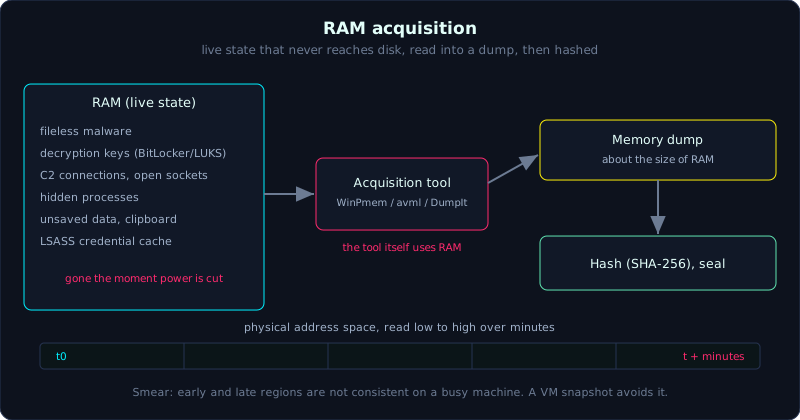 RAM holds live state that never reaches disk; a tool reads it into a dump file, which is then hashed.
| Part: 2 (Evidence Acquisition) | Time: about 40 minutes | Difficulty: medium |
Prerequisites: Lesson 2.1 (order of volatility).
Tools: WinPmem, DumpIt, LiME, avml. Analyzing the dump comes later in Part 6 (Volatility).
Goals
After this lesson you can explain why RAM holds evidence that disk does not. You can dump RAM on Windows with WinPmem or DumpIt, and on Linux with avml or LiME. You know the points that keep a dump from being corrupted or doubted (smear, footprint, size).
1. Theory
Why RAM is valuable
RAM holds the live state of the machine, and many things in it never reach disk:
- Fileless malware: runs directly in memory, injected into a legitimate process (code injection, process hollowing). There is no file on disk, so turning off the machine erases the trace. In RAM it shows its full form.
- Decryption keys: the keys for BitLocker, LUKS and VeraCrypt sit in RAM while the disk is open. A RAM dump can recover the key to open the encrypted disk later (Lesson 10.2).
- Open network connections and C2: the control server address, port, and active sockets.
- Running processes, including hidden ones: a rootkit can hide a process from Task Manager, but the structures in RAM still carry the trace.
- Unsaved data: chat contents, passwords typed into a form, unsaved text, clipboard, the command just typed.
- The loaded registry, credential caches (for example the LSASS structures): a source for extracting hashes and passwords.
In short: disk tells you what was saved, RAM tells you what is happening. In modern malware investigation, skipping RAM means skipping half the case.
What dumping RAM means
Dumping (or capturing) RAM means reading all of physical memory and writing it to a file (usually called a memory image or raw memory dump). The file is as large as the amount of RAM: a 16GB machine produces a dump of about 16GB. Later you analyze it with Volatility or MemProcFS.
The core problem: to read RAM, the tool has to run, and running means it occupies RAM and changes it. This is the unavoidable paradox of live acquisition. You can only reduce the impact, not eliminate it: use a small tool, run it from USB, write the dump to an external drive, and capture RAM before touching other heavy operations.
Smear: a blurred image
Because RAM changes while being read, a dump is not a simultaneous snapshot of all of memory, but a gradual read from low to high addresses over several minutes. During those minutes, the region read earlier and the region read later are no longer consistent with each other. This is called smear. The busier the machine and the larger the RAM, the worse the smear, and sometimes Volatility cannot rebuild the structures. To reduce it: use a fast tool, dump when the machine is as idle as possible, and for a virtual machine a snapshot or suspend gives a far cleaner simultaneous image than dumping from inside.
Choosing a tool by operating system
Windows:
- WinPmem: open source (from the Velocidex group), exports raw or AFF4, runs from the command line, no install needed. Reliable and widely used.
- DumpIt: a single exe, one run and you have the dump. Very compact for triage at the scene, good when you need something fast and simple.
- Magnet RAM Capture and FTK Imager (which also has a memory capture feature) are other GUI options.
Linux:
- avml (Microsoft): a static, portable binary, no need to know the kernel version in advance, no module to build. This is the easiest option today. It exports the LiME format.
- LiME (Linux Memory Extractor): a Loadable Kernel Module (LKM, a module loaded into the kernel). Strong and classic, but it must be built to match the running kernel (needs matching kernel headers), which is a bit fiddly. It also works for Android.
macOS: harder because of System Integrity Protection, usually needs dedicated solutions, out of scope for this lesson.
Whichever tool you use, remember to also collect the information needed to analyze later. On Linux you specifically need the kernel version and matching symbols (Lesson 6.1 covers this in detail).
2. Hands-on (demo)
Windows with WinPmem
Download the WinPmem binary to a USB tool drive. Plug in an extra external drive E: to hold the dump (do not write the dump to the suspect machine’s own disk, it would overwrite unallocated space that holds evidence).
1
2
3
4
5
6
7
8
# Run from USB, output to the external drive. Open an Administrator cmd.
X:\> winpmem_mini_x64.exe E:\mem\WIN10-03.raw

# Or the winpmem build with more options, exporting AFF4 with metadata:
X:\> winpmem.exe -o E:\mem\WIN10-03.aff4

# Once the dump is done, hash it immediately:
X:\> certutil -hashfile E:\mem\WIN10-03.raw SHA256 > E:\mem\WIN10-03.sha256
Windows with DumpIt (very fast triage)
1
2
3
X:\> DumpIt.exe /OUTPUT E:\mem\WIN10-03.dmp /QUIET
# The interactive build just needs you to run DumpIt.exe and type Y; it names
# the file after the machine name + time. Note the path it prints, then hash it.
Linux with avml (easiest)
1
2
3
4
5
6
7
8
9
# Download the avml binary to USB. Needs root to read /proc/kcore or /dev/mem.
sudo ./avml /mnt/usb/mem/linuxbox.lime

# Record the kernel info so you can build symbols for Volatility later
uname -a           | tee /mnt/usb/mem/uname.txt
cat /etc/os-release | tee -a /mnt/usb/mem/uname.txt

# Hash
sha256sum /mnt/usb/mem/linuxbox.lime | tee /mnt/usb/mem/linuxbox.sha256
Linux with LiME (classic, build against the kernel)
1
2
3
4
5
6
7
8
9
10
# Needs kernel headers matching the running kernel
sudo apt install linux-headers-$(uname -r) build-essential
git clone https://github.com/504ensicsLabs/LiME
cd LiME/src && make

# Load the module, it dumps straight to a file (format=lime keeps memory region metadata)
sudo insmod lime-$(uname -r).ko "path=/mnt/usb/mem/box.lime format=lime"
# It unloads on its own after the dump; remove the module to be clean:
sudo rmmod lime
sha256sum /mnt/usb/mem/box.lime
Virtual machines: suspend for the cleanest image
If the target is a VM, the cleanest way is not to run a tool inside, but to suspend or snapshot from the hypervisor and take the memory state file:
1
2
3
VMware:     the .vmem file (and .vmss) is the RAM content, Volatility reads it directly
VirtualBox: VBoxManage debugvm <vm> dumpvmcore --filename box.elf
Hyper-V:    checkpoint, then take the .bin file in the checkpoint folder
This way there is almost no smear, because memory is frozen instantly. Remember to hash that file and treat it as evidence.
3. Lab
- Data: use a VM of your own (Windows or Ubuntu). Put the dump and notes in
labs/2.3/. - Tasks:
- Before dumping, open Notepad (or gedit) and type an easy-to-find string, for example
FORENSIC_LAB_SECRET_2026, and do not save the file. - Dump RAM with avml (Linux) or WinPmem (Windows). Record the time, the kernel/OS version, and the hash of the dump.
- Use
stringsto find the secret string again in the dump:strings -a dump.raw | grep FORENSIC_LAB_SECRET. You just proved that RAM holds something that was never saved to disk. - Compare the dump size with the VM’s declared RAM amount. Explain the difference (device regions, reserved regions).
- Before dumping, open Notepad (or gedit) and type an easy-to-find string, for example
- Hint: if
stringsdoes not find it right away, try the 16-bit encoding too:strings -el dump.raw | grep FORENSIC. On Windows many UI strings are UTF-16LE. - Answer:
labs/2.3/solution.md. Main points: an unsaved string still sits in RAM, proving the value of memory forensics; the dump size is close to the RAM amount but not exactly equal.
4. Common pitfalls
- Writing the dump to the suspect machine’s own disk: it overwrites unallocated space and destroys the evidence on disk.
- Dumping a machine with large RAM under heavy load and then being surprised when Volatility errors: that is smear, so do it when the machine is idle or use a VM snapshot.
- Forgetting to record the kernel version on Linux, then being unable to build a symbol table at analysis time, turning the dump into a brick.
- Thinking you can just turn the machine off and dump later: RAM is gone the moment power is cut, there is no such option.
- Choosing a tool that is too heavy (a large installer), changing RAM more than necessary and increasing the impact on the evidence.
- Not hashing the dump, so later you cannot prove it was not modified.
5. Further reading
- WinPmem and pmem docs (Velocidex).
- The avml README (Microsoft) and the LiME wiki (504ensicsLabs).
- “The Art of Memory Forensics” (Ligh, Case, Levy, Walters), the chapter on acquisition.
- SANS FOR508, the memory acquisition and anti-forensics section.
6. Key takeaways
- Dump RAM before imaging disk, because RAM goes with the power.
- Run the tool from USB, write the dump to an external drive, never to the suspect machine.
- Windows: WinPmem or DumpIt; Linux: avml (easy) or LiME (build against the kernel).
- On Linux, record
uname -aand the OS version so you can build symbols for Volatility later. - Hash the dump immediately after creating it.
- For a VM, suspend or snapshot from the hypervisor for a simultaneous image with little smear.