Lesson 2.4: Fast triage at the scene
By the end of this lesson you can collect the important artifacts from a machine in minutes instead of hours, using KAPE, CyLR or Velociraptor, in time to classify it before you decide whether a full image is needed.
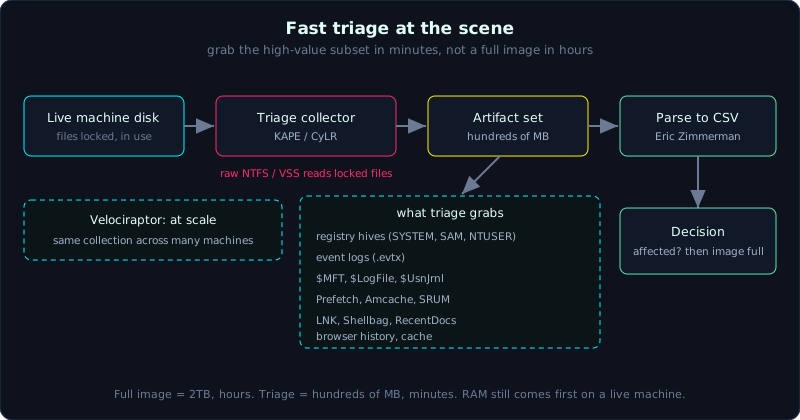 Triage collects a small high-value artifact set, parses it to CSV, and tells you whether a full image is worth it.
| Part: 2 (Evidence Acquisition) | Time: about 40 minutes | Difficulty: medium |
Prerequisites: Lesson 2.1 (order of volatility), Lesson 2.2 (creating a disk image).
Tools: KAPE, CyLR, Velociraptor.
Goals
After this lesson you understand what triage is and when to collect quickly and selectively instead of imaging the whole disk. You can run KAPE to collect target artifacts and run a parse module. You can use CyLR and Velociraptor for fast collection, including across many machines at once.
1. Theory
Triage: you do not always image the whole disk
Imaging a whole 2TB disk takes several hours and produces a 2TB file. If you have one machine, fine. But when 50 machines are suspected in the same attack wave, or when you need to know right away which machines are actually affected so you can scope the incident, you do not have time to image each one. That is when you need triage: collect a small set of important artifacts quickly (usually a few hundred MB), analyze it immediately to answer “is this machine affected, and with what”, and only then decide which machines are worth a full image.
Triage like this is a tradeoff. You do not take everything (you lose unallocated space, slack, and deleted files whose metadata is already clean), but you get the part with the highest density of evidence, very fast. This is a classification step, not a replacement for a full image in a serious case.
Which artifacts are worth collecting in triage (Windows)
The things that are almost always on the list:
- Registry hives: SYSTEM, SOFTWARE, SAM, SECURITY, and each user’s NTUSER.DAT and UsrClass.dat. They hold configuration, plugged-in USB devices, autorun entries, user activity.
- Event logs (.evtx): logon/logoff, process creation (4688), Sysmon, PowerShell logs.
- Program execution: Prefetch, Amcache.hve, SRUM (SRUDB.dat), UserAssist.
- File and folder access: LNK, Jump List, Shellbag, RecentDocs.
- $MFT, $LogFile, $UsnJrnl: NTFS file system metadata, very strong for building a timeline.
- Browser: history, cache, downloads.
- Scheduled tasks, startup folder, WMI: persistence traces.
The problem: many of these files are locked by the operating system because they are in use. This is where the triage tools stand out. They can read a locked file by accessing it at a low level (raw NTFS read, or through Volume Shadow Copy), so they collect the $MFT and registry hives of a running system without turning it off.
Three tools, three styles
- KAPE (Kroll Artifact Parser and Extractor): a Target (what to collect) and Module (how to parse) model. A Target is a .tkape config file listing the artifact paths to grab; a Module is a .mkape that calls another tool (usually the Eric Zimmerman suite) to parse into CSV. Very strong, very flexible, the standard on Windows. Free to use.
- CyLR: lighter, a single binary, run it and it grabs the default artifact set and packages it into a zip. It does not parse, only collects. Good when you need something very fast and simple, and it runs on Linux too.
- Velociraptor: an endpoint-style DFIR platform. Install an agent on many machines, then from the server you issue collection or hunt (searching by IOC) commands across hundreds of machines at once using VQL (Velociraptor Query Language). This is triage at scale, not plugging a USB into each machine.
Where it fits in the process
Triage does not break the order of volatility: if the machine is suspected of malware and still running, you still capture RAM first (Lesson 2.3), then triage the disk artifacts, and only then consider a full image. Triage collects from disk, so it is more durable than RAM and can be done after RAM.
2. Hands-on (demo)
KAPE on the command line: collect then parse in one go
Run from USB, write to the external drive E:. tsource is the source drive, tdest is where raw artifacts go, mdest is where parsed results go.
1
2
3
4
5
6
7
8
9
# Collect the combined triage target set, compress to VHDX:
kape.exe --tsource C: --tdest E:\kape_out --target KapeTriage --vhdx WIN10-03

# After collection, parse right away with a module (produces CSV for analysis):
kape.exe --msource E:\kape_out --mdest E:\kape_parsed --module !EZParser

# Or combine collect + parse in one line:
kape.exe --tsource C: --tdest E:\kape_out --target KapeTriage ^
         --mdest E:\kape_parsed --module !EZParser --gui
A few commonly used targets: KapeTriage (the combined set), RegistryHives, EventLogs, FileSystem ($MFT, $J…), WebBrowsers, !SANS_Triage. Look in the Targets\ folder to see what is available. The !EZParser module runs the whole Eric Zimmerman suite to turn hives, evtx, prefetch and so on into CSV you open with Timeline Explorer.
KAPE through the GUI (gkape.exe)
1
2
3
4
5
gkape.exe opens:
  - Targets panel: tick Use Target options, choose KapeTriage, fill in Target source (C:)
    and Target destination (E:\kape_out). Tick "Add %d and %m" so the name has the date.
  - Modules panel: tick Use Module options, choose !EZParser, fill in Module destination.
  - The "Execute!" button at the bottom builds the command line so you can review it before running.
CyLR: grab quickly into a zip
1
2
3
4
5
# Windows: collect the default set, compress to an archive named after the machine
CyLR.exe -o E:\cylr_out

# Specify drive and output explicitly, with extra custom paths:
CyLR.exe -od E:\cylr_out -of WIN10-03.zip
1
2
# CyLR also runs on Linux to collect Linux artifacts
sudo ./CyLR -o /mnt/usb/cylr_out
CyLR produces a single zip holding the artifacts with their path structure preserved. You then bring the zip back, extract it, and parse it with a separate tool (a KAPE module, or the EZ suite, or plaso). CyLR does not parse on its own.
Velociraptor: triage at scale
Velociraptor runs client-server. A sketch of the idea (deployment details are out of scope for this lesson):
1
2
3
4
5
6
7
8
9
10
# Stand up the server + GUI (pre-configured)
velociraptor --config server.config.yaml frontend

# On the machine to investigate, run the agent pointing back at the server (client.config.yaml)
velociraptor --config client.config.yaml client

# From the server GUI, pick a machine (or a whole group) and run a built-in artifact, for example:
#   Windows.KapeFiles.Targets   (collect KAPE-style artifacts at scale)
#   Windows.Triage.ProcessMemory
# Or hunt by IOC with VQL across the whole fleet at once.
To collect offline without a server, Velociraptor can also build an “offline collector” (a self-contained exe) that you carry to each machine, which produces a zip when it finishes, very handy at the scene.
After collection: open the results
1
2
3
- CSV from KapeParsed: open with Timeline Explorer (EZ) to filter, sort and search.
- Parsed $MFT: one row per file with its timestamps, to build a timeline.
- Parsed event logs: filter EventID 4624/4625 (logon), 4688 (process), 7045 (service).
3. Lab
- Data: use your own Windows VM (or a Linux VM for CyLR). Put the results in
labs/2.4/. - Tasks:
- Create fake “traces”: plug a USB into the VM (to generate a registry trace), run a few programs (to generate Prefetch), open a few files (to generate LNK/RecentDocs).
- Run KAPE with the
KapeTriagetarget to collect artifacts, then the!EZParsermodule. Measure the time and output size, compared to imaging the whole disk. - In the parsed Prefetch CSV, find the programs you just ran, and look at the run count and last run time.
- Repeat the collection with CyLR and compare: CyLR is faster and lighter but does not parse, KAPE is a bit slower but produces readable CSV right away. Draw your own conclusion about when to use which.
- Hint: if you have no real Windows machine, many artifacts can be practiced on a public sample image (for example CTF images, SANS samples). KAPE can also run a target against a folder mounted from an image (
--tsourcepoints at the read-only mounted disk). - Answer:
labs/2.4/solution.md. Main points: triage produces a few hundred MB in a few minutes, enough to answer “is the machine affected”; KAPE = collect + parse, CyLR = collect fast then parse later, Velociraptor = at scale.
4. Common pitfalls
- Thinking triage replaces a full image: triage drops unallocated space, slack, and deleted files with clean metadata. A serious case still needs a full image.
- Running triage with output written to the suspect disk, overwriting evidence again.
- Forgetting that artifacts collected by triage still need a hash and a chain of custody like any other evidence.
- Using the wrong KAPE target (too narrow) and missing a needed artifact, or too broad and making it slow and heavy.
- Running a Velociraptor hunt at scale without testing the VQL first, loading a production system.
- Confusing “collect” with “parse”: CyLR only collects, so do not expect ready analysis results.
5. Further reading
- KAPE documentation (Kroll) and the community Target/Module repository (KapeFiles on GitHub).
- CyLR README (orlikoski).
- Velociraptor documentation (docs.velociraptor.app), the Offline Collector and Hunts sections.
- SANS FOR508, the enterprise triage and scaling section.
6. Key takeaways
- Triage = fast collection of high-density artifacts to classify, not a replacement for a full image in a serious case.
- Still capture RAM first if the machine is running and suspected of malware.
- KAPE: Target collects, Module parses; CyLR: fast collection into a zip; Velociraptor: at scale.
- These tools can read locked files (registry, $MFT) on a running machine.
- Write output to an external drive, with the time and a hash.