Lesson 4.5: Windows Persistence and Where Malware Hides
Once an attacker gets onto a machine, the next step is almost always to install persistence, so that the next reboot still leaves a way in. From an investigator’s view, persistence is both hard and easy. Hard, because there are dozens of mechanisms and MITRE ATT&CK gives it a whole tactic of its own. Easy, because the attacker has to write something to disk or to the registry, and whatever is written leaves a trace. This lesson follows the investigator’s logic: know which places are commonly used, and for each place, where the trace lives.
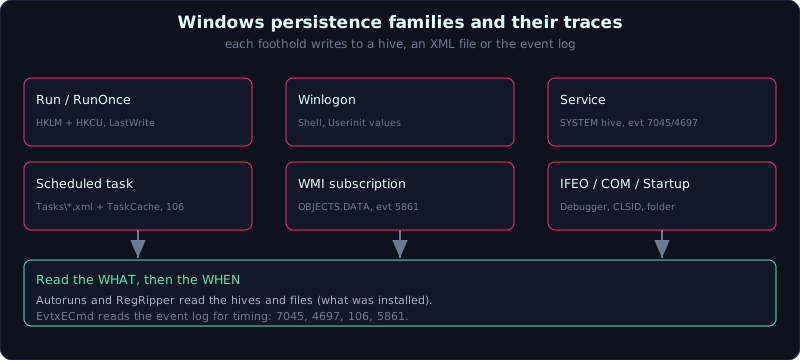 The main persistence families on Windows and where each leaves a trace, in hives, XML files and the event log.
| Part: 4 (Windows Forensics) | Time: about 70 minutes | Difficulty: advanced |
Prerequisites: read hives (Lesson 4.1), event logs and service event IDs (Lesson 4.2).
Tools: Autoruns/autorunsc (Sysinternals), RegRipper, EvtxECmd, python-registry, PyWMIPersistenceFinder.
Goals
After this lesson you can list the main persistence families: autostart registry, Winlogon, services, scheduled tasks, WMI, the Startup folder, IFEO, COM hijack. For each family you know how to read the trace from a hive or file, and the matching event log. You can use Autoruns/autorunsc to scan fast and filter out the abnormal, and tell legitimate system persistence from what an attacker added.
1. Theory
1.1. Autostart via the registry (ASEP)
The classic and cheapest place:
1
2
3
4
5
6
7
8
9
10
# machine level (SOFTWARE), runs for every user at boot/logon
SOFTWARE\Microsoft\Windows\CurrentVersion\Run
SOFTWARE\Microsoft\Windows\CurrentVersion\RunOnce
SOFTWARE\Microsoft\Windows\CurrentVersion\RunServices           (old)
SOFTWARE\Microsoft\Windows\CurrentVersion\Policies\Explorer\Run
SOFTWARE\Wow6432Node\Microsoft\Windows\CurrentVersion\Run       (32-bit on a 64-bit machine)

# user level (NTUSER.DAT)
NTUSER.DAT\Software\Microsoft\Windows\CurrentVersion\Run
NTUSER.DAT\Software\Microsoft\Windows\CurrentVersion\RunOnce
Trace: a new value in these keys, with the key’s LastWrite as an approximate time. RegRipper plugin run. Red flags: a path pointing to %TEMP%, %APPDATA%, C:\ProgramData, C:\Users\Public, or a long base64-encoded command, or using mshta, rundll32, regsvr32 with odd arguments (the LOLBins, legitimate binaries being abused).
1.2. Winlogon
Winlogon runs early and with high privilege, so these two values are often injected into:
1
2
3
4
SOFTWARE\Microsoft\Windows NT\CurrentVersion\Winlogon
    Shell     default: "explorer.exe"              (a trailing ", malware.exe" is abnormal)
    Userinit  default: "C:\Windows\system32\userinit.exe,"   (an odd path added after the comma)
    Notify    (a DLL package, abused on older builds)
Trace: compare Shell and Userinit against their default values; anything extra is worth investigating.
1.3. Services
Services run in the background, many of them as SYSTEM, so they are a favored persistence target (and a remote execution method like PsExec).
1
2
3
4
5
SYSTEM\ControlSet001\Services\<service name>
    ImagePath  path to the binary (or svchost + ServiceDll in Parameters)
    Start      0 boot, 1 system, 2 auto, 3 demand, 4 disabled
    Type       service type (0x10 own process, 0x20 shared, 0x1 driver...)
    Parameters\ServiceDll   for a DLL-type service
Event log trace:
1
2
3
System.evtx    7045  new service installed (ImagePath + ServiceName + StartType)
Security.evtx  4697  service installed (needs audit enabled)
System.evtx    7040  start type changed (e.g. disabled -> auto)
Red flags: a meaningless random service name, an ImagePath pointing to a user folder or ADMIN$, an unsigned binary, or an ImagePath that is cmd /c / powershell. A 7045 with these traits is almost always worth digging into.
1.4. Scheduled tasks
A scheduled task can run at boot, at logon, on a schedule, or on an event. It is stored in two parallel places (which must match; a mismatch is a sign of hiding):
1
2
3
4
5
6
# the XML file defining the task
C:\Windows\System32\Tasks\<task path>      (XML file, readable by eye)

# a copy in the registry
SOFTWARE\Microsoft\Windows NT\CurrentVersion\Schedule\TaskCache\Tasks\{GUID}
SOFTWARE\Microsoft\Windows NT\CurrentVersion\Schedule\TaskCache\Tree\<name>
The XML file gives you: the command to run (<Command>, <Arguments>), the account it runs as (<Principal>), the trigger (logon, boot, schedule), the author. Event log trace:
1
2
3
4
5
6
7
Microsoft-Windows-TaskScheduler/Operational
    106  task registered (created)
    140  task updated
    141  task deleted
    200/201  action started/finished running
Security.evtx
    4698  scheduled task created     4702  updated      4699  deleted
Red flags: a recently created task pointing to a script in a temp folder, a hidden task (present in the registry Tree but not shown in the Task Scheduler GUI, or missing its SD so it stays hidden), a name impersonating a system task (\Microsoft\Windows\... with an odd command).
1.5. WMI event subscription
This is the “classy” persistence, running with no separate exe file at all, common in sophisticated cases. The mechanism is three parts in the WMI repository:
1
2
3
4
5
__EventFilter             the trigger condition (for example N seconds after boot)
__EventConsumer           the action, commonly used:
    CommandLineEventConsumer  runs a command
    ActiveScriptEventConsumer runs VBScript/JScript
__FilterToConsumerBinding links a filter to a consumer
Stored in the WMI repository:
1
C:\Windows\System32\wbem\Repository\OBJECTS.DATA   (and INDEX.BTR, MAPPING*.MAP)
Event log trace:
1
Microsoft-Windows-WMI-Activity/Operational   5861  records a binding (a consumer was activated)
Offline trace: parse OBJECTS.DATA with PyWMIPersistenceFinder, python-cim, or let Autoruns list the WMI entries. Red flags: an ActiveScriptEventConsumer holding an encoded script, a CommandLineEventConsumer calling powershell.
1.6. Other families to recognize
1
2
3
4
5
6
7
8
9
10
11
12
13
14
15
16
17
# the Startup folder (open it and you see it, very classic)
C:\Users\<user>\AppData\Roaming\Microsoft\Windows\Start Menu\Programs\Startup
C:\ProgramData\Microsoft\Windows\Start Menu\Programs\StartUp

# Image File Execution Options: attach a "debugger" to hijack an exe
SOFTWARE\Microsoft\Windows NT\CurrentVersion\Image File Execution Options\<exe>\Debugger
# the SilentProcessExit variant is also abused
SOFTWARE\Microsoft\Windows NT\CurrentVersion\SilentProcessExit\<exe>\MonitorProcess

# AppInit_DLLs: load a DLL into every process using user32 (old, now usually blocked)
SOFTWARE\Microsoft\Windows NT\CurrentVersion\Windows\AppInit_DLLs

# COM hijacking: take over a CLSID in the user branch to inject a DLL
NTUSER.DAT\Software\Classes\CLSID\{...}\InprocServer32

# logon script
NTUSER.DAT\Environment\UserInitMprLogonScript
There are more: netsh helper DLL, LSA security/authentication package, print monitor, BITS job, screensaver. When you suspect something and cannot check it all by hand, use Autoruns, which gathers almost all of these ASEPs (Auto-Start Extension Points) into one place.
2. Demo
2.1. Fast scan on a live machine with Autoruns
Autoruns (Sysinternals) is the quickest way to see the whole picture. The command-line build autorunsc.exe fits collection and feeding into a timeline:
1
2
3
4
5
# scan every ASEP type, with hash, signature, timestamp, export CSV
autorunsc.exe -a * -h -s -c -o autoruns.csv

# -a *  all categories   -h hash   -s check signatures   -c CSV   -o file
# in the GUI: enable Options > Hide Microsoft Entries to filter out the legitimate ones
In the GUI, filter “Hide Microsoft Entries” and “Hide Windows Entries”, then look at what is left: unsigned (Not Verified), odd paths, empty publisher. Autoruns covers Run keys, services, scheduled tasks, WMI, IFEO, logon, codecs and drivers.
2.2. Examine offline hives with RegRipper
1
2
3
4
5
6
7
rip.pl -r SOFTWARE  -p run
rip.pl -r NTUSER.DAT -p run
rip.pl -r SOFTWARE  -p winlogon
rip.pl -r SYSTEM    -p services         # list services, ImagePath, Start
rip.pl -r SOFTWARE  -p appinitdlls
rip.pl -r SOFTWARE  -p imagefile        # Image File Execution Options
rip.pl -r SOFTWARE  -p schedtasks       # TaskCache (depends on the plugin version)
Compare the service list against a clean Windows machine of the same version to quickly isolate the extras.
2.3. Read scheduled tasks from the XML file
When you have an image, look straight at the Tasks folder (text files, easier to read than the registry):
1
2
3
4
5
6
# list and read
dir /s C:\evidence\Windows\System32\Tasks
type "C:\evidence\Windows\System32\Tasks\UpdateHealth"

# on Linux
find /evidence/Windows/System32/Tasks -type f -exec grep -l -i "powershell\|cmd\|\.vbs\|http" {} \;
Read <Command>, <Arguments>, <Principal> (which privilege it runs as), <Triggers> (when it runs). Cross-check against TaskScheduler/Operational event 106 for the registration time.
2.4. Hunt for WMI persistence
1
2
3
4
# hand OBJECTS.DATA to a dedicated tool (run Python safely with -I)
python3 -I PyWMIPersistenceFinder.py "C:\evidence\Windows\System32\wbem\Repository\OBJECTS.DATA"

# or Autoruns on a live machine has a dedicated WMI tab
Look for an abnormal Filter/Consumer/Binding set, especially an ActiveScript/CommandLine consumer calling a script or powershell. Cross-check WMI-Activity/Operational event 5861.
2.5. Combine event log and registry for timing
The registry and files give you “what”, the event log gives you “when”:
1
2
EvtxECmd.exe -f System.evtx --csv out --csvf sys.csv        # filter 7045, 7040
EvtxECmd.exe -f "Microsoft-Windows-TaskScheduler%4Operational.evtx" --csv out --csvf task.csv   # 106, 140, 141
A service installed at 02:13 (7045), a scheduled task created at the same time (106), both pointing to one binary in C:\ProgramData\: that is a clear persistence chain with a full timeline.
3. Lab
The runnable lab is in labs/4.5/: fetch.sh downloads public sample hives (SOFTWARE, SYSTEM, NTUSER.DAT from regipy, MIT), and solve.sh scans Run keys (HKLM + HKCU), Image File Execution Options and services, flagging the suspicious ones. The hives are data artifacts. transcript.txt is the real output. See labs/4.5/README.md.
1
2
3
4
cd labs/4.5
pip install 'regipy[cli]' tabulate
bash fetch.sh
bash solve.sh
- Task (with a runnable lab):
- Run keys: list HKLM and HKCU, point out the masquerading entry
svchost = c:\windows\system32\dllhost\svchost.exethat the attacker added. - IFEO: count the entries that have a
Debuggervalue (this hive has 32 entries, 0 hijacked). - Services: scan for an ImagePath pointing to Temp/Public/PowerShell (this hive is clean, 0 suspicious). Note that COMSysApp using
dllhost.exeis LEGITIMATE (COM+), a classic false positive that needs cross-checking.
- Run keys: list HKLM and HKCU, point out the masquerading entry
- Task as an exercise (needs a Windows VM + event logs): install 5 harmless persistences yourself (an HKCU/HKLM Run key,
sc createa service,schtasks /create, a WMI subscription, a Startup file), reboot, then extract the hives +System32\Tasks+OBJECTS.DATA+winevt\Logs. Rerun the solver; read the scheduled task from the XML (cross-check event 106), take the service time from 7045, hunt WMI withPyWMIPersistenceFinder.py(cross-check event 5861); runautorunsc.exeto see how many it catches. - Answers: the “short answers” section in
labs/4.5/README.mdandlabs/4.5/transcript.txt.
4. Key takeaways
- Run/RunOnce (HKLM and HKCU) is the first place, remember Wow6432Node too.
- Winlogon Shell/Userinit must match the default values; anything extra is suspect.
- Services: read ImagePath + Start in SYSTEM, with timing from 7045 (System) and 4697 (Security).
- Scheduled tasks exist in both
System32\Tasks(XML) and TaskCache (registry), with events 106/140/141. - WMI persistence = Filter + Consumer + Binding in OBJECTS.DATA, event 5861.
- Autoruns/autorunsc gathers almost all ASEPs into one place, but does not replace cross-checking the event log for timing.
5. Common pitfalls
- Looking only at Run keys and thinking you have covered all persistence. Services, tasks, WMI and IFEO are all other paths.
- Forgetting WMI because it leaves no exe file. Remember OBJECTS.DATA and event 5861.
- Looking at scheduled tasks only in the Task Scheduler GUI. A hidden task (SD removed, or registry only) will not show, so you have to read the XML file and TaskCache directly.
- Trusting Autoruns’ “Hide Microsoft Entries” absolutely. A skilled attacker will fake a Microsoft publisher or sign with a stolen cert, so you still have to examine path and hash.
- Forgetting Wow6432Node on a 64-bit machine.
- Taking the Run key’s LastWrite as the exact persistence-install time, when LastWrite changes any time any value in the key changes. Use it as an approximate mark, fix the time with the event log.
- Not comparing against a clean machine of the same Windows build, so you cannot tell which service/task is default and which is extra.
6. Further reading
- MITRE ATT&CK, the Persistence tactic (TA0003); read T1547, T1053, T1543, T1546 closely.
- The Sysinternals Autoruns docs and the ASEP analysis write-ups.
- SANS FOR508, the persistence and lateral movement section.
- Matt Graeber’s series on WMI persistence (abusing WMI).
- 13Cubed, the episodes on scheduled task forensics and service persistence.