Lesson 4.3: Program Execution and Proving a Program Ran
This is the part where forensics work gets pressed hardest in court and in the incident room: “are you sure this file ran, or was it only sitting on disk”. A decent answer never rests on a single artifact. Windows scatters execution traces across six or seven different places. Each one records a different aspect: some record when it ran, some record only that the file once existed. Understanding exactly what each one records is how you avoid overstating.
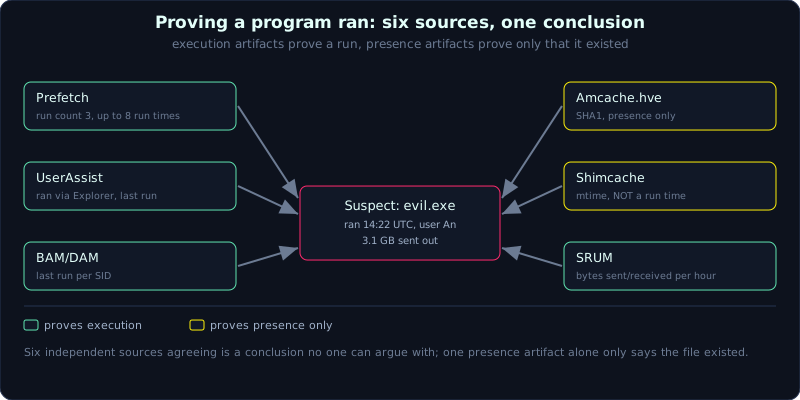 Prefetch, UserAssist and BAM prove execution; Shimcache and Amcache prove only presence.
| Part: 4 (Windows Forensics) | Time: about 75 minutes | Difficulty: advanced |
Prerequisites: read offline hives (Lesson 4.1), understand event logs (Lesson 4.2).
Tools: PECmd, AmcacheParser, AppCompatCacheParser, SrumECmd, RegRipper, WxTCmd (Eric Zimmerman suite).
Goals
After this lesson you can tell apart artifacts that prove “ran” from artifacts that only prove “existed”. You can read Prefetch for the run count and up to the 8 most recent run times. You can pull the SHA1 of a binary from Amcache.hve. You understand the Shimcache timestamp correctly (it is the file’s last modified time, not a run time). You can take per-app bytes sent/received from SRUM to spot exfiltration, and read UserAssist and BAM/DAM for the last run time per user.
1. Theory
1.1. Quick map: which one says what
Before going deep, keep this table in your head:
1
2
3
4
5
6
7
Artifact        Proves what                      Has a run time?       Scope
Prefetch        Ran                              Yes, up to 8 times    whole machine
Amcache.hve     Existed (usually from running)   Weak marker           whole machine
Shimcache       Existed / seen by shim engine    NO (it is mtime)      whole machine
SRUM            Resource use per app             Yes, hourly           per user
UserAssist      Ran via Explorer (GUI)           Yes, last run         per user
BAM/DAM         Ran                              Yes, last run         per user (SID)
The golden rule: Prefetch, UserAssist and BAM/DAM speak about execution. Shimcache and Amcache speak about presence. Mixing these two groups is the professional error most often caught.
1.2. Prefetch
Prefetch is Windows’ application-startup speedup. When a program runs, Windows writes a .pf file so the next launch is faster.
1
2
Location:  C:\Windows\Prefetch\<EXE_NAME>-<HASH8HEX>.pf
Example:   CMD.EXE-0BD7C8F5.pf
HASH is a hash of the full path (and of the arguments for some types). So the same rundll32.exe run from two different paths produces two .pf files with different hashes, which is handy for spotting a same-named binary run from an unusual folder.
Each .pf file holds:
- The run count.
- Up to the 8 most recent run times (on Windows 8 and later; Windows 7 stores only 1 last-run mark).
- The volume serial and device path of the volume holding the binary.
- The list of files and folders the program touched in its first few seconds (DLLs, config files, sometimes data files too). This list is very valuable: it shows which files a binary opened.
Limit: Windows 8/10/11 keeps at most 1024 .pf files, the oldest dropping off over time. Prefetch can be turned off (especially on some SSD configurations or Server machines), check with:
1
2
SYSTEM\ControlSet001\Control\Session Manager\Memory Management\PrefetchParameters
    EnablePrefetcher  (0 off, 1 app, 2 boot, 3 both)
If EnablePrefetcher = 0, do not be surprised the Prefetch folder is empty, and do not conclude “nothing ran”.
1.3. Amcache.hve
Amcache is its own hive, not in config:
1
C:\Windows\AppCompat\Programs\Amcache.hve
The keys worth noting (Windows 10/11 version):
1
2
3
4
5
6
Root\InventoryApplicationFile\<...>
    LowerCaseLongPath  -> the file's full path
    FileId             -> contains the SHA1 (drop the leading 4 zero chars) of the first ~31MB of the file
    ProductName, Publisher, Version
    LinkDate           -> compile time (PE header), easy to forge
Root\InventoryApplication\<...>   -> installed application information
The biggest value of Amcache is the SHA1 of the binary, even when the original file has been deleted from disk. With a hash you can look up VirusTotal and compare against IOCs. But be careful: the presence of an entry in Amcache proves the file once existed and was scanned by the Windows inventory program, it does not prove with full certainty that it was executed. This is a contested point, so in a report say “the file was present on the system, with its hash” rather than “it ran” when you have only Amcache.
1.4. Shimcache (AppCompatCache)
Shimcache serves Application Compatibility and is stored in the SYSTEM hive:
1
SYSTEM\ControlSet001\Control\Session Manager\AppCompatCache\AppCompatCache
Each entry has:
- The file path.
- Timestamp = the file’s last modified time ($STANDARD_INFORMATION), not the run time. To be sure: this is not an execution time.
- Windows 7 once had an “InsertFlag/Executed” flag, but on Windows 8/10 that flag is no longer reliable for asserting execution.
Two traps that are easy to fall into:
- Entry order matters: a new entry is pushed to the top of the list. Its position suggests relative order, but still gives no absolute time.
- Shimcache is only written down to the hive at shutdown (at runtime it lives in kernel memory). So if the machine has not rebooted after an incident, the most recent change may not yet be in the on-disk hive and must be pulled from a memory dump.
The limit is about 1024 entries on Windows 10. Use Shimcache to know “this file was present on the system with that mtime”, to cross-check an unusual path, not to fix a run time.
1.5. SRUM
SRUM (System Resource Usage Monitor) records how much of each resource every application consumed per hour, into an ESE database:
1
2
C:\Windows\System32\sru\SRUDB.dat
(needs the SOFTWARE hive too, to resolve the table GUID into a provider name)
SRUM tracks, per app and per user:
- Bytes sent and received over the network (network usage), great for spotting exfiltration: an unknown app pushing a few GB out is a red flag.
- CPU time, foreground activity.
- Power, network connections (SSID, interface).
SRUM data is aggregated into time windows, so it is not as sharp as Sysmon event 3, but it exists even when no one enabled network logging, and it is retained for about 30 to 60 days. For the question “did anyone push several GB out last week”, SRUM is often the first lead.
1.6. UserAssist
UserAssist lives in each user’s NTUSER.DAT and records programs run through Explorer (double-clicking an icon, the Start menu), not ones run from the command line or as a service:
1
2
3
NTUSER.DAT\Software\Microsoft\Windows\CurrentVersion\Explorer\UserAssist\{GUID}\Count
    {CEBFF5CD-ACE2-4F4F-9178-9926F41749EA}  -> executables
    {F4E57C4B-2036-45F0-A9AB-443BCFE33D9F}  -> shortcuts (.lnk)
The value names are ROT13-encoded (a shift of 13 letters, easy to decode). Each value’s data holds the run count, the most recent run time (FILETIME), and the focus time (how long the window was interacted with). Because it is tied to a user and to GUI interaction, UserAssist answers “what did this user open by hand” very well.
1.7. BAM/DAM
BAM (Background Activity Moderator) and DAM (Desktop Activity Moderator) are background-process management mechanisms from Windows 10 1709, stored in SYSTEM:
1
2
3
SYSTEM\ControlSet001\Services\bam\State\UserSettings\<SID>\<exe path>
    (older builds: ...\bam\UserSettings\<SID>\...)
SYSTEM\ControlSet001\Services\dam\...
Each value is the full path of an executable, with the first 8 bytes of data being the FILETIME of the most recent run, tied to the user’s SID. BAM/DAM is one of the cleanest and most reliable sources for “last execution time per user”, because it is hard for an ordinary user to tamper with. The downside: it keeps only the most recent run, and the data is cleared after a while.
One more source often forgotten: Windows Timeline (ActivitiesCache.db) at C:\Users\<user>\AppData\Local\ConnectedDevicesPlatform\<id>\ActivitiesCache.db, parsed with WxTCmd.exe, tells you which app opened which file and when. Microsoft has been removing this feature on newer builds, but it still shows up on many older machines.
2. Demo
Work on a copy, record a hash first. The examples below use the Eric Zimmerman suite (runs well on Windows, or via .NET on Linux).
2.1. Prefetch with PECmd
1
2
3
4
5
6
7
# parse one file
PECmd.exe -f "C:\evidence\Prefetch\CMD.EXE-0BD7C8F5.pf"

# parse a whole folder, export CSV, with a timeline of the runs (-q to quiet it down)
PECmd.exe -d "C:\evidence\Prefetch" --csv "C:\out" --csvf prefetch.csv

# PECmd also exports a separate *_Timeline.csv that splits each run onto its own row
Reading the result: the run count column, the 8 last-run columns, the referenced-files list. Seeing a .pf for rundll32.exe run from C:\Users\Public\ with run count 1, and an unfamiliar .dll in the referenced list, is a story.
2.2. Amcache with AmcacheParser
1
AmcacheParser.exe -f "C:\evidence\Amcache.hve" --csv "C:\out" -i
The *_UnassociatedFileEntries.csv and *_AssociatedFileEntries.csv files will have SHA1, path and publisher columns. Take the SHA1 and check it against IOCs. The -i flag includes entries not tied to an installed program.
2.3. Shimcache with AppCompatCacheParser
1
AppCompatCacheParser.exe -f "C:\evidence\SYSTEM" --csv "C:\out" --csvf shimcache.csv
The LastModifiedTimeUTC column is the file’s mtime, not a run time. The order columns (ControlSet, position) tell you where the entry sits in the list. Use it to examine an unusual path and cross-check the mtime, do not write it into a timeline as an execution time.
2.4. SRUM with SrumECmd
1
SrumECmd.exe -f "C:\evidence\SRUDB.dat" -r "C:\evidence\SOFTWARE" --csv "C:\out"
You need SOFTWARE too, to translate the table names. Open the network usage file, sort by BytesSent descending, and look for an app with abnormal consumption and the matching time window. This is strong evidence for data exfiltration when combined with network logs.
2.5. UserAssist and BAM with RegRipper
1
2
3
4
5
# UserAssist: decodes ROT13 automatically, prints run count and last run
rip.pl -r NTUSER.DAT -p userassist

# BAM/DAM: path + last execution per SID
rip.pl -r SYSTEM -p bam
On Windows you can use Registry Explorer, which has a built-in UserAssist bookmark with ROT13 already decoded and time columns.
2.6. Combining the sources
Suppose you suspect evil.exe ran. A solid argument looks like this:
1
2
3
4
5
6
Prefetch  EVIL.EXE-xxxx.pf : run count 3, last run 2026-10-05 14:22:07 UTC
BAM       \Device\...\evil.exe : last run 2026-10-05 14:22:07 UTC, SID S-1-5-21-...-1001
UserAssist (user An) : evil.exe, run count 3, last 2026-10-05 14:22
Amcache   SHA1 = a1b2... (VT lookup: 45/70 detection)
SRUM      evil.exe sent 3.1 GB out in the 14:00-15:00 window on 05/10
Shimcache \Users\Public\evil.exe, mtime 2026-10-05 13:58 (the file was placed then)
Six independent sources point to the same time, the same user, the same hash. That is a report no one can argue with. If you had only Shimcache, all you could say is “the file was once on the machine”, and nothing more.
3. Lab
The runnable lab is in labs/4.3/: fetch.sh downloads public sample hives (amcache.hve, SYSTEM, NTUSER.DAT from the regipy test data, MIT), and solve.sh pulls the binary SHA1 from Amcache, reads Shimcache from SYSTEM, and reads UserAssist from NTUSER. The hives are data artifacts. transcript.txt is the real output. See labs/4.3/README.md.
1
2
3
4
cd labs/4.3
pip install 'regipy[cli]' tabulate
bash fetch.sh
bash solve.sh
- Task (with a runnable lab):
- Amcache: count the entries that have a SHA1 (this hive has 1367). Take the SHA1 of a few files in
AppData\Tempand check IOCs. Remember: Amcache proves PRESENCE, not that it ran. - Shimcache: print path +
last_mod_date, and state that this is the file’s mtime, NOT a run time. - UserAssist: list the top entries by run count + last run (programs run through Explorer).
- Amcache: count the entries that have a SHA1 (this hive has 1367). Take the SHA1 of a few files in
- Task as an exercise (needs Windows 10/11 for the full set of sources):
- Prefetch: the Linux lab cannot create
.pf. On the VM, run a binary a few times, extract the*.pf, parse withPECmd.exefor the run count + 8 run times + referenced files. - BAM/DAM: the Win7 hive here does not have it (BAM is from Win10 1709). On Win10 run
rip.pl -r SYSTEM -p bamfor last execution per SID. - SRUM: extract
SRUDB.datwith SOFTWARE, parse withSrumECmd.exefor per-app bytes sent/received. - Combine the 6 sources for one suspect binary, and write a 5-line conclusion stating which source says what.
- Prefetch: the Linux lab cannot create
- Answers: the “short answers” section in
labs/4.3/README.mdandlabs/4.3/transcript.txt.
4. Key takeaways
- Prefetch:
C:\Windows\Prefetch\*.pf, up to 8 run times (Win8+), with a referenced-files list. - Amcache.hve: source of a binary’s SHA1 even after the file is deleted, but proves “presence” not necessarily “ran”.
- Shimcache: the timestamp is the file’s mtime, not a run time, and it only flushes at shutdown.
- SRUM: per-app bytes sent/received per hour, the main weapon for exfiltration.
- UserAssist: programs run through Explorer, value names ROT13-encoded, with run count and last run.
- BAM/DAM: last execution per SID, reliable and compact.
- Never conclude “ran” from a single artifact in the “presence” group.
5. Common pitfalls
- Using the Shimcache timestamp as an execution time. This is the classic error; it is the file’s last modified time.
- Concluding “ran” from Amcache alone. Amcache proves presence and gives a hash, it does not prove execution.
- Seeing an empty Prefetch folder and concluding nothing ran, when Prefetch is off (EnablePrefetcher = 0) or has rolled over past 1024 files.
- Taking Shimcache from the on-disk hive right after an incident while the machine has not rebooted, so new entries are missing (they are still in memory). When you have a memory dump, pull Shimcache from it.
- Forgetting to include SOFTWARE when parsing SRUM, so SrumECmd cannot translate app names.
- Mistaking UserAssist for “everything that ran”. It only catches what ran through Explorer, skipping services and the command line.
- Trusting the run count absolutely. Prefetch and UserAssist count differently, so a mismatch is normal; use them for cross-reference, not as an absolute forensic number.
6. Further reading
- SANS FOR500, the “Program Execution” table and the Windows Forensic Analysis poster.
- 13Cubed (YouTube), the clear series on Prefetch, Amcache and Shimcache.
- The Mandiant/FireEye whitepaper on Shimcache (AppCompatCache) and the misconceptions around it.
- The Eric Zimmerman tool docs: PECmd, AmcacheParser, AppCompatCacheParser, SrumECmd.
- Yogesh Khatri’s research on SRUM (SRUM-DUMP) to understand the table structure.