Lesson 6.1: Memory forensics and Volatility 3 from scratch
A disk tells you what was saved. RAM tells you what was running. Some things never touch the disk: a process running entirely in memory, an open C2 connection, a decryption key, a typed password, a PowerShell payload loaded straight into RAM. Turn the machine off and it is all gone. This lesson is the entry point into memory forensics: set up the tools, load a dump, and read the process list, the first step of every RAM investigation.
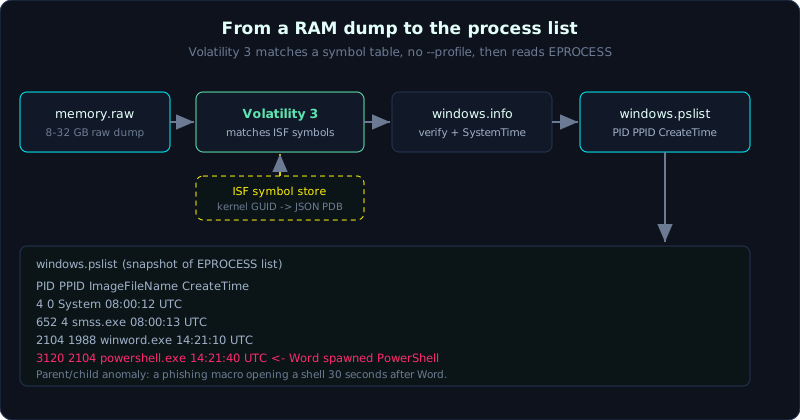 windows.info verifies the dump and matches a symbol table, then windows.pslist reads the process list.
Level: medium, about 60 minutes. Prerequisites: having acquired RAM (Lesson 2.3: WinPmem/DumpIt/avml) and understanding what a process is. Tools: Volatility 3, Python 3.8+, a sample dump (for example from SANS, or one you acquired yourself).
Goals
You will explain what RAM holds that a disk does not, and why RAM must be collected early. You will install Volatility 3 and check it runs, verify a dump with windows.info and read the kernel build, and understand the symbol (ISF) mechanism of Vol3 that replaces Vol2’s --profile. You will run windows.pslist and read PID, PPID, create time and exit time, and tell Volatility 2 syntax apart from Volatility 3.
Theory
Why RAM matters
The order of volatility ranks RAM near the top: it disappears the moment power is lost. But RAM is exactly what holds the decisive evidence in a modern investigation:
1
2
3
4
5
6
7
8
Things only RAM has (or has most completely)
  - Running processes, including a process whose file was deleted from disk
  - Open network connections (socket, C2 IP, port) at the exact time of collection
  - Memory regions holding injected code (fileless), with no matching file
  - The full command line of a process (including arguments hidden on disk)
  - Credentials: NTLM hashes in lsass, Kerberos tickets, sometimes even plaintext
  - Console command history, loaded PowerShell command chains
  - BitLocker/LUKS encryption keys sitting in memory
The practical consequence: if you reach a scene with a machine still on and suspect fileless malware or ransomware, collect RAM before doing anything else. One hasty shutdown can erase the only piece of evidence that mattered.
A RAM dump is a large file (the size of the RAM, 8GB, 16GB, 32GB). Collect it with WinPmem/DumpIt on Windows, LiME or avml on Linux (see Lesson 2.3). The file is usually raw (.raw, .mem, .lime) or a crash dump. Volatility reads most of these formats.
Volatility, and why Vol3
Volatility is the most widely used open framework for analyzing RAM dumps. It does not “run” the dump; it understands the kernel data structures imprinted in memory and rebuilds the list of processes, handles, sockets, and so on, from the raw bytes.
There are two lines still in use:
1
2
Volatility 2  Python 2 (end of life), needs --profile declaring the exact OS/build
Volatility 3  Python 3, auto-detects through a symbol table, no profile needed
Vol2 is obsolete (Python 2 is dead), but you still see Vol2 commands all over the Internet, so you must be able to tell them apart. The biggest difference is how the two versions learn “which Windows is this”:
1
2
3
4
5
6
7
Volatility 2 (old):
  vol.py -f memory.raw --profile=Win7SP1x64 pslist
          ^ you have to guess and declare the profile; get it wrong and you get garbage

Volatility 3 (new):
  vol -f memory.raw windows.pslist
          ^ no profile. Vol3 auto-detects the kernel and matches a symbol table (ISF)
ISF (Intermediate Symbol Format) is a JSON file describing the kernel structures of that exact build, built from Microsoft’s PDBs. Vol3 compares the kernel banner/GUID in the dump against a symbol store and downloads the Windows symbols when needed. For Linux and macOS there is nothing ready made, you have to build the ISF yourself from the debug information (DWARF) of that exact kernel, which is where beginners often stumble.
Vol3 plugin names are namespaced by OS: windows.pslist, windows.netscan, linux.pslist, mac.pslist. Vol2 just calls a bare pslist. Remember this so you do not copy the wrong command.
windows.info: always run it first
Before analyzing anything, run windows.info to confirm Vol3 can read the dump and to get the background information:
1
2
3
4
5
windows.info returns:
  Kernel Base, DTB (Directory Table Base)
  Symbols       -> the ISF path Vol3 matched (evidence it recognized the right OS)
  NtBuildLab / NtMajorVersion -> the Windows build
  SystemTime    -> when the dump was collected (the reference point for every later timestamp)
SystemTime is especially important: every “how long alive” value of a process in the dump must be referenced back to this point. If windows.info reports that it cannot find symbols, Vol3 has not recognized the OS yet, usually because the dump is broken, the format is unusual, or there is no network to download symbols.
windows.pslist: a snapshot of the processes
pslist walks the doubly linked list of EPROCESS structures the kernel keeps (like tasklist on a live machine). Each line gives:
1
2
3
4
5
6
PID       the process identifier
PPID      the parent PID, used to build the relationship tree
ImageFileName  the process name (note: only the first 15 characters)
CreateTime     when the process was created
ExitTime       when it exited (blank means still running)
Threads, Handles  the number of threads and handles
Reading pslist is where you start sniffing out anomalies: a svchost.exe whose PPID is not services.exe, a powershell.exe that is a child of winword.exe (phishing macro), or a process whose name is nearly a system process (scvhost.exe, lsass .exe with an extra space). But pslist is only step one: it relies on the kernel list, and that list can be unlinked by a rootkit to hide a process. Lesson 6.2 handles that with psscan.
Demo
Work on a copy of the dump, and record the hash first (sha256sum memory.raw). The commands below use Volatility 3.
Install Volatility 3
1
2
3
4
5
6
7
8
9
10
11
# The compact way: install through pip in a virtualenv
python3 -m venv ~/vol3 && source ~/vol3/bin/activate
pip install volatility3

# Or the latest from source
git clone https://github.com/volatilityfoundation/volatility3
cd volatility3 && pip install -e .

# Check it runs and view the plugin list
vol --help | head
vol -h | grep windows. | head
Depending on how you install it, the command may be vol, vol.py, or python3 vol.py. Here we use vol.
Verify the dump
1
vol -f /evidence/memory.raw windows.info
Read the output: confirm there is a line Is64Bit True, NtBuildLab 19041... (for example Windows 10 20H1), and note SystemTime as the time reference. If it prints this table, the symbols matched and you can proceed.
Run pslist and export CSV
1
2
3
4
5
6
7
8
# List the processes
vol -f /evidence/memory.raw windows.pslist

# Export CSV for easy filtering (the renderer has several formats)
vol -r csv -f /evidence/memory.raw windows.pslist > /out/pslist.csv

# Add the full path column if you need the context
vol -f /evidence/memory.raw windows.pslist | less
A trimmed sample output:
1
2
3
4
5
6
7
PID    PPID  ImageFileName   CreateTime
4      0     System          2026-10-05 08:00:12 UTC
652    4     smss.exe        2026-10-05 08:00:13 UTC
764    652   csrss.exe       2026-10-05 08:00:14 UTC
900    872   svchost.exe     2026-10-05 08:00:15 UTC
3120   2104  powershell.exe  2026-10-05 14:21:40 UTC   <- child of 2104?
2104   1988  winword.exe     2026-10-05 14:21:10 UTC   <- Word spawned PowerShell
Look at the last two lines: winword.exe (Word) spawned powershell.exe thirty seconds after it opened. This is the classic mark of a malicious macro in a phishing document, and the lead to dig into in the next lesson.
If it is a Linux dump
1
2
3
4
# Vol3 has no Linux symbols ready, you build the ISF yourself from the exact kernel build
# then drop it into volatility3/symbols/linux/ , after which:
vol -f /evidence/linux.lime linux.pslist
vol -f /evidence/linux.lime banner.Banners   # read the banner to learn which kernel needs symbols
banner.Banners prints the kernel version string in the dump, the lead to finding or building the right ISF.
Lab
There is a runnable lab under labs/6.1/: it illustrates the essence of memory forensics at the scale of a single process, runs straight on Linux, needs no root, and needs no heavy RAM image download. A program holds a SECRET{...} in RAM, capture.py captures its memory through /proc/<pid>/mem, then solve.sh uses strings/grep to dig the secret back out. See labs/6.1/README.md, with the real output in labs/6.1/transcript.txt.
- Run locally (process memory forensics):
1
2
3
cd labs/6.1
DUMPDIR=_dump python3 -I capture.py   # capture the memory of process holder.py
DUMPDIR=_dump bash solve.sh           # recover SECRET{...} with strings/grep
Task: identify which region holds the secret, count the marker copies, and explain why
gcoreis refused whenkernel.yama.ptrace_scope=1while reading/proc/<pid>/memfrom the parent process still works (the README has the answer). - Volatility branch (your own legitimate Windows RAM image): do NOT download sample images with malware (cridex, zeus, CTF dumps with a trojan). Use only a legitimate image you acquired yourself, then run exactly these commands:
vol -f mem.raw windows.infoand record the Windows build andSystemTime.vol -r csv -f mem.raw windows.pslist > pslist.csv.- Point out the abnormal parent/child pair (Office spawning a shell).
- Compute the suspect process’s time alive relative to
SystemTime.
- Hint: if
windows.infofails on symbols, check whether the machine has network access for Vol3 to download symbols, and confirm the image is not truncated (its size is close to the real RAM).
Common pitfalls
- Copying a Vol2 command (a bare
pslistwith--profile) into Vol3 and getting an error. Vol3 useswindows.pslist, no profile. - Trusting
pslistas enough. It reads the kernel list, so it misses a process unlinked by a rootkit; cross-checkpsscan(Lesson 6.2). - Forgetting
ImageFileNameis only 15 characters, so a long process name is cut and easy to misread. - Not recording
SystemTime, then interpreting process timestamps in the wrong zone or against the wrong reference. - Working on the original dump. Always work on a copy, and hash it before and after.
- Running a Linux dump with
windows.*plugins (or the reverse) and assuming the dump is broken. - A dump truncated by a faulty collection tool: its size is much smaller than the real RAM,
windows.infowill fail, and it is not Volatility’s fault.
Further reading
- The official Volatility 3 documentation (volatility3.readthedocs.io), the install and symbol pages.
- “The Art of Memory Forensics” (Ligh, Case, Levy, Walters), the standard reference for memory forensics.
- SANS FOR508, the memory section and its bundled sample dumps.
- 13Cubed (YouTube), the Introduction to Memory Forensics series with Volatility 3.
- The Volatility Foundation symbol tables page for Windows, and the guide to building ISF for Linux.
Key takeaways
- RAM holds running processes, open sockets, injected code, credentials, typed commands. Collect it early, before shutdown.
- Vol2 needs
--profile, Vol3 auto-detects through symbols (ISF). Vol3 plugin names are namespaced:windows.,linux.,mac.. - Always run
windows.infofirst: it verifies the dump and givesSystemTimeas the reference. pslistequals the kernel list (like tasklist), giving PID/PPID/CreateTime/ExitTime.- Use PPID to catch abnormal relationships (Word spawning PowerShell).
- Linux/mac need an ISF built by you;
banner.Bannerstells you which kernel.