Lesson 7.1: Reading pcap with Wireshark, filters, and object export
Network forensics differs from disk forensics in one hard way. A packet is gone once it passes by, unless someone was running a capture at that moment. So once you have a pcap (packet capture, a recording of every packet on the wire), it is worth a lot, and your job is to know the right question to ask. Wireshark is not hard to use. The hard part is knowing which filter to type so that the one session you care about shows up among a million packets. This lesson goes straight to the filters and actions that get used every day.
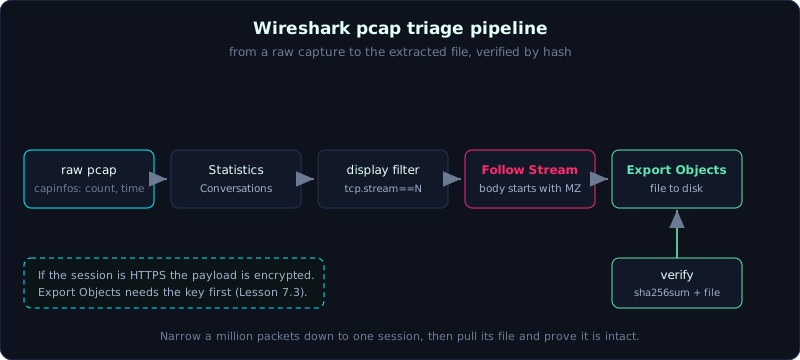 From a raw pcap to the extracted file: find the session, follow the stream, export the object, then verify by hash.
Level: medium, about 70 minutes. Prerequisites: the basic TCP/IP model (IP, port, the TCP three-way handshake), and the workflow on a copy from Part 2. Tools: Wireshark, tshark, capinfos, editcap, mergecap.
Goals
After this lesson you can open a pcap, read capinfos, and tell a capture filter from a display filter. You can write display filters by protocol, IP, port, TCP stream, and HTTP or DNS content. You can use Follow TCP or HTTP Stream to reassemble a full session, and Export Objects (HTTP, SMB) to pull a transferred file to disk. You can read Statistics (Conversations, Protocol Hierarchy) to narrow things down quickly, and move the same actions to tshark when a pcap is too large to open in the GUI.
Theory
Capture filter is not display filter
This is where beginners get confused, and the confusion produces wrong results:
- Capture filter (BPF syntax, the same as tcpdump) decides which packets are RECORDED at capture time. For example
host 10.0.0.5 and port 443. Once a packet is filtered out it can never come back. Use it during a live capture to reduce size. - Display filter (Wireshark’s own syntax) decides which packets are SHOWN from what was already captured. This kind of filter does not delete data. Type a wrong filter and clear it, and the packets reappear.
In forensics you almost always work with display filters, because the pcap already exists and you do not want to throw any packet away. The filter box sits right under the toolbar. A valid filter turns the background green, a syntax error turns it red.
Before you open it, read capinfos
A pcap of a few hundred MB opened straight into the Wireshark GUI will freeze the machine. A good habit is to run capinfos first so you know what you are holding: how many packets, over what time window, at what average rate.
1
2
3
4
capinfos capture.pcap
# File name, Number of packets, Capture duration,
# First packet time / Last packet time (gives the time window),
# Data byte rate (tells you whether there is a large traffic burst)
Time is the thing to watch immediately. A pcap stores timestamps as UTC in the format, but Wireshark shows them in your local machine time by default. Go to View > Time Display Format and set it to UTC so it lines up with the timeline from other artifacts, and do not let the time zones get mixed.
Anatomy of a display filter
A display filter is built on the field names of each protocol. A few groups are used constantly:
1
2
3
4
5
6
7
8
9
10
11
12
ip.addr == 10.0.0.5          # packets with this IP as source OR destination
ip.src == 10.0.0.5           # only packets originating from this IP
ip.dst == 185.220.101.4      # only packets going to this IP
tcp.port == 443              # port 443 as source or destination
tcp.flags.syn == 1 && tcp.flags.ack == 0   # SYN only (start of a connection)
http                         # every HTTP packet
http.request.method == "POST"
http.host == "evil.example.com"
dns                          # every DNS packet
dns.qry.name contains "dropbox"
frame contains "password"    # byte level, find a raw string in the payload
tcp.stream == 7              # all packets in TCP session number 7
Logical operators: && (and), || (or), ! (not). Comparisons: ==, !=, >, <, contains (contains a byte string), matches (regex). A practical tip is to right click any field in the packet detail tree and choose Apply as Filter, and Wireshark writes the correctly named filter for you so you do not have to remember field names.
tcp.stream, the key idea
Wireshark numbers each TCP session in order: tcp.stream == 0 is the first session, 1 is the second, and so on. An HTTP file download, an SSH session, one mail delivery are each a single stream. Once you have located the suspicious session, filtering on tcp.stream == N shows exactly the packets of that one session and drops all the surrounding noise. This is the step that moves you from scanning countless packets to reading one conversation.
Demo
Always work on a copy of the pcap, and record the hash first. The running case is: an internal host 10.0.0.5 downloads an executable from an unknown web server, and we will find and extract that exact file.
Get the overview from Statistics
After opening the pcap, do not scroll by hand. Go to Statistics first:
1
2
3
4
5
6
7
8
Statistics > Protocol Hierarchy
  -> shows the protocol mix: what percent is HTTP, DNS, TLS, SMB.
     If an unusual protocol takes an abnormal share of bytes, that is a hot spot.

Statistics > Conversations  (TCP tab)
  -> lists every IP:port pair that talked, with the byte count each way.
     Sort by the Bytes column descending: a large file transfer rises to the top.
     Tick "Limit to display filter" to count only the part you are filtering.
In this case, in the TCP tab we see a row 10.0.0.5 -> 185.220.101.4 : 80 with a very large Bytes B->A column (the server sent a lot back), meaning the internal host downloaded a lot of data from port 80 of an unknown IP. Right click that row > Apply as Filter > Selected (A<->B) to jump straight into the session.
Filter down to the suspicious HTTP session
1
http.request && ip.dst == 185.220.101.4
We see a line GET /update/svc.exe HTTP/1.1, and the Host is a bare IP with no domain name. An .exe downloaded over HTTP on port 80 from a bare IP is a classic red flag. Click that request packet.
Follow HTTP Stream
Right click the GET packet > Follow > HTTP Stream. Wireshark gathers all requests and responses of the session into one readable window:
1
2
3
4
5
6
7
8
9
10
11
GET /update/svc.exe HTTP/1.1
Host: 185.220.101.4
User-Agent: Mozilla/4.0 (compatible; MSIE 6.0)   <- old UA, suspicious
Accept: */*

HTTP/1.1 200 OK
Content-Type: application/octet-stream
Content-Length: 73802
Content-Disposition: attachment; filename="svc.exe"

MZ......  <- the magic bytes MZ, this is a Windows PE file
The red part is what the client sent, the blue part is what the server returned. The MZ at the start of the response body confirms this is a Windows executable. The bottom of the window has a display selector: ASCII, Hex Dump, Raw. Pick Raw then Save as if you want the raw bytes, but the cleaner way is Export Objects in the next step.
Change the stream number box at the bottom to jump to another stream without closing the window. Follow TCP Stream works the same way for non-HTTP protocols (for example viewing an FTP session, SMTP, or a malware’s custom protocol).
Export Objects, the proper way to pull a file out
1
File > Export Objects > HTTP
Wireshark lists every object transferred over HTTP in the pcap: columns for Hostname, Content Type, Size, Filename. Find the svc.exe row (or filter first to keep it tidy), select it, and press Save. To grab everything use Save All.
1
2
File > Export Objects > SMB    # for files transferred over SMB (Windows file sharing)
File > Export Objects > IMF    # for email attachments (Internet Message Format)
Once pulled out, verify it right away by hash and file type, and do not trust the name:
1
2
3
sha256sum svc.exe
file svc.exe        # PE32 executable (GUI) Intel 80386, for MS Windows
# compare Content-Length 73802 against the extracted file size to check they match
This is the key case. From a raw pcap, we go through Conversations to locate the session, through Follow Stream to confirm it is a PE file, to Export Objects to hold the exact malware that was downloaded, then hash it again for further analysis (sandbox, VirusTotal by hash, and do not upload the file if the case is sensitive).
Dig into DNS to see which domains the host asked for
1
dns.flags.response == 1 && dns.a    # only answers that carry an A record
The Info column shows the “domain -> IP” pairs. If the download session above went to a bare IP without DNS, that is also a data point (the malware hardcoded the IP to avoid DNS logging).
tshark, when the pcap is too big for the GUI
tshark is the command line version of Wireshark, same engine, so it shares every display filter. It fits well when a pcap is several GB or when you need to script things.
1
2
3
4
5
6
7
8
9
10
11
12
13
14
# quickly count how many HTTP requests there are and list host + URI
tshark -r capture.pcap -Y "http.request" \
  -T fields -e ip.src -e http.host -e http.request.uri

# filter just the download session and write it to a smaller pcap to open in the GUI
tshark -r capture.pcap -Y "tcp.stream == 7" -w stream7.pcap

# extract every DNS query with its time (to see whether there is a steady beacon)
tshark -r capture.pcap -Y "dns.flags.response == 0" \
  -T fields -e frame.time_epoch -e dns.qry.name

# rebuild and save HTTP objects straight from the command line (Wireshark >= 3.x)
tshark -r capture.pcap --export-objects "http,out_objects/"
ls out_objects/        # svc.exe is here
Tip: -T fields -e <field> gives you clean CSV-like output to feed into a timeline or grep further. Use editcap to cut a pcap by time (editcap -A "2026-01-01 00:00:00" -B ...), and mergecap to combine several pcaps into one before analysis.
Lab
The lab runs for real and is 100% local: labs/7.1/. The pcap is built with scapy, so you do not need to capture live traffic. Tools: scapy, tshark with capinfos, sha256sum, file.
Run it:
1
2
3
cd labs/7.1
python3 -I make.py    # builds lab71.pcap (one HTTP session downloading update.exe, magic MZ) + expected_update.exe
./solve.sh            # capinfos, conv,tcp, http.request, follow stream, --export-objects, compare hash
The five steps in solve.sh reproduce the GUI actions with tshark (the CLI of Wireshark): capinfos for packet count and time window; -z conv,tcp to locate the heaviest session; filter http.request; follow,tcp to confirm the MZ magic at the start of the body; --export-objects http to pull the file out; sha256sum and file to prove the extracted file is intact and of the right type.
The core point is that the SHA-256 of the file extracted from the pcap matches the original file embedded in the session, which proves the pcap holds enough data and lost no packets. Always check the real type with file, and do not trust the name declared in the header.
The real output is in labs/7.1/transcript.txt, with details in labs/7.1/README.md.
To practice on real traffic, download a public pcap from Malware-Traffic-Analysis.net (it comes with questions and answers) and repeat the same five steps.
Common pitfalls
- Confusing a capture filter with a display filter, typing BPF syntax into the display box and thinking Wireshark is broken.
- Leaving Wireshark on local time while the timeline of other artifacts is UTC, which can misalign events by an hour.
- Opening a pcap of several hundred MB straight into the GUI and freezing the machine, instead of cutting it smaller with editcap or tshark first.
- Trusting the Content-Length or filename in an HTTP header; always hash and check the magic bytes of the extracted file.
- Assuming Export Objects always recovers a file: if the traffic is HTTPS the payload is encrypted and you need the key (Lesson 7.3), and if the capture dropped packets the rebuilt file is corrupt.
- Ignoring retransmitted or duplicate packets, which Wireshark colors black and warns about in the Info column; misreading them makes you count data wrong.
- Forgetting that a compressed (gzip) HTTP object is decompressed by Wireshark on export; if you need the exact bytes on the wire, use Follow Stream and pick Raw.
Further reading
- Wireshark User Guide, the Display Filter chapter and the Statistics chapter.
- The Wireshark Display Filter Reference (the field catalog per protocol).
- Malware-Traffic-Analysis.net, a store of real-world pcaps with exercises and answers.
- Chris Sanders, “Practical Packet Analysis” (No Starch Press).
- The tshark documentation and the man pages for capinfos, editcap, mergecap.
Key takeaways
- A capture filter (BPF) filters at capture time and drops packets; a display filter filters at view time and loses nothing.
- Run
capinfosfirst, and set the display to UTC to match the timeline. ip.addr,tcp.port,http,dns, andtcp.stream == Nare the backbone filter set.- Follow TCP or HTTP Stream to read a whole session; Statistics > Conversations to find the heavy session.
- Export Objects (HTTP, SMB, IMF) pulls a transferred file out of the pcap to disk.
- After pulling a file out, hash it and run
fileto verify it, and do not trust the declared name in the header. - tshark shares the same display filters and fits large pcaps and scripting.