Lesson 9.1: Super Timelines with plaso and Timesketch

Every artifact you learned in the earlier parts tells one small piece of the story on its own clock. The MFT says when a file was created, prefetch says when a program ran, the event log says who logged in and when. The problem is that they sit apart, each in its own format and its own time zone. A super timeline is the idea of merging all those time marks into one table, sorted in order, so you can read it in one pass: “at 09:02 a mail arrived, 09:04 a file opened, 09:04 a macro ran powershell, 09:05 a Run key was written”. The industry standard tool for this is plaso.
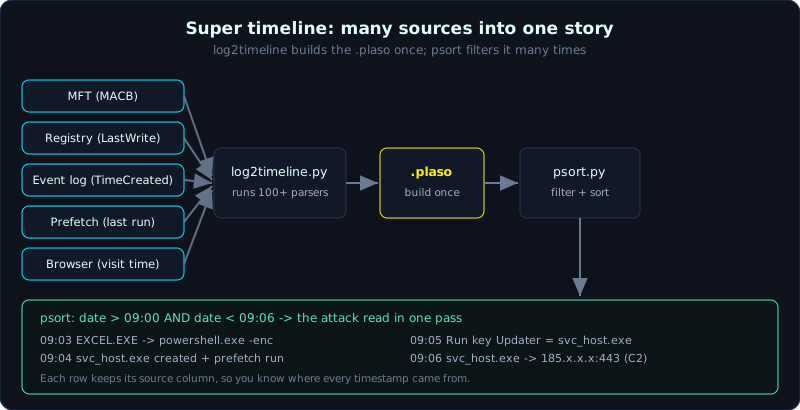 Many sources go into one .plaso store, then psort filters a time window into a readable timeline.
| Part: 9 (Timeline and IR) | Time: about 80 minutes | Difficulty: advanced |
Prerequisites: working on disk images (Part 2), the MFT and the NTFS timestamps (Lesson 1.5), reading the event log (Lesson 4.2) and program execution (Lesson 4.3).
Tools: plaso (log2timeline.py, psort.py, psteal.py), The Sleuth Kit (fls, mactime), Timesketch, Timeline Explorer.
Goals
After this lesson you understand what a super timeline is and how it differs from a single-source timeline (for example MFT only). You can use log2timeline.py to build a .plaso file, then psort.py to filter it and export CSV or Timesketch. You can cut noise with time windows, parser selection, tags and keywords. You can build a bodyfile and a timeline with fls and mactime from TSK when you only need a file system timeline. And you can load a timeline into Timesketch and build the story around the suspected infection time.
1. Theory
1.1. Why it is called a “super” timeline
The classic timeline (made popular by Rob Lee and colleagues at SANS) usually takes only the four file system timestamps, called MACB: Modified, Accessed, Changed/Created, Born. That is a single-source timeline.
The super timeline, a concept Kristinn Gudjonsson introduced together with log2timeline, is different. It does not only take file timestamps, it pulls time out from inside hundreds of artifact types. A registry key has a LastWrite time, a prefetch record has a last run time, an event log has a TimeCreated, a Chrome history entry has a visit time, a $UsnJrnl record has its own timestamp. plaso has more than a hundred parsers, and each parser knows how to extract every time mark inside one kind of data. The result is a very large table, but it shows you the whole picture.
1.2. The plaso architecture: three tools
plaso (Plaso Langar Að Safna Öllu, an Icelandic joke that means “plaso collects everything”) has:
1
2
3
4
log2timeline.py   reads a source (image, folder, single file), runs parsers, writes one .plaso file (SQLite)
psort.py          reads .plaso, filters/sorts/deduplicates, exports to another format (CSV, JSON, Timesketch...)
psteal.py         merges the two steps above into one command, handy when you want it fast
pinfo.py          views metadata in a .plaso: which parsers ran, how many events, the time range
The .plaso file is an intermediate store. You build it once (the most time-consuming step), then run psort.py as many times as you like with different filters, without parsing again.
1.3. Each timeline row is an event, not a file
Beginners often get one point wrong here. One file in a super timeline can produce many rows. The file invoice.xlsm can give one row at the Born time (from MFT $SI), one at Modified, one when it appears in $UsnJrnl, one when it is opened (LNK, RecentDocs), one when it was downloaded (Zone.Identifier). Each row has a source column and a column describing the time type (for example Creation Time, Last Access Time), so you know where that number came from. Reading a timeline without looking at the source column leads to wrong conclusions very easily.
1.4. Bodyfile and mactime: a light timeline from the file system only
When you only need a timeline of the file system (no event log, no registry), The Sleuth Kit gives a fast and light path:
1
2
fls      walks the MFT (or inode table) and outputs an intermediate format called a bodyfile
mactime  reads the bodyfile, sorts by time, prints a readable MACB timeline
| The bodyfile is a text format with a fixed structure (md5 | name | inode | mode | uid | gid | size | atime | mtime | ctime | crtime). It is a common denominator: plaso reads bodyfiles too, and many other tools do as well. When you work on a machine that only has TSK, this is how you build a file system timeline in a minute. |
2. Hands-on (demo)
Everything runs on a copy (for example WIN10-ACCT01.E01), with its hash recorded beforehand. The running case: the accounting machine WIN10-ACCT01 is suspected of infection on the morning of 2024-03-14 after an employee opened an email attachment. We need to build a super timeline and narrow down around that window.
2.1. Build the .plaso file with log2timeline.py
1
2
3
4
5
6
7
8
9
# parse the whole image, plaso detects partitions and file systems itself
log2timeline.py --storage-file WIN10-ACCT01.plaso WIN10-ACCT01.E01

# if you only want the Windows parser group for speed (skip unrelated parsers)
log2timeline.py --parsers "win7,!filestat" \
  --storage-file WIN10-ACCT01.plaso WIN10-ACCT01.E01

# see what was parsed
pinfo.py WIN10-ACCT01.plaso | less
The first command can run for a long time on a large disk. A practical tip is to use a parser preset (win7, win_gen, linux) to cut it down, and always run on a copy.
2.2. Filter and export with psort.py
This is the step that makes or breaks an investigation. The raw .plaso can hold tens of millions of rows that nobody can read. We filter by a time window around the suspected infection time:
1
2
3
4
5
6
7
8
9
10
11
12
13
# export CSV, keep only around 2024-03-14 (UTC), sorted by time
psort.py -o l2tcsv -w win10_0314.csv WIN10-ACCT01.plaso \
  "date > '2024-03-14 07:00:00' AND date < '2024-03-14 13:00:00'"

# export the dynamic format, which is more compact, and pick the columns you need
psort.py -o dynamic \
  --fields datetime,timestamp_desc,source,source_long,message,parser,display_name \
  -w win10_0314_dynamic.csv WIN10-ACCT01.plaso \
  "date > '2024-03-14 07:00:00' AND date < '2024-03-14 13:00:00'"

# change the display time zone to the victim machine's zone to match witness statements
psort.py -o l2tcsv --output-time-zone "Asia/Ho_Chi_Minh" \
  -w win10_0314_local.csv WIN10-ACCT01.plaso
Open the CSV in Timeline Explorer (Eric Zimmerman) to filter quickly by column. Inside this six-hour window, we read the sequence:
1
2
3
4
5
6
7
8
9
08:58  WEBHIST  Outlook downloads attachment Invoice_0314.xlsm into ...\Downloads
09:01  FILE     $SI Creation: Invoice_0314.xlsm (Downloads)      [MFT]
09:01  FILE     Zone.Identifier ADS attached to the file (downloaded from Internet, MOTW)
09:03  LOG      Security 4688: EXCEL.EXE -> powershell.exe -enc ...
09:03  LOG      PowerShell 4104: script block decodes, downloads http://185.x.x.x/a.dll
09:04  FILE     $SI Creation: C:\Users\Public\svc_host.exe       [MFT]
09:04  EXEC     Prefetch SVC_HOST.EXE-XXXX.pf, run count 1
09:05  REG      Run key HKCU...\Run\Updater = C:\Users\Public\svc_host.exe
09:06  LOG      Sysmon 3: svc_host.exe connects to 185.x.x.x:443
Only six hours and a few dozen rows tell the whole arc from initial access to persistence and C2. That is what a super timeline gives you: it joins the pieces that you would not connect in time if you looked at each artifact on its own.
2.3. Cutting noise
A few filtering techniques used often:
1
2
3
4
5
6
7
8
9
10
# drop low-value Windows system file events by excluding the filestat parser
log2timeline.py --parsers "win7,!filestat" --storage-file ...

# tag events with a tagging file (login, persistence, execution...) then filter by tag
psort.py -o l2tcsv -w tagged.csv \
  --analysis tagging --tagging-file tag_windows.txt WIN10-ACCT01.plaso

# keep only events matching a keyword (for example a suspect file name)
psort.py -o l2tcsv -w hits.csv WIN10-ACCT01.plaso \
  "parser == 'winreg' AND date > '2024-03-14'"
The principle is to not delete data, only to build increasingly narrow views. Always keep the original .plaso so you can widen the window again when needed.
2.4. Bodyfile and mactime from TSK
1
2
3
4
5
6
7
8
# build a bodyfile for the whole file system in the partition (offset is in sectors)
fls -r -m C: -o 2048 WIN10-ACCT01.E01 > bodyfile.txt

# build a MACB timeline in UTC
mactime -b bodyfile.txt -d -z UTC > fs_timeline.csv

# view the timeline of one day only
mactime -b bodyfile.txt -d -z UTC 2024-03-14 > fs_timeline_0314.csv
In fs_timeline_0314.csv, the row for svc_host.exe shows all four MACB letters and a crtime of 09:04, matching what the super timeline gave. Cross-checking two tools is a good habit for verifying yourself.
2.5. Loading into Timesketch
Timesketch is a web platform where several people can view and annotate one timeline together. It ingests a .plaso file directly:
1
2
3
4
5
6
7
8
# load the .plaso into a sketch with the command line importer
timesketch_importer --host https://timesketch.lab:5000 \
  --sketch_id 7 --timeline_name "WIN10-ACCT01 super timeline" \
  WIN10-ACCT01.plaso

# or load a filtered CSV (the CSV needs datetime, message, timestamp_desc columns)
timesketch_importer --host https://timesketch.lab:5000 \
  --sketch_id 7 --timeline_name "Window 0314" win10_0314.csv
In Timesketch you write Elasticsearch-style queries (message:powershell AND datetime:[2024-03-14 TO 2024-03-15]), star important events, build a “story” that retells the case, and draw an event-density graph by hour to spot unusual times (for example activity at 2 to 3 in the morning).
3. Lab
The lab runs for real, fully local, no root and no mount needed: labs/9.1/. The environment cannot install plaso (log2timeline.py, psort.py, Timesketch), so the lab uses The Sleuth Kit (fls -r -m plus mactime) on an ext4 image. To be clear: the core idea of the super timeline is the same (merge timestamps into a timeline, then filter a window around an event time), the difference is that mactime works only from file system MACB while plaso merges many more sources.
- Run:
1
2
3
cd labs/9.1
./make.sh     # build case.ext4: an intrusion on a Linux web server with fixed timestamps (UTC)
./solve.sh    # fsstat + fls -r -m build the bodyfile + mactime + filter the 10:15..10:25 window
- Scenario (UTC 2026-01-15): 10:15:03 upload.php (webshell), 10:16:40 ELF payload in
/tmp/.cache, 10:17:12 cron persistence, 10:18:30 attacker SSH key added, 10:22:45 exfil.tar.gz (deleted). The lab adds a few noise files outside the window to show filtering. - The core points: always display UTC (
mactime -z UTC -y) to avoid mixing time zones; a time window filter cuts the noise and leaves exactly the attack chain in order; a deleted file still appears in the timeline with the(deleted)label. This timeline is the input for lab 9.2. - The real output is in
labs/9.1/transcript.txt, with details inlabs/9.1/README.md.
Extension: if you can install plaso, run log2timeline.py to build a .plaso then psort.py to filter a 30-minute window into CSV and open it in Timeline Explorer; if the timeline has too many filestat rows, run again with !filestat and compare the two; load the .plaso into Timesketch to star events and build a story.
4. Key takeaways
- A super timeline merges many sources; a MACB timeline is file system only.
- log2timeline.py builds the .plaso once, psort.py filters many times without parsing again.
- Always look at the source and timestamp_desc columns to know where a number came from.
- One file produces many rows (Born, Modified, USN, LNK, Zone.Identifier…).
- Filter by time window and parser first, read the detail later.
- fls plus mactime is the fast path for a file-system-only timeline.
- Use Timesketch for collaboration, tagging and storytelling.