Lesson 0.4: Building a Web Lab with Burp Suite and Docker
By the end of this lesson you have a complete lab environment running on your own machine: Burp Suite Community capturing requests, a browser that goes through Burp and trusts Burp’s CA certificate, Docker ready, and at least one vulnerable app (OWASP Juice Shop or DVWA) to practice on. The Docker section includes real commands with real output.
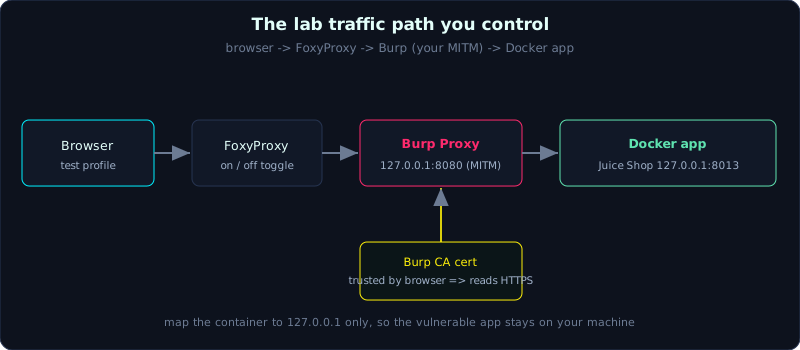 Browser traffic flows through FoxyProxy into Burp, the man in the middle you built, and on to a vulnerable app in Docker mapped to loopback only.
| Part: 0 (Intro to Web Hacking) | Time: about 60 minutes | Difficulty: easy |
Prerequisites: Lesson 0.3 (Web architecture and SOP).
Tools: Burp Suite Community, Firefox (or Chrome) with the FoxyProxy extension, and Docker.
Goals
After this lesson you can install Burp Suite Community and understand its default Proxy listener, point the browser through Burp and install Burp’s CA certificate to capture HTTPS, use FoxyProxy to toggle the proxy quickly, and install Docker and bring up a vulnerable app (Juice Shop or DVWA) with a single command.
1. Theory
1.1. Why you need your own lab
Lesson 0.1 already said it, you may only attack systems that are yours or that you are allowed to attack. Your own lab meets exactly that need. You run an app that is deliberately vulnerable right on your machine, attack it freely, and rebuild it when you break it. No one is affected, and no one comes after you.
A minimal lab has three pieces:
- A proxy to inspect and intervene: Burp Suite Community (free). This is the central tool of the whole trade, studied in depth in Lesson 1.1.
- A browser configured to go through that proxy, with a certificate so it can read HTTPS too.
- A vulnerable app to attack: DVWA (PHP, classic, many levels) and OWASP Juice Shop (Node.js, modern, many challenges). Docker brings them up in one command.
1.2. Burp Suite works as a proxy
Burp sits between the browser and the server. The browser sends requests to Burp (which listens by default on 127.0.0.1:8080), Burp records them, lets you view and edit them, then forwards them to the server. The response comes back the same way through Burp. This is the man-in-the-middle model from Lesson 0.2, except it is a man in the middle you built and control yourself.
With HTTP it is simple. With HTTPS there is a snag, the browser will only talk encrypted to a party whose certificate it trusts. Burp solves this by generating a certificate for each proxied site on the fly, signed by Burp’s own CA. You must install that CA into the browser so the browser trusts it. Only after this step can Burp read HTTPS content. Note, this CA is installed only on your lab machine, and you must never share its private key.
1.3. Docker, packaging an app into a container
Docker lets you run an application together with its whole environment inside an isolated container, without installing PHP, Node or a database by hand. You only need a single docker run, and Docker pulls the image (the prebuilt package) and runs it. This fits lab apps well, quick to build, clean to remove, and it does not clutter your machine.
2. Demo
2.1. Install Burp Suite Community
- Download Burp Suite Community Edition from the PortSwigger site, and install it following the instructions for your operating system (it needs Java, and the installer bundles it).
- Open Burp, choose “Temporary project”, then “Use Burp defaults”.
- Go to the Proxy tab, Proxy settings, and confirm there is a Proxy listener enabled on
127.0.0.1:8080.
2.2. Point the browser through Burp with FoxyProxy
Instead of changing the system-wide proxy, use the FoxyProxy extension in the browser to toggle it quickly:
- Install FoxyProxy (Standard) for Firefox or Chrome.
- Add a new proxy: Title
Burp, Proxy TypeHTTP, Host127.0.0.1, Port8080. - When you want to capture requests, select the
Burpprofile. When browsing normally, selectDisableorDirect.
Tip: use a dedicated browser (or a dedicated Firefox profile) only for testing, so that all your personal cookies and tabs do not go through Burp.
2.3. Install Burp’s CA certificate to capture HTTPS
- Switch FoxyProxy to
Burp. - Visit
http://burp(orhttp://127.0.0.1:8080) in that browser. - Click “CA Certificate” to download the
cacert.derfile. - Install it into the browser:
- Firefox: Settings, search “Certificates”, View Certificates, the Authorities tab, Import, choose the file, and tick “Trust this CA to identify websites”.
- Chrome uses the operating system certificate store, so you need to convert
.derto.crtand import it into Trusted Root. Firefox is less trouble, so it is recommended for the lab.
- Try visiting an HTTPS page. If Burp’s Proxy tab, HTTP history shows the request without a certificate error, you are done.
2.4. Build a lab app with Docker (real run)
The commands below run for real, and the output is real, captured from a running session. The example app is OWASP Juice Shop (version v17.1.1), mapping the container’s internal port 3000 to 127.0.0.1:8013 so only your own machine can reach it.
Check the image is present and start the container in the background:
1
2
3
4
5
6
7
8
9
$ docker images | grep juice-shop
bkimminich/juice-shop:v17.1.1    e682d380e28c    500MB    0B

$ docker run -d --name juice -p 127.0.0.1:8013:3000 bkimminich/juice-shop:v17.1.1
124c0ae7e10b3020bd1fc6dee579d21d6199271f8daa3c0ba6084e9551c829ee

$ docker ps --filter name=juice --format 'table {{.Names}}\t{{.Status}}\t{{.Ports}}'
NAMES     STATUS          PORTS
juice     Up 16 seconds   127.0.0.1:8013->3000/tcp
Confirm the app is alive and returns the real Juice Shop page:
1
2
3
4
5
6
7
8
$ curl -s http://127.0.0.1:8013/ | grep -i "<title>"
  <title>OWASP Juice Shop</title>

$ curl -s -o /dev/null -w "code=%{http_code} type=%{content_type}\n" http://127.0.0.1:8013/
code=200 type=text/html; charset=UTF-8

$ curl -s "http://127.0.0.1:8013/rest/products/search?q=apple" | head -c 200
{"status":"success","data":[{"id":1,"name":"Apple Juice (1000ml)","description":"The all-time classic.","price":1.99,"deluxePrice":0.99,"image":"apple_juice.jpg",...
The /rest/products/search endpoint is a real REST API of Juice Shop, returning JSON. Right here you already see the attack surface, the q parameter goes straight into the search query (this is exactly where Juice Shop is vulnerable to SQL injection, which you will attack in Part 2).
Check the logs to be sure the app started cleanly:
1
2
3
4
5
6
7
$ docker logs juice 2>&1 | tail -6
info: Required file vendor.js is present (OK)
info: Required file polyfills.js is present (OK)
info: Port 3000 is available (OK)
info: Chatbot training data botDefaultTrainingData.json validated (OK)
info: Domain https://www.alchemy.com/ is reachable (OK)
info: Server listening on port 3000
When you are done testing, stop and remove the container to keep things clean (important, do not leave a lab app hanging and listening on a port):
1
2
3
$ docker stop juice && docker rm juice
juice
juice
2.5. Build DVWA (for reference)
DVWA runs well over Docker in the same way. A common image:
1
2
docker run -d --name dvwa -p 127.0.0.1:8012:80 vulnerables/web-dvwa
# open http://127.0.0.1:8012 , log in admin/password , click "Create / Reset Database"
DVWA lets you adjust the security level (Low, Medium, High, Impossible) in the DVWA Security section, which fits well for comparing the same vulnerability at different defense levels.
2.6. Connect the browser, Burp and the lab app
The complete flow: start the app container, switch FoxyProxy to Burp, open the app in the browser. Every request the browser sends to the app appears in Burp’s Proxy tab, HTTP history. From here you are ready for Lesson 1.1 (Burp in full).
3. Lab
- Vulnerable apps: Juice Shop and DVWA built with Docker as in sections 2.4 and 2.5. Run locally, mapped to loopback only.
- Tasks:
- Build Juice Shop with Docker, open it in the browser, and confirm you reach the home page.
- Switch FoxyProxy to Burp, install the CA, revisit Juice Shop, and find the request you just sent in Burp’s HTTP history.
- In Burp, find the request to
/rest/products/search?q=...and view the JSON response. - Stop and remove the container when done, and check with
docker psthat nothing is still running.
- Hint: if Burp does not see HTTPS, it is almost certainly because the CA was not installed in the right place. Juice Shop locally runs on HTTP so this step is easier, so first test with an external HTTPS site to verify the CA.
- Answers: there is no exploit script in this lesson, the goal is a working environment. The sample Docker commands and real output are right in section 2.4.
4. Key takeaways
- Burp Proxy listens by default on
127.0.0.1:8080, sitting between the browser and the server. - To capture HTTPS you must install Burp’s CA into the browser, and Firefox is the easiest to install into.
- FoxyProxy toggles the proxy quickly, and you should use a dedicated browser or profile for testing.
docker run -d --name X -p 127.0.0.1:PORT:INTERNAL imagebrings up a lab app for your machine only.- Always
docker stopanddocker rmwhen done, do not leave a lab app hanging and listening on a port.
5. Common pitfalls
- Forgetting to install Burp’s CA, seeing nothing but certificate warnings and failing to capture HTTPS.
- Changing the system-wide OS proxy instead of just the test browser, which sends every app on the machine through Burp and hangs when Burp is off.
- Mapping the Docker port to
0.0.0.0instead of127.0.0.1, accidentally exposing the vulnerable app to the whole LAN. Always use the127.0.0.1:prefix. - Forgetting to click “Create / Reset Database” in DVWA, so the app reports a database connection error.
- Letting several containers map the same port, causing a conflict. One app, one dedicated port.
6. Further reading
- Burp Suite Community: https://portswigger.net/burp/communitydownload
- OWASP Juice Shop: https://owasp.org/www-project-juice-shop/
- DVWA: https://github.com/digininja/DVWA
- Docker get started: https://docs.docker.com/get-started/