Lesson 4.1: Registry Forensics and the Windows Hives
The registry (Windows’ configuration database) is something beginners often fear, because inside regedit it looks like a maze. For forensics work it is one of the richest sources of evidence. Almost everything a user does on a machine leaves a small trace somewhere in the registry: which USB was plugged in, which document was opened, which software was installed, which program was set to start with Windows. The only problem is knowing where to dig.
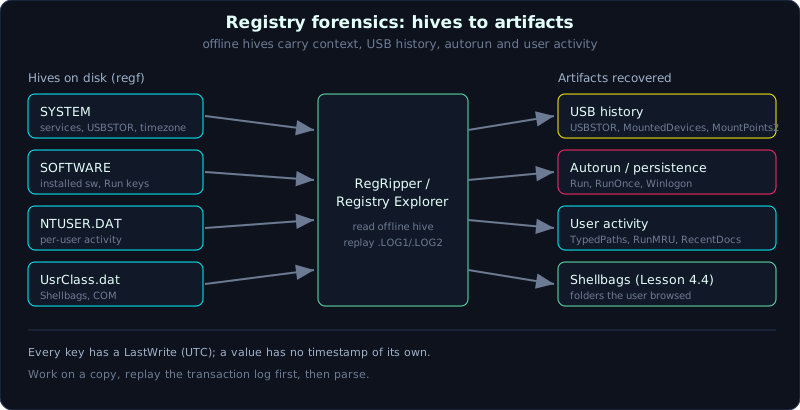 The five main hives on disk and the key groups RegRipper reads for USB history, autorun and user activity.
| Part: 4 (Windows Forensics) | Time: about 60 minutes | Difficulty: medium |
Prerequisites: understand NTFS and the MFT (Lesson 1.5), know how to make an image and work on a copy (Part 2).
Tools: RegRipper, Registry Explorer / RECmd (Eric Zimmerman), reglookup, hivexsh.
Goals
After this lesson you know the five main hives (SYSTEM, SOFTWARE, SAM, SECURITY, NTUSER.DAT), where each one sits on disk, and which key in the live registry it maps to. You can run RegRipper plugins to pull information from an offline hive. You can rebuild USB history (which device, which serial, when it was first plugged in, which user mounted the drive), list autorun points, and read a user’s typed paths, RunMRU and RecentDocs.
1. Theory
1.1. What the registry really is
The registry is a hierarchical database that holds the configuration of the operating system and of applications. It is not a single file. What regedit shows you (HKLM, HKCU, HKU and so on) is the live registry that Windows assembles from several separate files on disk. Those files are called hives.
Each hive is a binary file in the regf format. Inside it is split into blocks called hive bins, and each bin holds cells: nk (key node, that is a key), vk (value), sk (security), lf/lh/ri (subkey lists) and so on. You do not need to memorize these, but keep one thing in mind for investigation: every key has a LastWrite timestamp (the moment the key was last written), while a value has no timestamp of its own. A lot of later reasoning about time rests on the LastWrite of a key.
1.2. The main hives and where their files live
The machine-level hives live in C:\Windows\System32\config\:
1
2
3
4
5
C:\Windows\System32\config\SYSTEM     -> HKLM\SYSTEM
C:\Windows\System32\config\SOFTWARE   -> HKLM\SOFTWARE
C:\Windows\System32\config\SAM        -> HKLM\SAM
C:\Windows\System32\config\SECURITY   -> HKLM\SECURITY
C:\Windows\System32\config\DEFAULT    -> HKU\.DEFAULT
The user-level hives live in each user’s profile:
1
2
C:\Users\<user>\NTUSER.DAT                                              -> HKU\<SID> (this is HKCU when that user is logged in)
C:\Users\<user>\AppData\Local\Microsoft\Windows\UsrClass.dat            -> HKU\<SID>_Classes (HKCU\Software\Classes)
The role of each hive, in short:
- SYSTEM: hardware and system configuration. Holds services, drivers, the list of attached devices (USB), the time zone, the computer name, network configuration. This is the first hive to open when you reconstruct context.
- SOFTWARE: installed software, OS version, machine-level Run keys, the list of connected Wi-Fi networks, configuration for many applications.
- SAM (Security Account Manager): local accounts, RID, password hashes, last logon, failed logon count.
- SECURITY: LSA secrets, cached domain credentials, security policy.
- NTUSER.DAT: the activity trace of one particular user. This is the most important hive when you want to answer “what did this user do”: what they ran, what they opened, what they typed.
- UsrClass.dat: holds Shellbags (covered in detail in Lesson 4.4) and the user’s COM configuration.
1.3. ControlSet and the CurrentControlSet trap
In the SYSTEM hive you will see several ControlSet001, ControlSet002 and so on. In the live registry there is also CurrentControlSet, but that is a virtual link the kernel creates at runtime, and in an offline hive there is no CurrentControlSet. To find which set is the current one, read:
1
2
3
SYSTEM\Select
  Current       (REG_DWORD) -> the ControlSet in use, e.g. 1 means ControlSet001
  LastKnownGood -> the set to roll back to
So when you read an offline hive, wherever a document writes CurrentControlSet you substitute ControlSet00X, with X taken from Select\Current. RegRipper and other decent tools handle this for you, but when you walk the hive by hand you have to remember it.
A few context keys worth knowing in SYSTEM:
1
2
3
SYSTEM\ControlSet001\Control\ComputerName\ComputerName   -> computer name
SYSTEM\ControlSet001\Control\TimeZoneInformation         -> time zone (very important when building a timeline)
SYSTEM\ControlSet001\Control\Windows -> ShutdownTime      -> most recent shutdown time (8-byte FILETIME)
One note about the time zone: every timestamp in the registry is UTC. If you read the hour straight off and forget the victim machine was set to Vietnam time (UTC+7), you are off by seven hours and the whole story goes wrong with it.
1.4. Dirty hives and the transaction log
While Windows is running, hives are usually in a “dirty” state: there are changes not yet flushed into the main file, still sitting in the .LOG1, .LOG2 log files next to it (for example SYSTEM.LOG1). If you copy a hive from a live machine or from an image without replaying the log, you may read too little or read stale data. The rla.exe tool (Registry Log Replay, from the Eric Zimmerman suite) replays the log into the hive to give a clean copy before analysis. This same mechanism sometimes helps recover a key that was just deleted (using yarp or by reading the transaction log).
2. Demo
Always work on a copy. If you take it from an image, mount read-only, copy the hives out to a working folder, and record a hash first. The examples below run on Linux (SIFT) with a set of extracted hives.
2.1. Record a hash and prepare
1
2
3
4
5
# always record a hash before touching anything
sha256sum SYSTEM SOFTWARE SAM NTUSER.DAT | tee hives.sha256

# quick look at the structure if needed (hivexsh is in the libhivex package)
hivexsh SYSTEM
2.2. RegRipper, the Swiss army knife for hives
RegRipper (rip.pl on Linux, rip.exe/rr.exe with a GUI on Windows) runs pre-written plugins. Each plugin knows the path to one kind of artifact and prints it cleanly. You can run by profile (a bundle of plugins suited to each hive type) or run plugins one at a time.
1
2
3
4
5
6
7
8
9
10
11
12
# list available plugins
rip.pl -l | less

# run a profile per hive, write to a text file
rip.pl -r SYSTEM   -f system   > out_system.txt
rip.pl -r SOFTWARE -f software > out_software.txt
rip.pl -r SAM      -f sam      > out_sam.txt
rip.pl -r NTUSER.DAT -f ntuser > out_ntuser.txt

# run exactly one plugin
rip.pl -r SYSTEM -p usbstor
rip.pl -r NTUSER.DAT -p userassist
On Windows, the Eric Zimmerman suite has RECmd.exe (batch over many keys) and Registry Explorer (a GUI that replays the log automatically and ships bookmarks to most common artifacts). For people used to a GUI, Registry Explorer is much easier.
2.3. Rebuilding USB history
This is a classic investigative question: “did anyone plug in a USB to move data out”. USB history is scattered across several places, and you have to stitch them together to get the full story.
1
2
3
4
5
6
7
8
9
10
11
12
13
14
15
16
17
18
19
20
21
22
# 1) USB storage devices ever attached (SYSTEM)
SYSTEM\ControlSet001\Enum\USBSTOR\Disk&Ven_<vendor>&Prod_<model>&Rev_<ver>\<serial>
    -> the last subkey is the device serial number
    -> the LastWrite of the serial subkey is roughly the most recent insert

# 2) First and most recent insert/removal time (SYSTEM, per device)
SYSTEM\ControlSet001\Enum\USBSTOR\...\<serial>\Properties\{83da6326-97a6-4088-9453-a1923f573b29}\
    0064 -> first install (first insert)
    0066 -> last connected (most recent insert)
    0067 -> last removed (most recent removal)

# 3) Friendly name and volume (SOFTWARE)
SOFTWARE\Microsoft\Windows Portable Devices\Devices
    -> FriendlyName, the USB volume label

# 4) Drive letter assignment (SYSTEM)
SYSTEM\MountedDevices
    -> maps \DosDevices\E: ... to a device, with the serial so you can cross-check

# 5) Which user mounted it (each user's NTUSER.DAT)
NTUSER.DAT\Software\Microsoft\Windows\CurrentVersion\Explorer\MountPoints2\{GUID}
    -> the GUID matches the volume above -> tells you which user mounted this USB
Run it quickly with RegRipper:
1
2
3
4
rip.pl -r SYSTEM   -p usbstor      # device list + serial + timestamps
rip.pl -r SYSTEM   -p mountdev     # MountedDevices
rip.pl -r SOFTWARE -p devices      # Windows Portable Devices (FriendlyName)
rip.pl -r NTUSER.DAT -p mp2        # the user's MountPoints2
To pin down the exact first driver-install time, also cross-check C:\Windows\INF\setupapi.dev.log (a text file, not registry, but it records the first-install moment by serial very clearly). The standard procedure is: take the serial from USBSTOR, look up the FriendlyName in Portable Devices, get the drive letter from MountedDevices, identify the user through MountPoints2, and fix the time using the Properties GUID and setupapi.dev.log.
2.4. Autorun, what starts with Windows
Malware likes the registry because it is a cheap and quiet place to persist. The commonly abused points:
1
2
3
4
5
6
7
8
9
10
11
12
13
# machine level (SOFTWARE), runs for every user
SOFTWARE\Microsoft\Windows\CurrentVersion\Run
SOFTWARE\Microsoft\Windows\CurrentVersion\RunOnce
SOFTWARE\Wow6432Node\Microsoft\Windows\CurrentVersion\Run   (the 32-bit branch on 64-bit Windows)

# user level (NTUSER.DAT)
NTUSER.DAT\Software\Microsoft\Windows\CurrentVersion\Run
NTUSER.DAT\Software\Microsoft\Windows\CurrentVersion\RunOnce

# Winlogon: two values often edited to inject a foreign binary
SOFTWARE\Microsoft\Windows NT\CurrentVersion\Winlogon
    Shell    -> normally "explorer.exe"
    Userinit -> normally "C:\Windows\system32\userinit.exe,"
1
2
3
rip.pl -r SOFTWARE  -p run
rip.pl -r NTUSER.DAT -p run
rip.pl -r SOFTWARE  -p winlogon
Reading tip: anything pointing to %TEMP%, %APPDATA%, C:\Users\Public, ProgramData, or a long base64/PowerShell string is immediately suspect. The full persistence picture (services, scheduled tasks, WMI and so on) is saved for Lesson 4.5.
2.5. A user’s activity trace in NTUSER.DAT
1
2
3
4
5
6
7
8
9
10
11
12
13
14
# paths typed into the Explorer address bar
NTUSER.DAT\Software\Microsoft\Windows\CurrentVersion\Explorer\TypedPaths
    url1, url2 ... (url1 is the newest)

# commands typed in the Win+R (Run) box
NTUSER.DAT\Software\Microsoft\Windows\CurrentVersion\Explorer\RunMRU
    a, b, c ... with an MRUList value giving the recent order

# recently opened documents, grouped by file extension
NTUSER.DAT\Software\Microsoft\Windows\CurrentVersion\Explorer\RecentDocs
    has .docx, .pdf ... subkeys and a Folder subkey; each value carries an MRUListEx

# terms typed into the Explorer Search box
NTUSER.DAT\Software\Microsoft\Windows\CurrentVersion\Explorer\WordWheelQuery
1
2
3
4
rip.pl -r NTUSER.DAT -p typedpaths
rip.pl -r NTUSER.DAT -p runmru
rip.pl -r NTUSER.DAT -p recentdocs
rip.pl -r NTUSER.DAT -p wordwheelquery
RunMRU and TypedPaths are very telling: they show what the user actively typed, not what the machine did on its own. Seeing \\10.0.0.5\c$ in TypedPaths, or cmd, powershell, \\server\share in RunMRU, is a story worth telling. The LastWrite of the RunMRU key itself gives you the time of the most recent action.
3. Lab
The runnable lab is in labs/4.1/: fetch.sh downloads a public set of hives (SYSTEM, SOFTWARE, NTUSER.DAT from a Windows 7 lab machine, taken from the regipy test data, MIT license), and solve.sh uses regipy to read the offline hives and print the machine context, USB history, autorun and user activity. The hives are data artifacts, not executables. transcript.txt is the real output. See labs/4.1/README.md.
1
2
3
4
cd labs/4.1
pip install 'regipy[cli]' tabulate
bash fetch.sh
bash solve.sh
- Task (with a runnable lab):
- Determine the computer name, time zone (Bias), and the ControlSet in use (
SYSTEM\Select\Current). - Build a USB table from USBSTOR: vendor, model, serial, lastwrite. This hive has an HP v100w USB with serial
AA951D0000007252. - List every Run key and point out the abnormal one:
svchost = c:\windows\system32\dllhost\svchost.exeis masquerading persistence (the real svchost.exe sits directly insystem32, not in adllhostsubfolder). - From NTUSER, read UserAssist (run count, last run), WordWheelQuery (search terms), and the WinRAR history of user
tony.
- Determine the computer name, time zone (Bias), and the ControlSet in use (
- Task as an exercise (needs your own Windows hives): on a Windows 10/11 VM, plug in two USB drives, type a few commands into Explorer/Run, add a Run key, extract the hives, then rerun
solve.pyon them. RegRipper (rip.pl -r SYSTEM -p usbstor) and Registry Explorer give equivalent results. Cross-check the USBSTOR serial against MountedDevices and setupapi.dev.log to fix the first driver-install time. - Answers: the “short answers” section in
labs/4.1/README.mdandlabs/4.1/transcript.txt.
4. Key takeaways
- The five main hives live in
System32\config\; the user hives areNTUSER.DATandUsrClass.datin the profile. - Offline there is no
CurrentControlSet; you must readSYSTEM\Select\Currentto know which ControlSet applies. - A key has a LastWrite, a value does not. Every registry timestamp is UTC.
- USB history = USBSTOR + MountedDevices + Portable Devices + MountPoints2 + setupapi.dev.log stitched together.
- RunMRU and TypedPaths reflect the user’s own deliberate actions.
- Replay the transaction log (.LOG1/.LOG2) with rla before analysis if the hive is dirty.
5. Common pitfalls
- Forgetting the time zone, taking a UTC timestamp and assigning it straight to local time, then drawing the wrong conclusion about when.
- Reading a hive copied from a live machine without replaying the log, giving stale data or missing a key that was just written.
- Confusing a value timestamp with the key LastWrite. A value has no time of its own; the only mark is the LastWrite of the key that contains it.
- Seeing a device in USBSTOR and concluding “data was copied”. The registry only proves the device was attached, not that any file was written. To talk about copying you need to add LNK, Jump List and Shellbag (Lesson 4.4).
- Looking only at Run keys and thinking you have checked all persistence. There is still Winlogon, services, scheduled tasks and WMI.
- Skipping the
Wow6432Nodebranch on a 64-bit machine, where 32-bit malware hides.
6. Further reading
- Harlan Carvey, “Windows Registry Forensics” (2nd edition), the author of RegRipper himself.
- SANS FOR500 poster “Windows Forensic Analysis”, the Registry section.
- RegRipper plugin documentation on GitHub (regripper/regripper or keydet89).
- Eric Zimmerman, Registry Explorer and RECmd, with the sample batch files.
- Microsoft Docs: “Registry Hives” and the regf format structure.